Assigning Access to Recording Links
|
➢
|
To assign access to a recording link: |
|
1.
|
Open the Recording Links page (Configuration > Access Management > Recording Links). |

The Recording Links page is described below:
|
●
|
Recording Profile: Displays the Recording Profile name. |
|
●
|
Status: Displays the Recording Profile status. |
|
●
|
Groups: Displays the number of Azure AD Security Groups with access to recording links for this profile. |
|
●
|
Other Users: Displays the number of individual users (not part of Azure AD groups) with access to recording links for this profile. |
|
2.
|
Select the Recording Profile that you want to add access to groups/users to access the Recording Profile’s recording links. |

|
3.
|
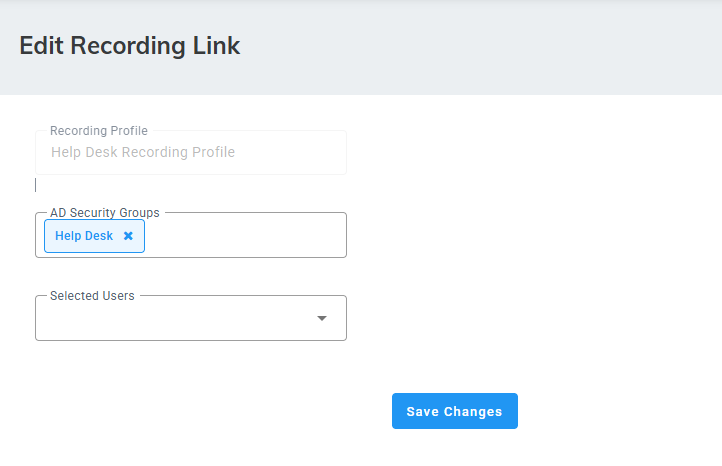
From the ‘Actions’ drop-down list, choose “Edit”; the following appears: |
|
4.
|
In the ‘AD Security Groups’ field, enter the Azure Directory Security group name/s. All SSO users within the selected groups will be granted access to the recordings associated with this Recording Profile. |
Press Enter in the text field for each AD Security Group input, to save entry.
|
5.
|
In the ‘Selected users’ field, choose individual users from the drop-down list to grant them access to the recordings associated with this Recording Profile. |