Assign a Line Key for Speed Dial or Feature
Line keys provide quick access to calling features like speed dial, blind transfer, and consult transfer. You can assign people to line keys and label them for any of these features. See here for a detailed description.
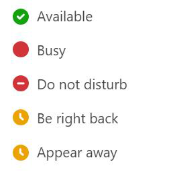
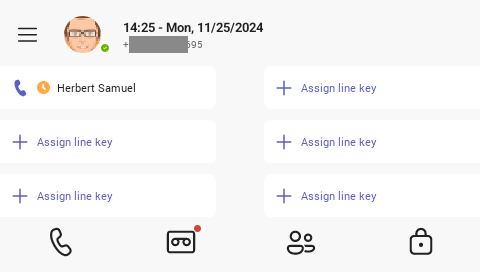
The presence/status of an assigned contact displays by their name (account avatar) on the phone's home screen:
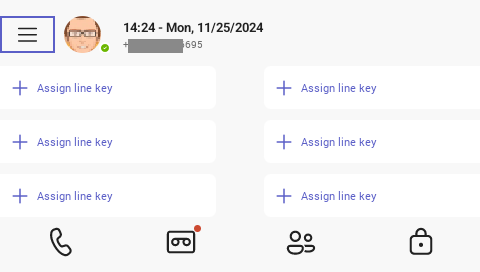
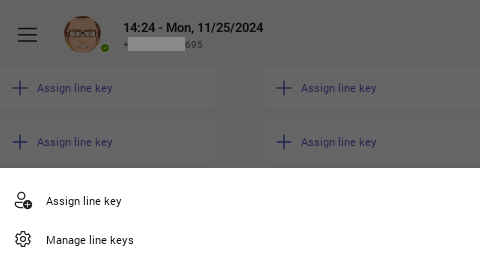
The LCD home screen displays an 'Assign line key' option:
|
➢
|
To assign a line key for speed dial (or other feature): |
|
1.
|
Navigate to the Assign line key you want to associate with a named person |
|
2.
|
Press the tick button on the navigation control to select; the assign key menu displays: |
|
3.
|
Press the tick button again. Navigate and select Speed dial. |
|
4.
|
Use the dial pad to spell out the first couple of letters to 'Search for people'. |
|
5.
|
Navigate to and select the contact you wish to select. The searched name displays in full. |
|
6.
|
Press the navigation control tick button to confirm. The screen displays the assigned line: |
|
➢
|
To reassign or unassign a line: |
|
1.
|
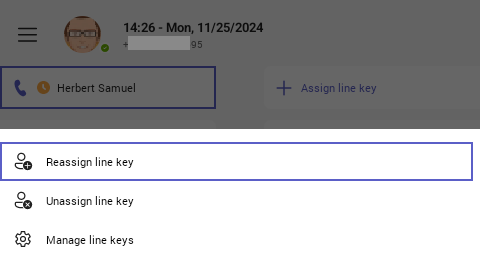
Navigate to and select the assigned line key to display the line key menu: |
|
2.
|
Navigate and select 'Reassign line key' or 'Unassign line key'. If you select 'Reassign line key', assign the line key to a different contact, as described above. |
|
➢
|
To manage the LED assign screen: |
|
1.
|
Navigate to and select the assigned line key to display the line key menu, then navigate to and select 'Manage line keys'. |
|
2.
|
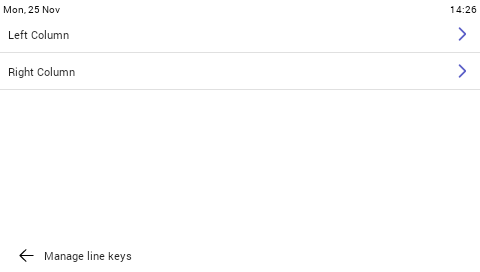
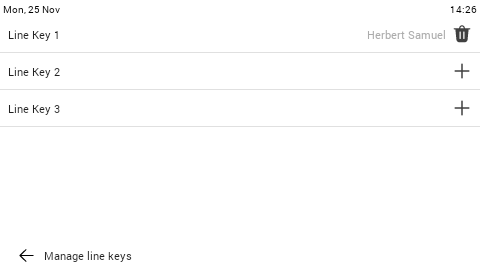
Navigate to the column > Line Key you wish to manage. You can assign a line or delete a contact from a line. |