Run Tcpdump
Tcpdump is a common packet analyzer that allows network administrators to display TCP/IP and other packets transmitted or received over the IP telephony network, for debugging purposes.
|
1.
|
In the Android Device Utility (see Android Device Utility for more information about the application), enter the phone's IP address, click SSH Connect and browse to a folder on the PC to which to send the information. |
|
2.
|
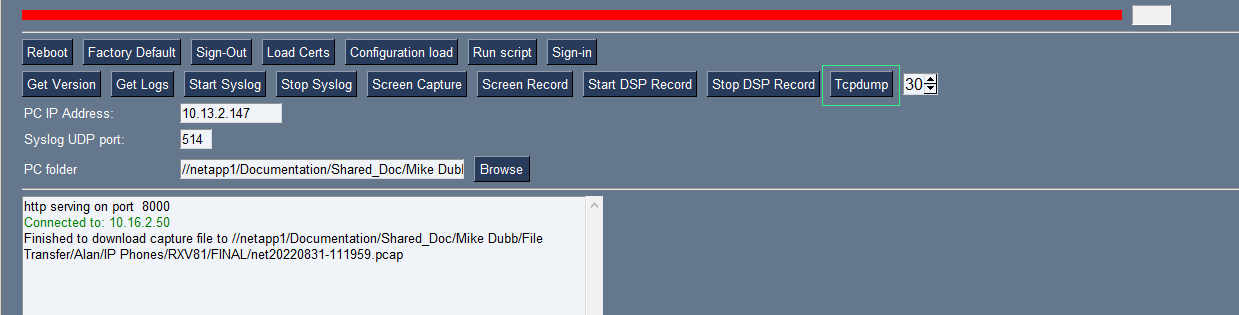
Next to the Tcpdump button, set the time period or leave it at the default. Default: 30 seconds. |
|
3.
|
Click the Tcpdump button and then after the progress indicator reaches the end you'll view in the results pane a 'Finished' indication. |
|
4.
|
Open the folder on the PC to which you commanded the application to send the information and locate and open the file 'net.pcap'. |
Alternatively, run Tcpdump without the utility.
|
➢
|
To run tcpdump without the utility: |
|
1.
|
Access the phone via SSH and run the following commands: |
setprop ac.ac_tcpdump.timeout <seconds>
|
2.
|
After defining the capturing time as shown in the preceding command, start the capture: |
setprop ac.ac_tcpdump 1
|
3.
|
Tcpdump capture file will appear in this location: |
/sdcard/recording/net.pcap
|
4.
|
After running Tcpdump, reproduce the issue. |
|
5.
|
Execute the following command from your PC command prompt (cmd): |
scp -r admin@%deviceIp%:/sdcard/recording/ %FolderOnPc%