Enable Google Talkback
AudioCodes’ Native Teams Android devices feature Google TalkBack, an accessibility service that allows blind and low-vision users to interact with their devices by giving them spoken feedback so they can use their devices without looking at the screen.
The feature improves the experience of these users.
|
1.
|
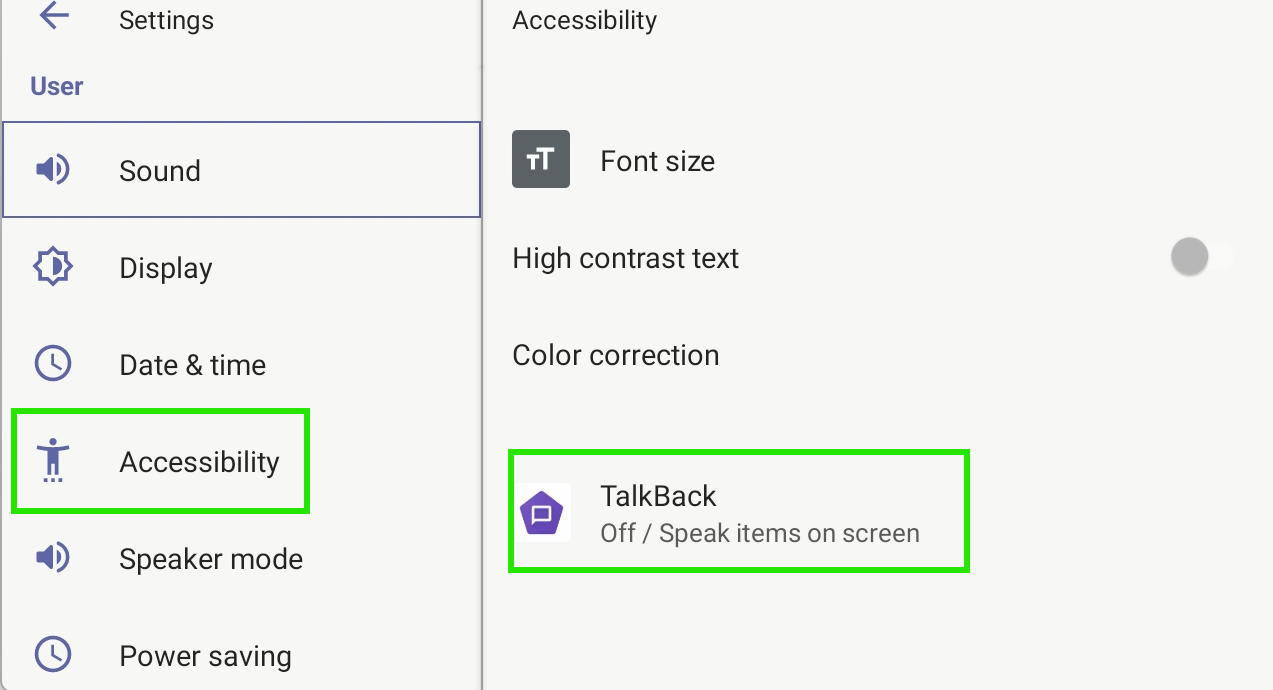
Open the Accessibility screen (Settings > Device settings > Accessibility). |
|
2.
|
Tap and turn on the TalkBack option. You are asked to consent to providing control options to TalkBack. |
|
3.
|
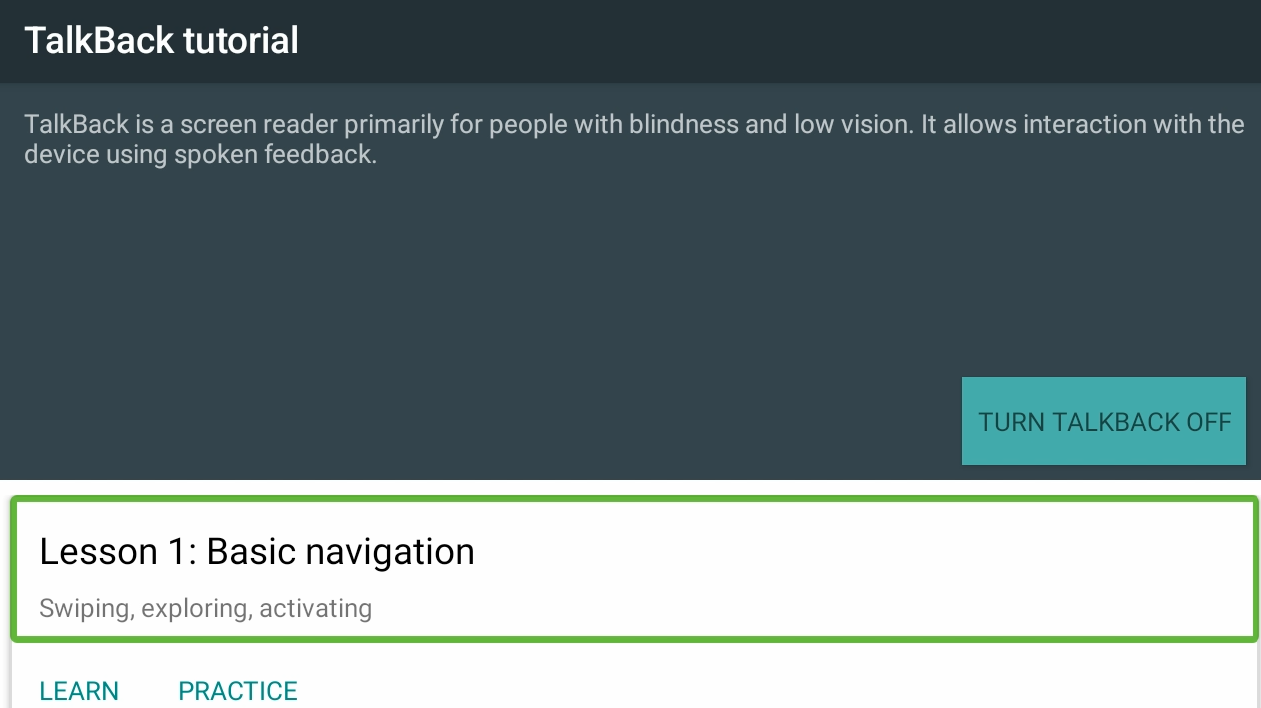
Tap OK to switch the feature on. Listen to the audio tutorial that begins playing. The tutorial explains how to interact with the device. |
|
●
|
After TalkBack is switched on, operations are performed by tapping to select and then double-tapping to activate. |
|
●
|
To turn up the volume, tap the + key on the phone and in the volume pop-up shown in the figure below, tap the slider to select it; audio announces what level you're at. Double-tap the slider at the level you want. |
|
●
|
To switch off TalkBack, re-access the Accessibility screen and then switch the feature off the same way. |
|
4.
|
After the tutorial, from the 'Home' screen open (for example) the Calls screen; audio announces what you did; the Calls screen opens. |
|
➢
|
To interact with the Calls screen: |
|
1.
|
In the Calls screen, tap the Recent tab; audio informs you what you selected. |
|
2.
|
Tap a listed call; audio informs you whether the call was outgoing or incoming and to / from whom it was made and the day on which it was made. |
|
3.
|
Double-tap the listed call; three icons below it appear. |
|
4.
|
Tap the phone icon; audio informs you that you can view the person's profile. Double-tap the icon; the person's profile screen opens displaying their name, position, email, hyperlinked work phone number and hyperlinked mobile phone number. |
|
5.
|
Tap the star icon; audio informs you that you can add to Favorites; double-tap to activate it. |