Sign In to Your device Teams Phone
IMPORTANT: For sign-in to work, Time settings must be handled automatically (which is the default configuration). Only administrators should modify these settings. For details see Configure Time on Teams Devices.
You may sign in:
Sign in on Your C455HD
|
1.
|
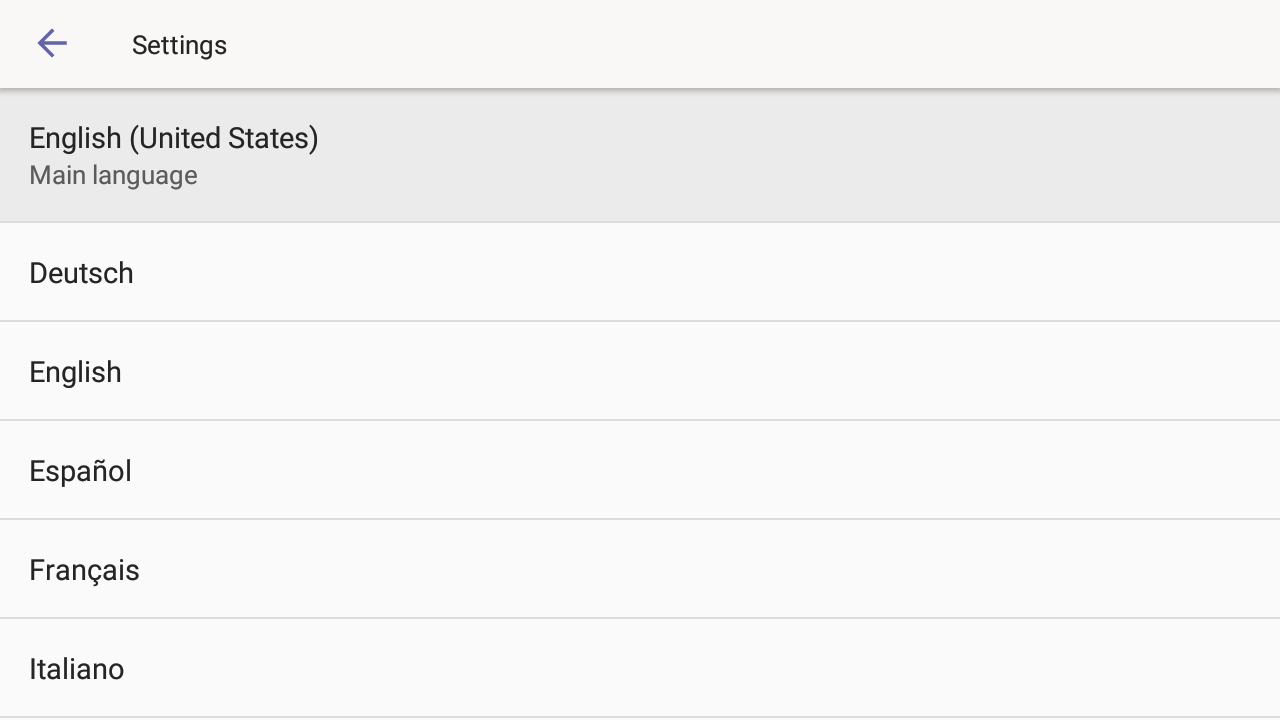
Connect the device to the network; the language selection screen is displayed. |
|
2.
|
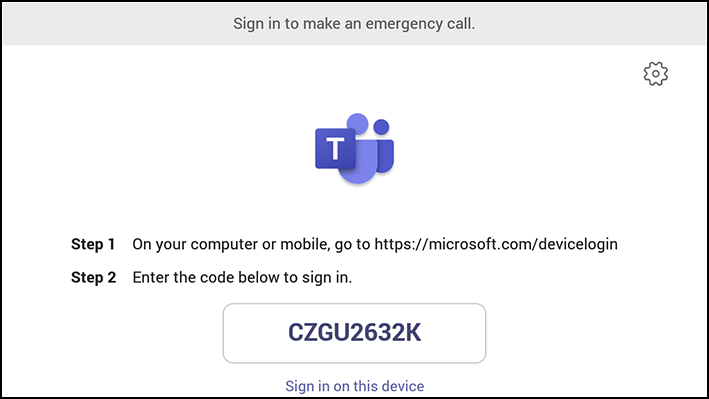
Select the preferred language; the Sign-in screen is displayed: |
|
3.
|
Open your browser and point it to https://microsoft.com/devicelogin as instructed in the screen; you are prompted to enter the displayed code. |
|
4.
|
Enter the code and then click Next. |
|
5.
|
Click your account, enter your password (which is the same password as the Windows password on your PC) and then click Sign in. You may close the window after successful sign-in. |
|
6.
|
Observe that the phone returns to the initial code screen. In that screen, tap Sign in on this device. |
|
7.
|
Tap the 'Email, phone or username' field; a virtual keyboard pops up. Enter one of them and then tap Sign in. The home screen opens. |
|
●
|
If you opt to Sign in from another device, complete authentication from your PC or smart phone (see below). This is recommended if you’re using Multi Factor Authentication (MFA). |
Sign in from your PC or Smartphone
|
➢
|
To sign in from your PC or Smartphone (recommended when MFA is used): |
|
1.
|
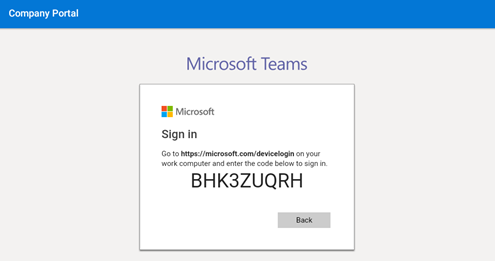
In the browser on your PC or smartphone, enter the URL indicated in the Microsoft Teams Sign-in page. The phone's Web interface is displayed. |
|
2.
|
Following sign-in instructions. |
If the internet connectivity check fails, a
‘No Internet Access’ warning pops up on the phone screen. This can point to a
problem that is preventing the phone from fully functioning in a Teams environment.
Contact your system administrator if you account a problem.
If connected to the network via Ethernet, the Teams device will dynamically update location information for emergency calling services based on changes to network attributes including chassis ID and port ID.
Updating the location is based on LLDP-MED (Link Layer Discovery Protocol – Media Endpoint Discovery). This is a standard link layer protocol used by network devices to advertise their identity, capabilities, and neighbors on a local area network based on IEEE802 technology, principally wired Ethernet.