Capture the Phone and Expansion Unit Screens
For this feature to work, screen capture must be enabled in the phone's device settings (Device Administration > Debugging > Screen capture). Screen capture is enabled by default.
AudioCodes' Android Device Utility allows network administrators to effectively collaborate and debug issues using the screen-capturing feature. The feature enables capturing the phone's main screen, as well as its expansion unit (in the case of the phone model with an expansion unit).
|
➢
|
To capture the phone screen: |
|
1.
|
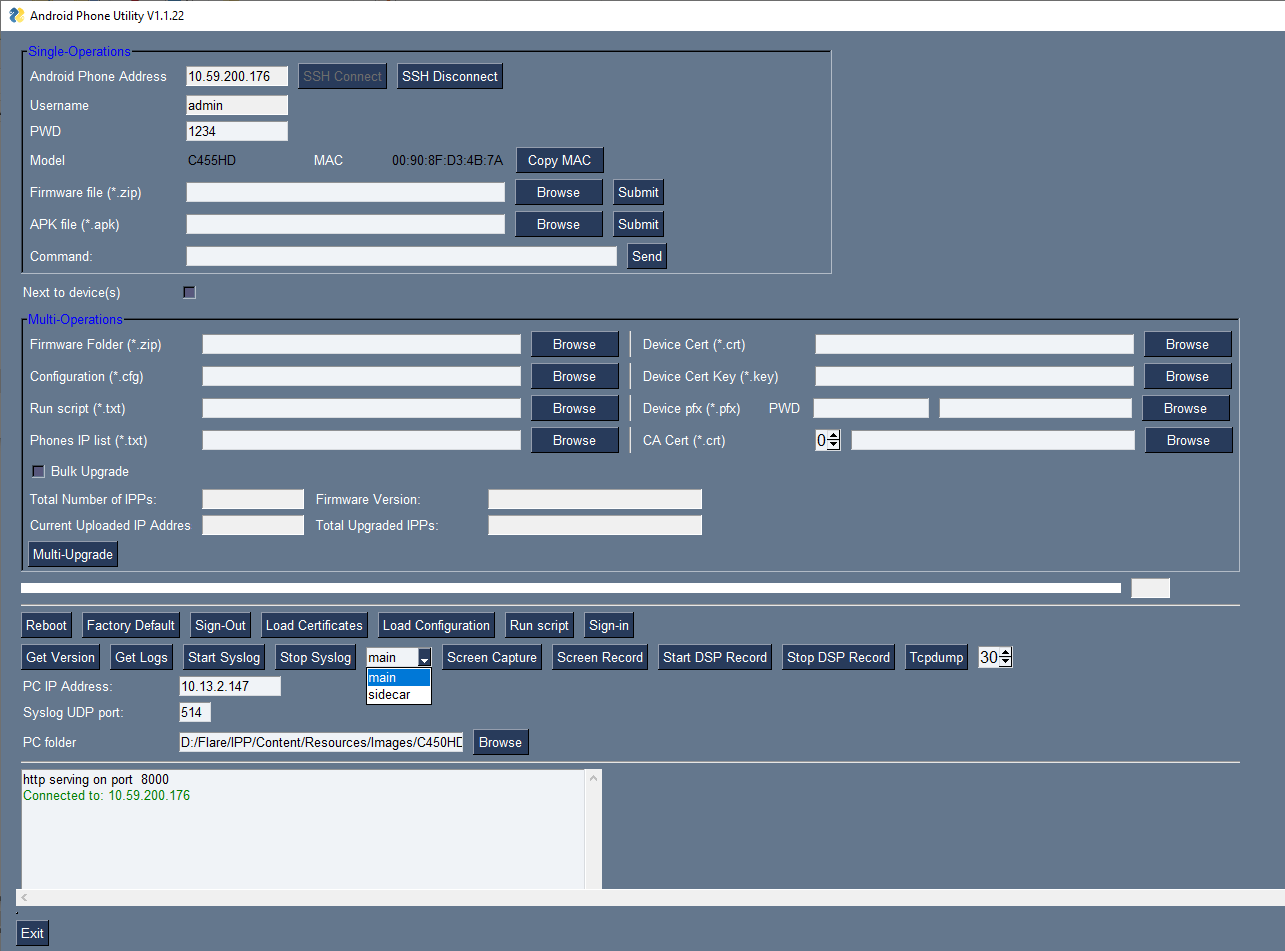
Open the Android Device Utility: From the PC's Start menu, select the app icon or click the application's exe file in the folder in which you saved it. |
|
2.
|
In the 'Android Phone Address' field, enter the IP address of the device (get it by pressing the MENU hard key > About phone > Status > IP Address). |
|
3.
|
Click SSH Connect; a connection with the device is established. |
|
4.
|
Next to the field 'PC folder', click the Browse button and navigate to and select the folder to which to send the screen captures. |
|
5.
|
Make sure that the drop-down menu next to the Screen Capture button shows main. |
|
6.
|
Click the Screen Capture button; the phone's screen is captured and the screenshot is saved and sent to the folder. |
|
7.
|
On your PC, navigate to the folder and retrieve the screenshot. Default file name: screencap.png. Rename it to a name related to the screen you captured. If you don't rename it, it will be overwritten the next time you take a screenshot. |
|
➢
|
To capture the expansion unit screen: |
|
1.
|
[Applies only to the
C456HD
with expansion unit] Make sure the drop-down menu next to the Screen Capture button shows sidecar. By default, the field indicates main, i.e., the phone’s main screen. |
|
2.
|
Click the Screen Capture button; the phone's sidecar screen is captured and the screenshot is saved and sent to the folder defined as shown in step 4 of the preceding procedure. |
|
3.
|
On your PC, navigate to the folder and retrieve the screenshot. Default file name: screencap.png. Rename it to a name related to the screen you captured. If you don't rename it, it will be overwritten the next time you take a screenshot. |
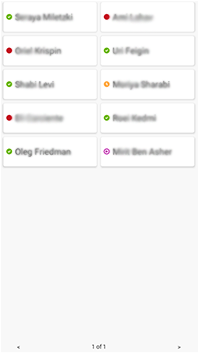
The figure below shows an example of a screenshot of the expansion unit.