Assign a Line Key for Speed Dial or Feature
Line keys provide quick access to calling features like speed dial, blind transfer, consult transfer, shared line, and call queue. You can assign people to line keys and label them for any of these features. See here for a detailed description.
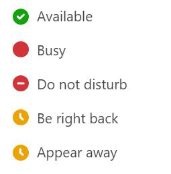
The presence/status of an assigned contact displays by their name (account avatar) on the phone's home screen:
|
➢
|
To assign a line key for speed dial (or other feature): |
|
1.
|
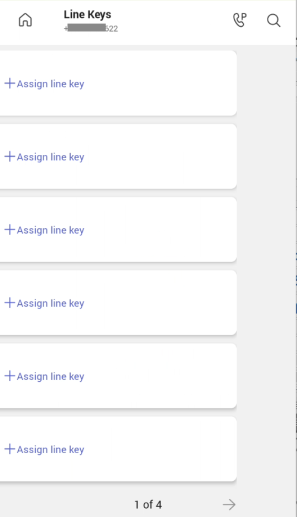
From the phone's home screen, tap the More button, then tap Line Keys. |
|
2.
|
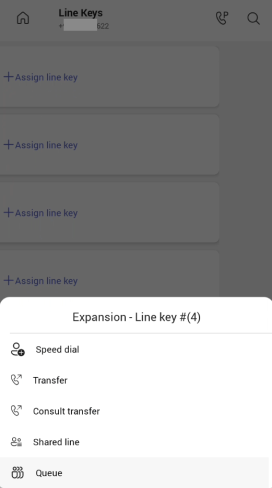
Tap the Assign line key you want to associate with a named person, then tap again Assign line key. The Line Key menu displays the available line key options: |
|
3.
|
To assign the line key to a person, tap Speed dial. |
|
4.
|
In the list of contacts, tap the Plus sign next to the relevant contact. If the requested contact does not appear, search and select it instead. The line key is assigned. |
|
➢
|
To reassign or unassign a line: |
|
1.
|
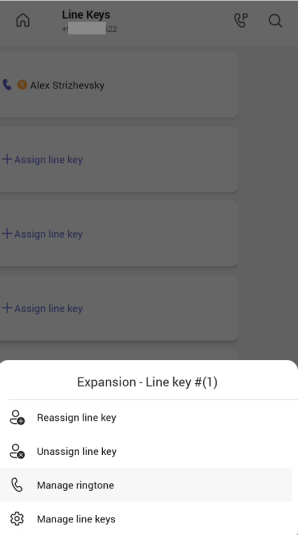
Long-tap the assigned line key to display the line key menu: |
|
2.
|
Tap Reassign line key and reassign the key to a feature or speed-dial as described above, or tap Unassign line key. |
|
➢
|
To manage the LED assign screen: |
|
1.
|
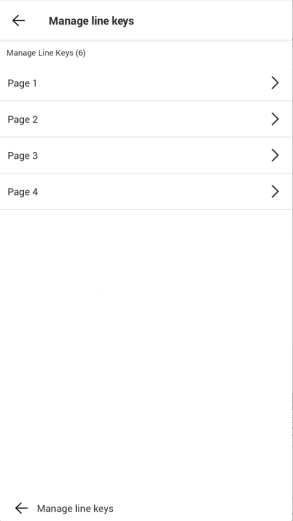
Long-tapthe assigned line key to display the line key menu, then tap 'Manage line keys'. |
|
2.
|
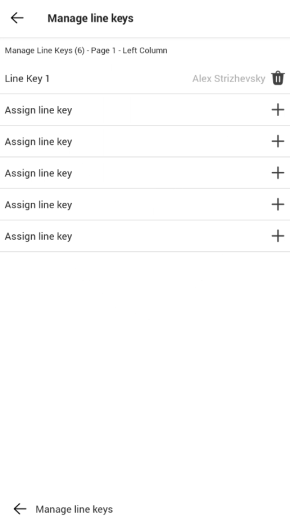
Navigate to the Line Key you wish to manage. You can assign a line or delete a contact from a line. |