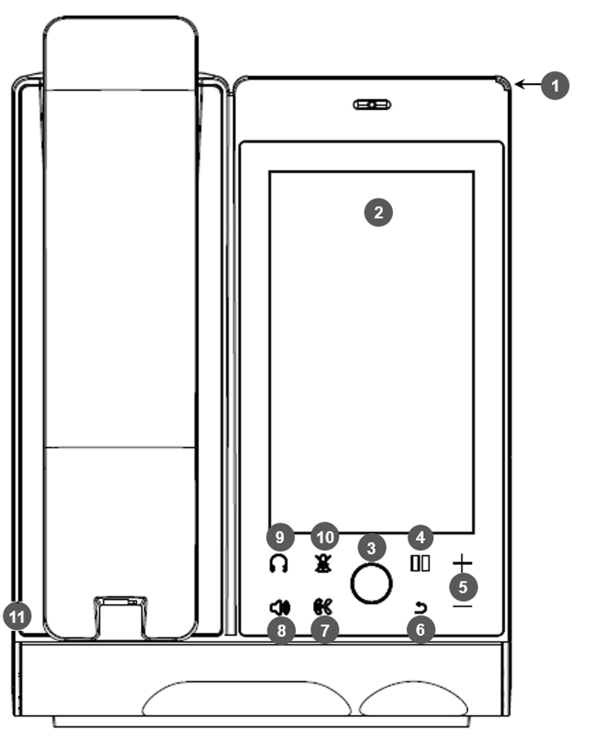
C470HD Front View
The front view of the phone is shown in the figure and described in the table.
|
Item # |
Label/Name |
Description |
||||||||||||||||||
|---|---|---|---|---|---|---|---|---|---|---|---|---|---|---|---|---|---|---|---|---|
|
1 |
Ring LED |
Indicates phone status:
|
||||||||||||||||||
|
2 |
TFT touch screen |
Thin Film Transistor touch screen, a type of LCD (Liquid Crystal Display) interactive screen which displays calling information and lets you configure phone features by touching the glass. |
||||||||||||||||||
|
3 |
Home |
|
||||||||||||||||||
|
4 |
Hold |
Tap to place an active call on hold. |
||||||||||||||||||
|
5 |
Volume |
Increases or decreases the volume of the handset, headset, speaker, ring tone or call progress tones. See Adjust Volume for detailed information. |
||||||||||||||||||
|
6 |
'Back' key |
Tap to return to the previous screen. |
||||||||||||||||||
|
7 |
Call transfer |
Tap to transfer a call to a third party. |
||||||||||||||||||
|
8 |
Speaker |
Tap to activate the speaker, allowing a hands-free conversation. |
||||||||||||||||||
|
9 |
Headset |
Tap to activate a call using an external headset. |
||||||||||||||||||
|
10 |
Mute |
Tap to mute an established call. |
||||||||||||||||||
|
11 |
USB port |
For a USB headset. See also the note below. |
A USB delimiter enables the phone to identify when the USB port is overloaded and to then display an alert on the screen. An alert is also sent to the OVOC. The feature helps to deter users from using the USB port for purposes other than for a USB headset, e.g., for charging devices. If users use the USB port for a headset, the alert will not be sent.