User-level Device Settings
The following table describes the
To access these settings,
|
Setting |
Description |
|||||||||||||||
|---|---|---|---|---|---|---|---|---|---|---|---|---|---|---|---|---|
|
Sound |
Allows you to customize the phone volume for a friendlier user experience:
|
|||||||||||||||
|
Display |
Opens the ‘Display’ screen, where you can adjust:
|
|||||||||||||||
Also supported is a simplified version of NTP called Simple Network Time Protocol (SNTP). Both can be used to synchronize device clocks. SNTP is typically used if full implementation of NTP is not required. See also Configure Time on Teams Devices. |
||||||||||||||||
|
NTP |
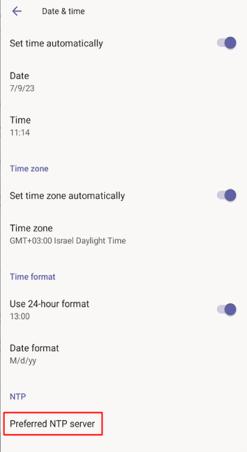
Administrators can use this parameter to manually define the NTP server, to comply with enterprise security requirements if those requirements preclude using DHCP Option 42. Manual configuration takes precedence over DHCP Option 42 and the time servers. Two ways to manually define the NTP server are available:
See also Configure Time on Teams Devices. |
|||||||||||||||
|
Wi-Fi |
[Only available for phones with integrated Wi-Fi (DBW-suffix), and only if not restricted (see Disable or Re-enable Wi-Fi and Bluetooth via Device Manager)] The phone can connect to an Access Point via Wi-Fi. See the phone's Quick Guide for detailed information on setting up Wi-Fi. See also Configure Wi-Fi in this document for information about configuring the feature. |
|||||||||||||||
|
Accessibility |
Allows making the phone screen reader-friendlier:
|
|||||||||||||||
|
USB |
If enabled, allows the phone to be used as an audio device (see Enable a Phone to be used as an Audio Device). |
|||||||||||||||
|
Speaker Mode |
Use to enable or disable the speaker. If disabled, the user needs to speak into the handset during calls. |
|||||||||||||||
|
Power Saving |
Allows users to contribute to power saving in the enterprise. Set:
|
|||||||||||||||
|
Reboot |
Enables users to reboot the device. Log in as Administrator for more debugging settings to be available. |
|||||||||||||||
|
Security |
Helps secure the enterprise telephony network against breaches.
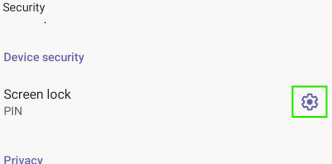
Tap to change the timeout (default is 10 minutes) after which the phone automatically locks and is inaccessible to anyone who does not know its lock code. If you are using a Pattern lock, you can also make the pattern briefly visible when you draw the pattern.
To apply default security settings to multiple phones, administrators can specify them in the phones' configuration files. Relevant parameters are:
|
|||||||||||||||
|
Touch screen |
Allows users to disable the phone’s touch screen (for example, to clean it without tapping buttons). |
|||||||||||||||
|
Languages |
Allows users to customize inputting to suit personal requirements. |
|||||||||||||||
|
AudioCodes pairing |
Displays the name of the phone and allows you to pair it to a nearby connected PC. |
|||||||||||||||
|
About device |
Provides users with device information.
|
 appears to its right.