Onboarding with both M365 Default Routing and SBC Configuration
This section describes how to onboard new customers by applying the default M365 Onboarding script. This option also allows you to automatically configure the customer DNS domain as part of the Onboarding script. Once M365 has been configured, the wizard continues with the SBC configuration.
| ➢ | To onboard with both M365 and SBC configuration: |
| 1. | Select option Configure M365 default routing, the following screen is displayed: |
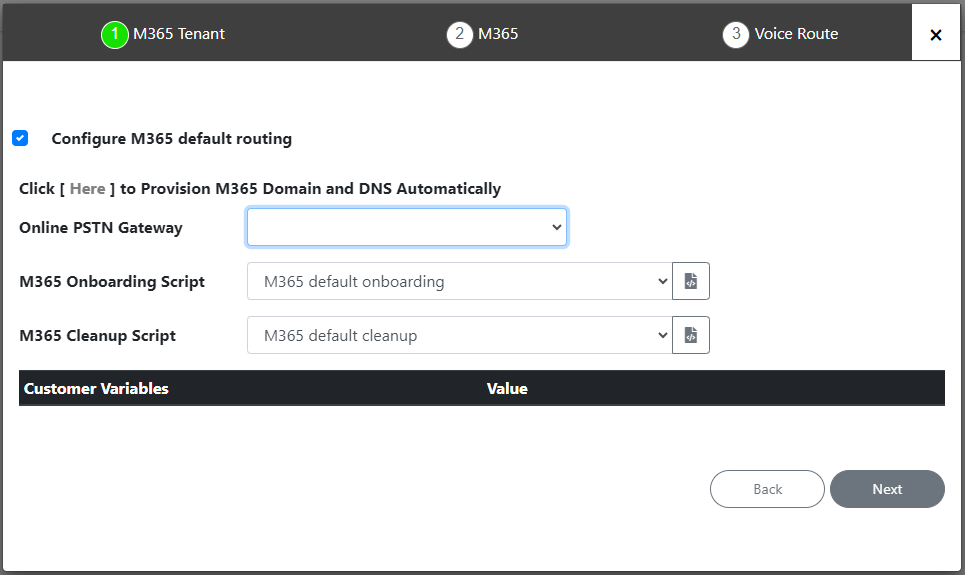
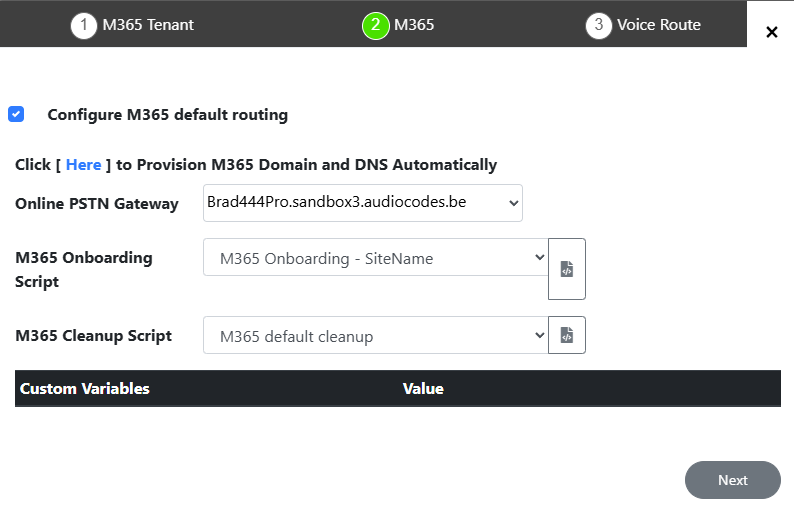
| 2. | Configure parameters as described in the table below and then click Next. |
M365 Default Routing
|
O365 Setting |
Description |
|---|---|
|
Click here to Provision M365 Domain and DNS Automatically |
Support for automatic and semi-automatic DNS provisioning (refer to Fully Automatic Provisioning and Two-step Provisioning respectively). |
|
Region/Country |
The customer SBC region subdomain name configured (see Configure DNS API). |
|
IP Address |
Preconfigured IP address of the region SBC (see Configure DNS API). |
|
SBC |
Preconfigured FQDN of the region SBC (see Configure DNS API). |
|
Domain Name |
Preconfigured domain name of the DNS (A-record) (see Create A Records for SBC Devices). |
|
SBC SIP Connection Name |
Name of the SBC SIP Connection for the site location. |
|
License Plan |
Preconfigured license plan including all phone system licenses not only E5. The customer should have at least one Teams phone system free as part of Direct Routing requirements. |
|
Other Configuration |
|
|
Online PSTN Gateway |
Unique subdomain name per M365 Tenant (CSOnlinePSTNGateway –FQDN) which represents the desired host name added for the carrier trunk. This name must be preconfigured on the M365 Tenant Domain or via DNS provisioning (see Register End Customer Tenant DNS Sub domains). |
|
M365 Onboarding Script |
Preconfigured script that is prepared by AudioCodes Professional services and that can be customized by setting Customer Variables. Click the |
|
M365 Cleanup Script |
Preconfigured script that is prepared by AudioCodes Professional services and that can be customized by setting Customer Variables. Click the |
|
Customer Variables |
Script variables can be customized and loaded to the M365 Onboarding and Cleanup scripts. See Custom Variables. |
The wizard continues with the SBC configuration.
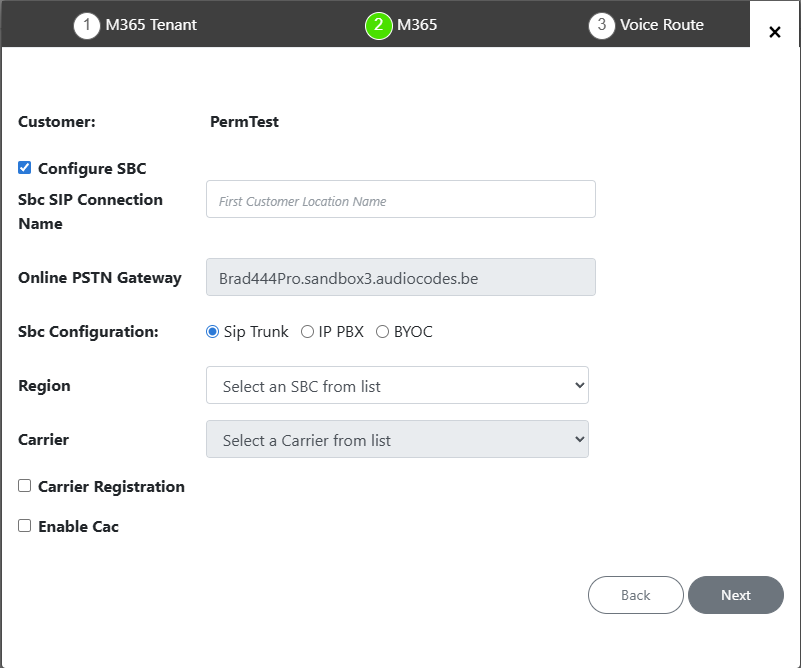
| 3. | Configure SBC parameters according to the table below and then click Next. |
SBC Parameters
|
O365 Setting |
Description |
||||||||||||
|---|---|---|---|---|---|---|---|---|---|---|---|---|---|
|
Configure SBC |
Select check box if you wish to configure the SBC. |
||||||||||||
|
SBC SIP Connection Name |
Name of the SIP Connection for the site location. |
||||||||||||
|
Online PSTN Gateway |
Unique subdomain name per M365 Tenant (CSOnlinePSTNGateway –FQDN) which represents the desired host name added for the carrier trunk. This name must be preconfigured on the M365 Tenant Domain or via DNS provisioning (see Register End Customer Tenant DNS Sub domains). If you configured a DNS entry, the entry is auto-populated in the Online PSTN Gateway field. |
||||||||||||
|
SBC Configuration |
Select one of the following SBC configuration modes:
|
||||||||||||
|
Region |
Select the required SBC device according to site location IP address. |
||||||||||||
|
Carrier: (this option is only relevant if SIP Trunk and BYOC were selected above). This option is available If you selected SIP Trunk or BYOC for SBC Configuration above. The selected carrier binds to the configured SIP Interface, Proxy Set and IP Profile on the SBC (where the same name is configured for all three entities on the SBC). |
|||||||||||||
|
Carrier Registration |
Select this option to perform SIP Account Registration for the Carrier trunk:
|
||||||||||||
|
Enable CAC |
Enable Call Admission Control (CAC). From the drop-down list, select the desired CAC Profile including the desired number of call sessions. |
||||||||||||
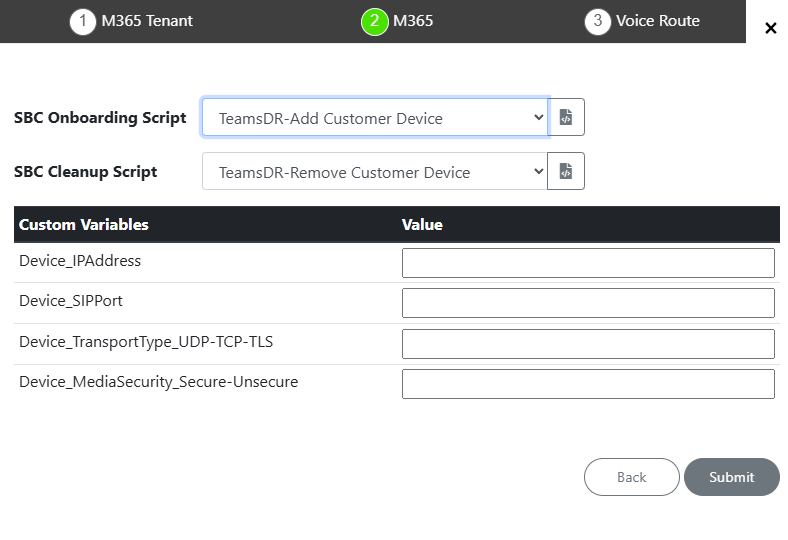
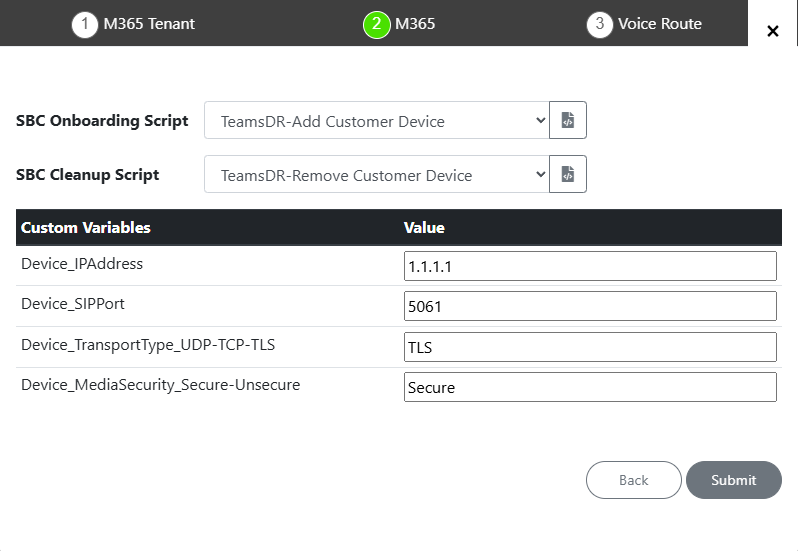
| 4. | Configure SBC scripts: |
| ● | Click the  to edit the SBC Onboarding Script file. If the script contains Customer variables, enter the appropriate values. to edit the SBC Onboarding Script file. If the script contains Customer variables, enter the appropriate values. |
| ● | Click the to edit the SBC Cleanup Script file. If the script contains Customer Variables, enter the appropriate values. |
| ● | Script variables can be customized and loaded to the SBC Onboarding and Cleanup scripts above. |
| 5. | When you have completed the configuration, click  . . |
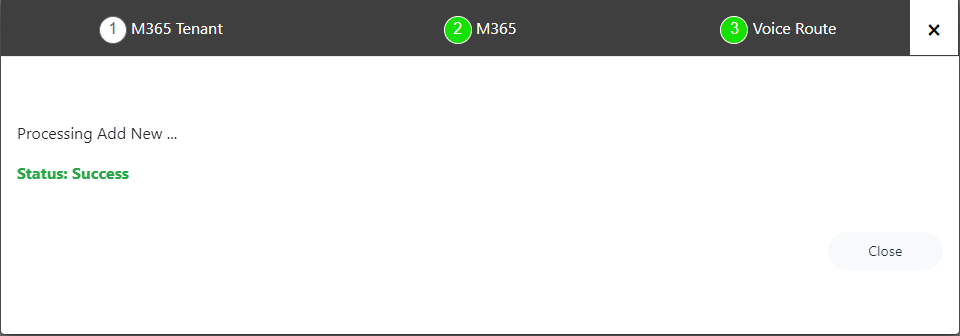
| 6. | Monitor the Customer and Deployment statuses (see Customer Status and Deploy Status and Status Indicators). |
| 7. | Once the new site has been successfully added, in the Live Platform Operation Center, open the Services and search for the new service. |