Sign in to the Converted SIP Gateway for the First Time
After connecting a phone to SIP Gateway, sign in to it. The instructions here show how to sign in remotely using Device Manager. Once you sign in for the first time, you can start to remotely configure the device using the Device Manager.
You can optionally sign in on the device itself.
| ➢ | To sign in to a phone: |
| 1. | In the Devices Status page, click Actions adjacent to the phone and then select Show Info from the popup menu. (Alternatively, in the Devices Status page click the phone’s image). |
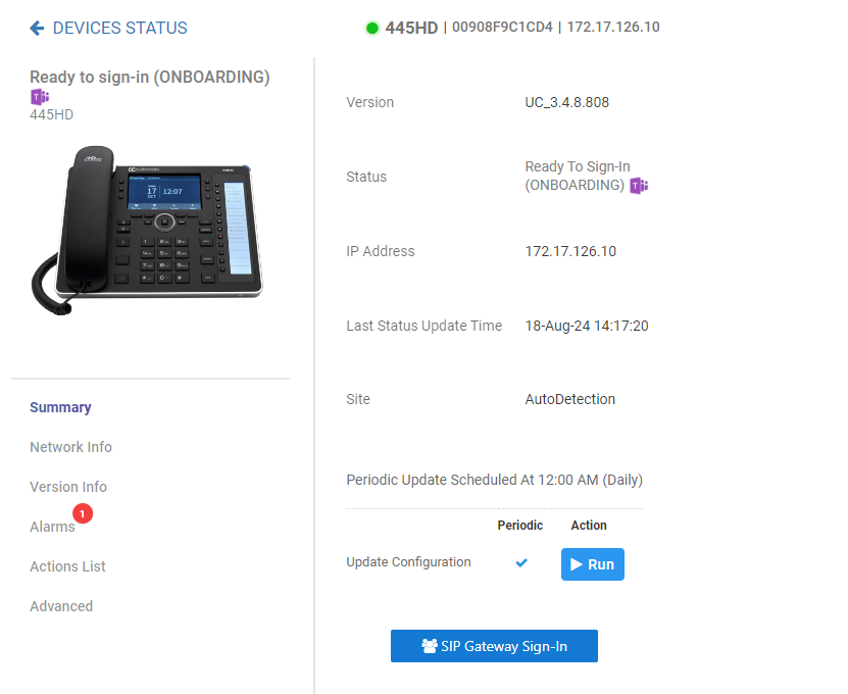
| 2. | Click the SIP GW Sign-In button. |
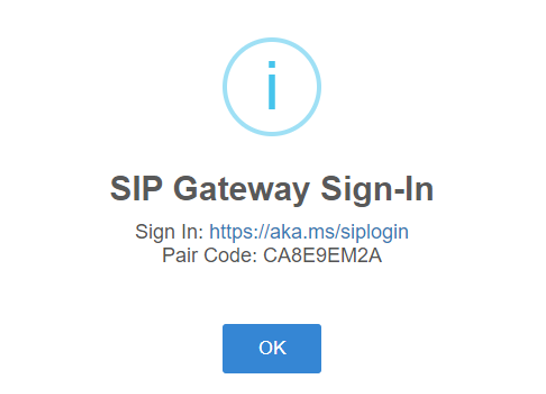
| 3. | Click the link and enter the Username. |
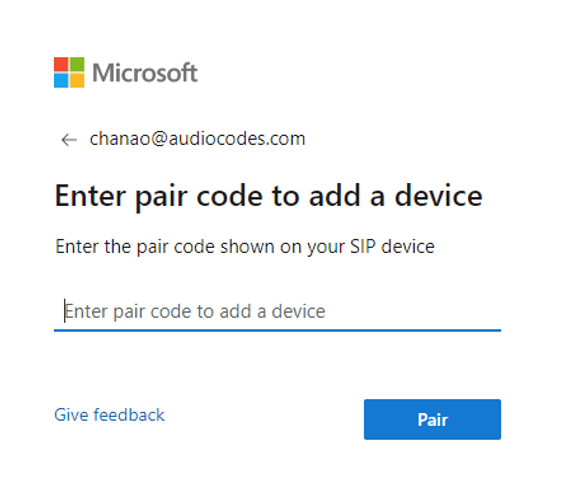
| 4. | Enter the Pair Code and click Pair. |
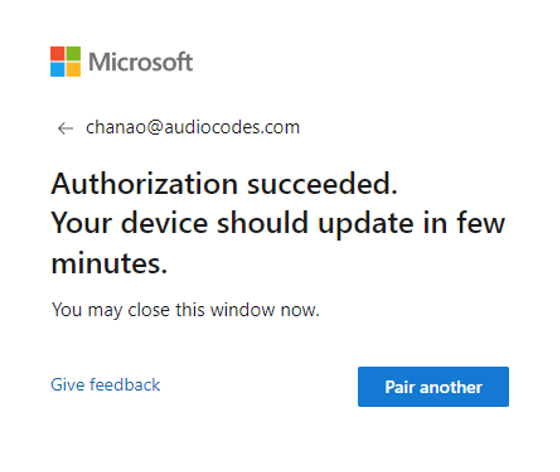
| 5. | In the Devices Status page, view this adjacent to the phone: |

| 6. | [Optionally] Sign out of the SIP Gateway: in the Devices Status page, click the phone’s image. |
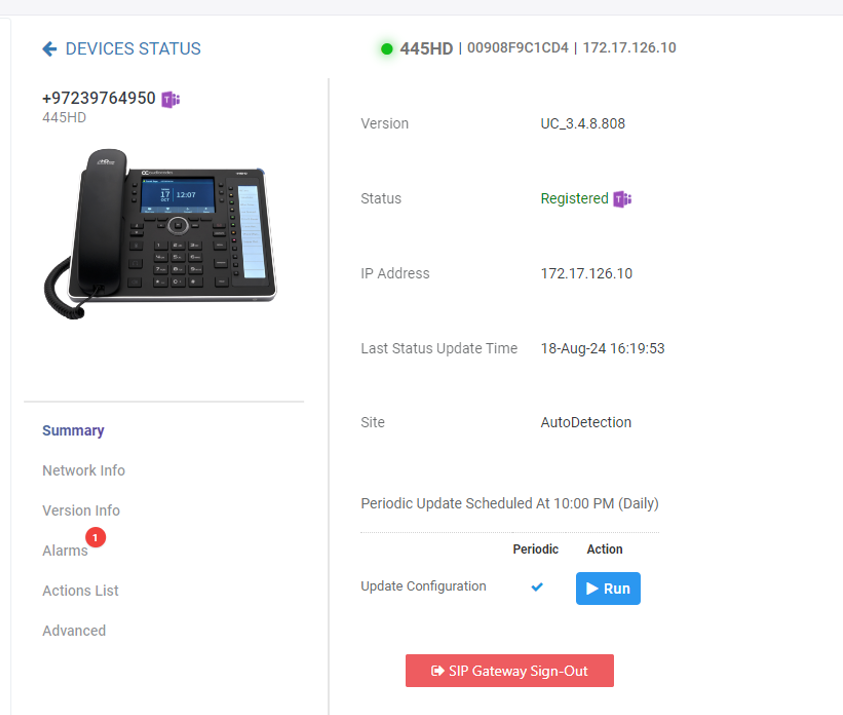
| 7. | Click the SIP Gateway Sign-Out button. You've successfully signed out. |