Bring-Your-Own-Storage
This option lets you manage your Blob Storage accounts. The Quick Start process added the Service Provider Azure Blob System Storage account for your region. You can add additional Azure Blob accounts for different locations when this feature is enabled by your Service Provider. For each location, you can monitor the status of the connection and Consumption in GB for the storage utilization. Once you add BYOS locations, they can be associated with Recording profiles.
| ● | The ability to add Blob storage accounts requires the BYOS feature key. Contact customer support for details. |
| ● | Ensure that you have added your BYOC accounts on your M365 tenant. |
| ● | Performance latency may be affected if the storage location is geographically remote to the Live Platform deployment instance. |
| ● | Due to an Azure limitation, access cannot be restricted to selected networks when your Azure storage account is located in the same region/location as the AudioCodes service infrastructure. In this scenario, either set Public Network Access to Enabled from all networks for the storage account, or relocate your storage account to another Azure region. |
| ● | Data consumption is only displayed for GRS (Geo Recording Storage) storage accounts. |
| ➢ | Do the following: |
| 1. | In the Icon pane, click  , and then in the Navigation pane, select System Settings > Storage. The page lists the default storage account and any previously added BYOS accounts. |
Default storage account naming convention:
| ● | If your service was onboarded with an Essentials user license (single Recording server instance), then the default system storage location name is <RegionName> LRS (Local Recording Storage). |
| ● | If your service was onboarded with a Pro user license (Redundancy Recording server instance), then the name is <Region Nane> GRS (Geo Recording Storage). |
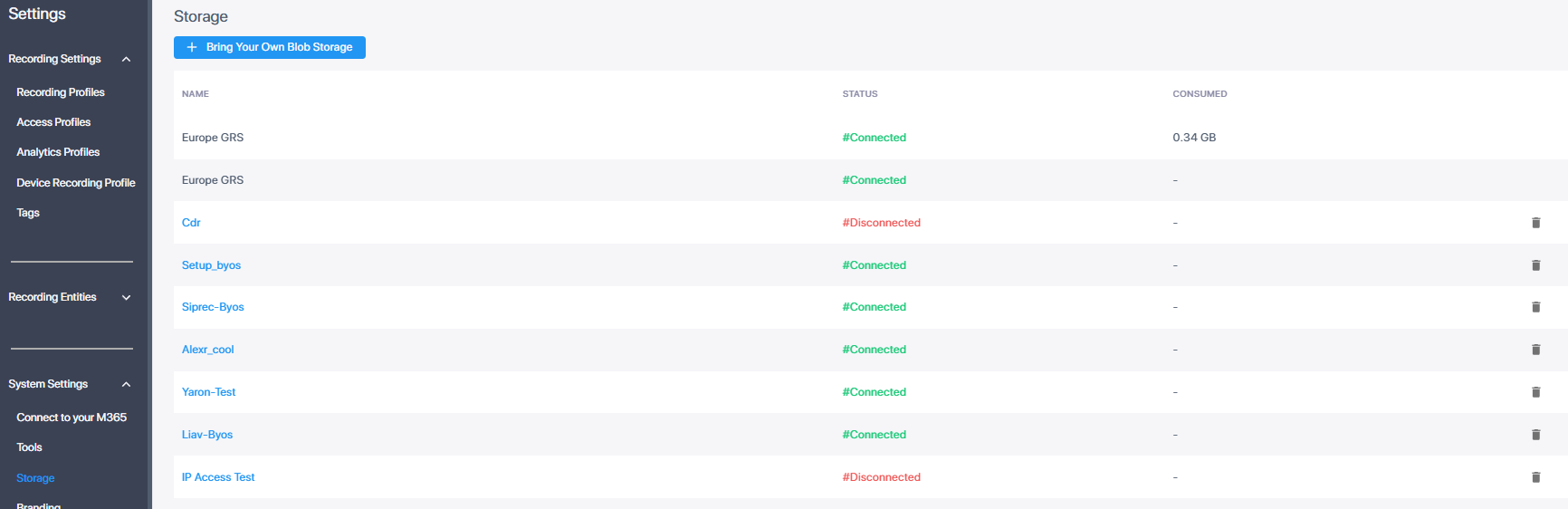
Storage Table Columns
|
Column |
Description |
||||||
|---|---|---|---|---|---|---|---|
|
Name |
The name of the storage account. Click the name of a BYOS account to edit it. Default system storage accounts cannot be edited. |
||||||
|
Status |
The connection status of the storage account:
|
||||||
|
Consumed |
The storage utilization in GB. Displayed only for GRS storage accounts; for other accounts, "-" is displayed. |
||||||
|
(Delete icon) |
Removes a BYOS account that is not in use. Not available for default storage accounts. |
You can edit BYOS storage accounts or remove BYOS accounts that are not in use. Default storage accounts cannot be modified or deleted.
For more information, see:
| ■ | Add your storage |
| ■ | Call Detail Records (CDR) in Bring Your Blob Storage |