Upload Webex Cloud Connect numbers
The Customer Leads page lets you upload phone numbers to the customer tenant service. Numbers are attached to a Calling Profile that is mapped to the SBC device used to route calls for the configured numbers.
Synchronization with Webex Control Hub:
| ■ | Integrated: If your customer has been onboarded as an Integrated customer using the Customer Consent API, numbers uploaded to the Live Platform are automatically synced to the relevant site location on Webex Control Hub. |
| ■ | Non-integrated: If your customer has been onboarded as a Non-integrated customer, the customer must add numbers manually to their site location on Webex Control Hub. |
Ensure that the numbers that you wish to upload match the country code of the location added on the Webex Control Hub. For example, if you added location in Italy, all uploaded numbers should start with '+39' prefix.
| ➢ | To upload numbers: |
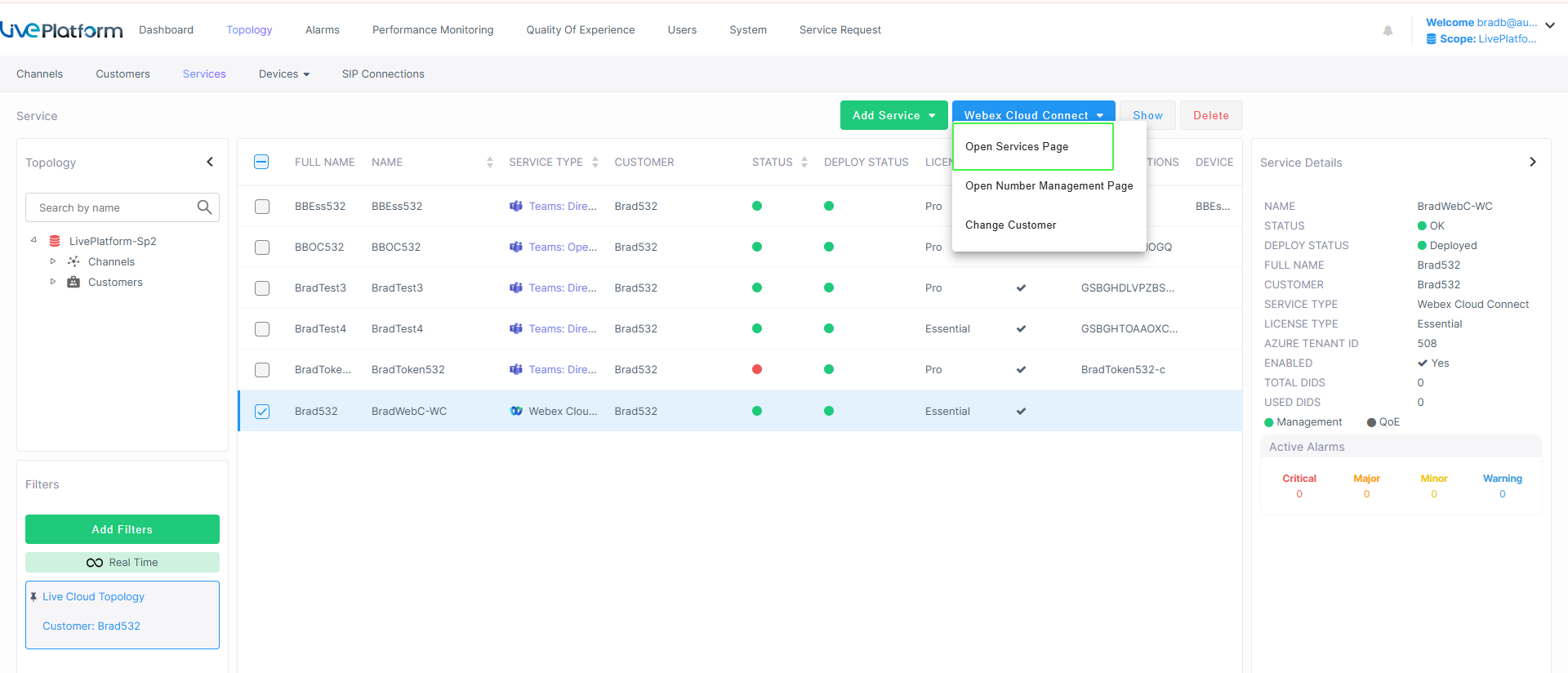
| 1. | From the Webex Cloud Connect drop-down list, choose Webex Cloud Connect > Open Services Page. |
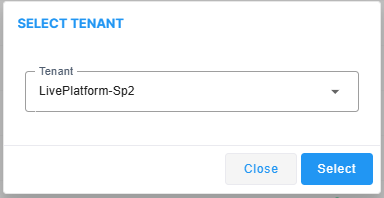
| 2. | From the Tenant drop-down list, choose the Service Provider tenant and then click Select. |
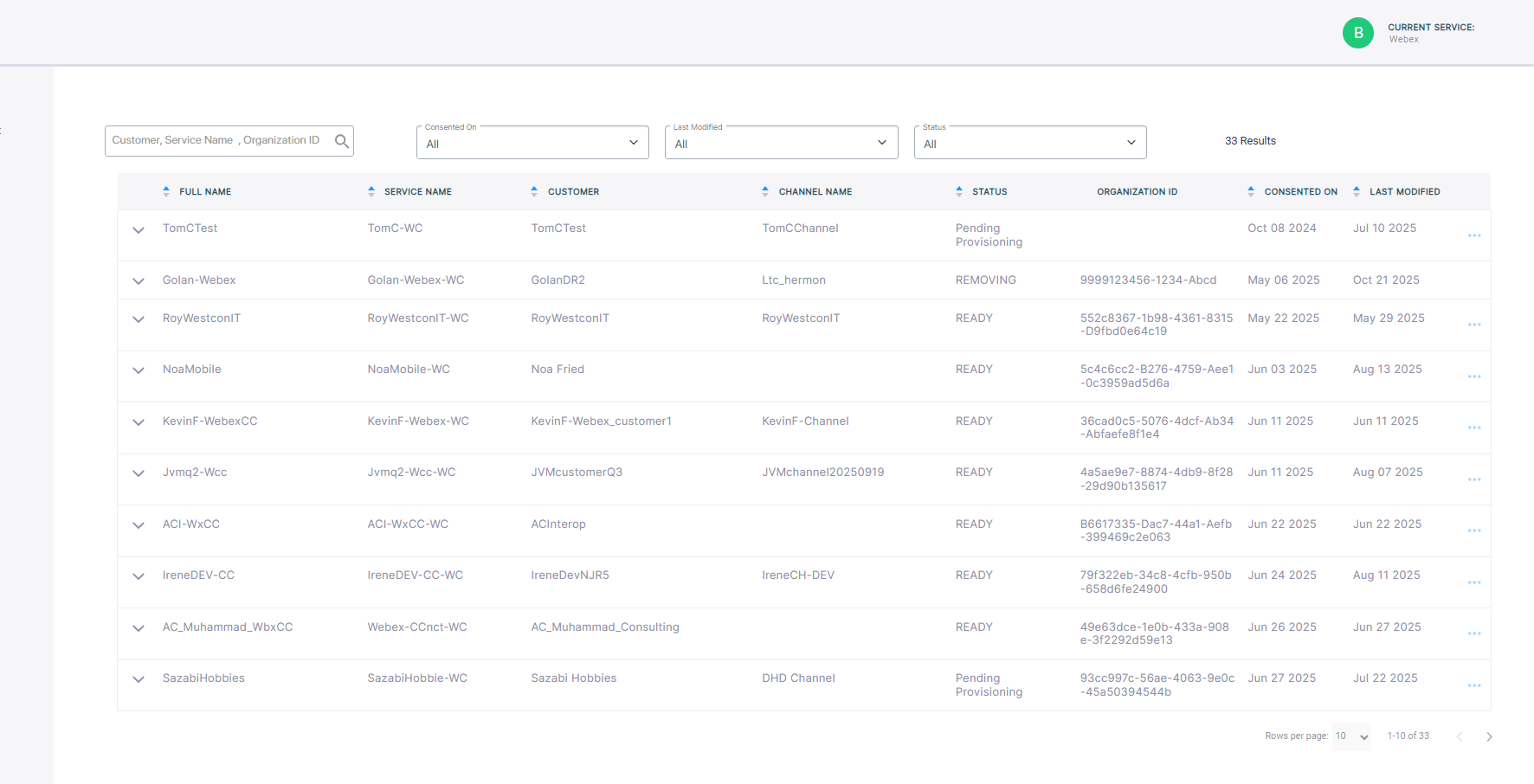
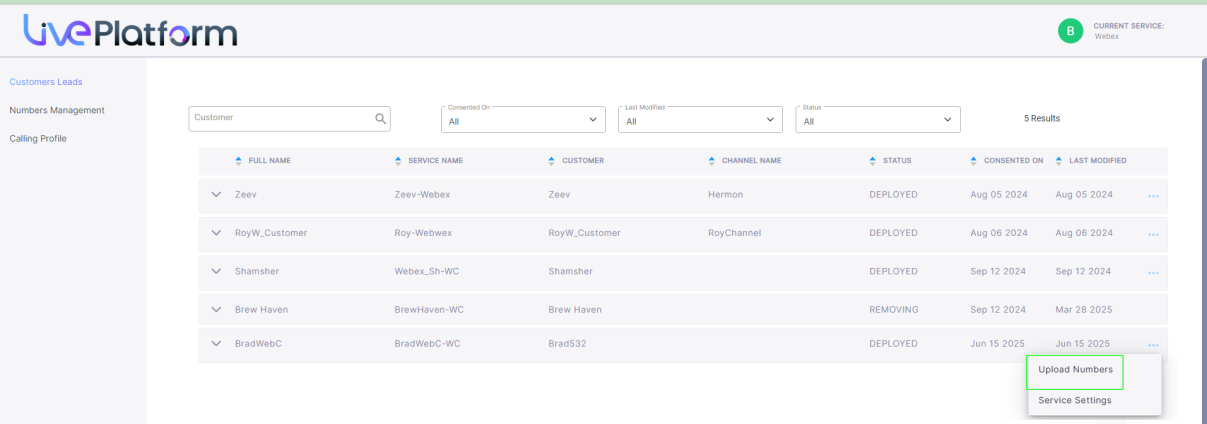
The table below describes the parameters in this page.
|
Parameter |
Description |
||||||||||||
|---|---|---|---|---|---|---|---|---|---|---|---|---|---|
|
Full Name |
Name of the customer. |
||||||||||||
|
Service Name |
Name of the service. |
||||||||||||
|
Customer |
Name of the customer attached to the service. |
||||||||||||
|
Channel Name |
Name of the attached channel. |
||||||||||||
|
Mode |
The mode of the Webex Cloud Connect service - Integrated or Non-Integrated. |
||||||||||||
|
Status |
One of the following deployment statuses:
|
||||||||||||
|
Organization ID |
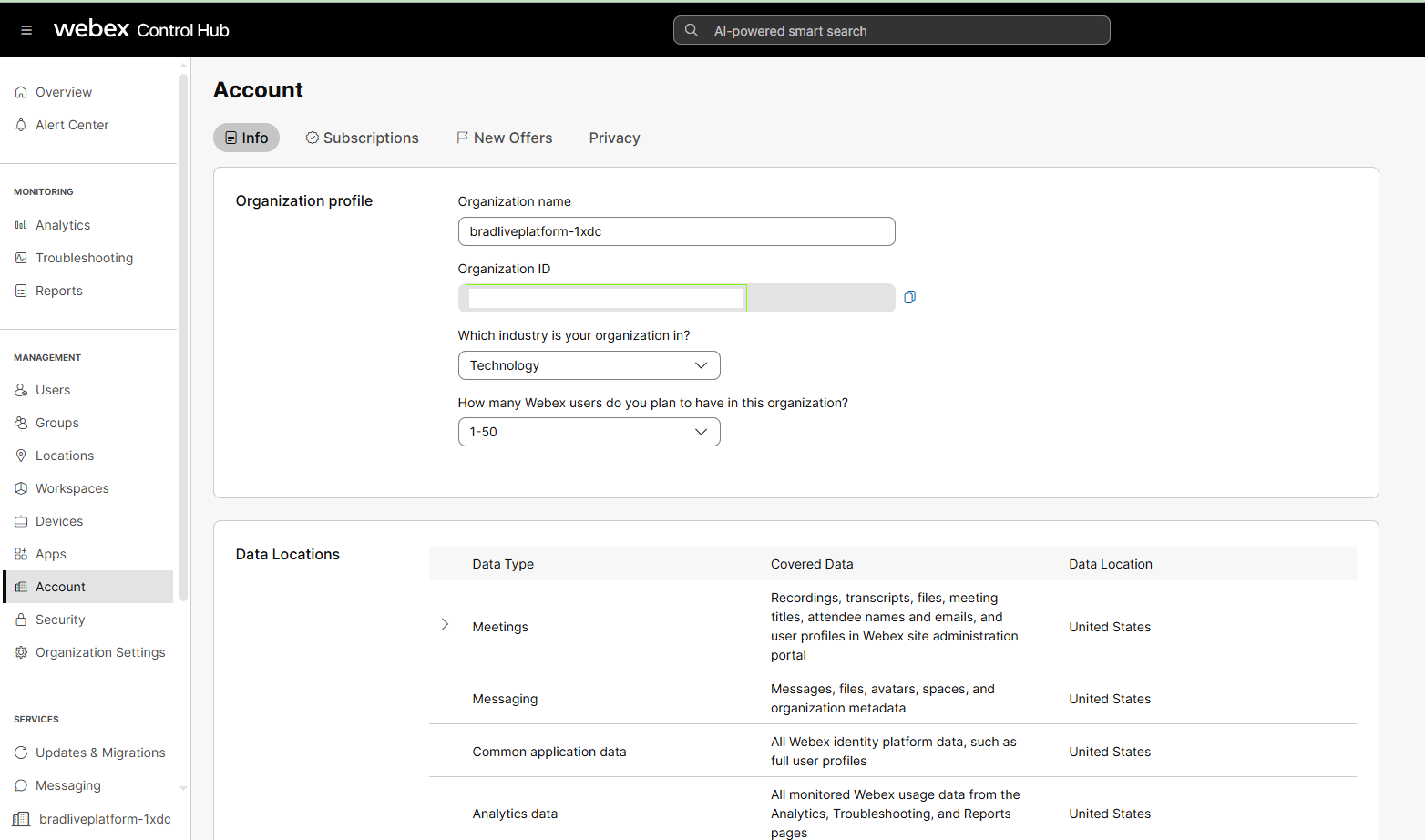
Webex Cloud Connect Organization ID
|
||||||||||||
|
Consented On |
The time and date when the customer service was deployed. |
||||||||||||
|
Last Modified |
The time and date when the service was last updated. For example, numbers uploaded. |
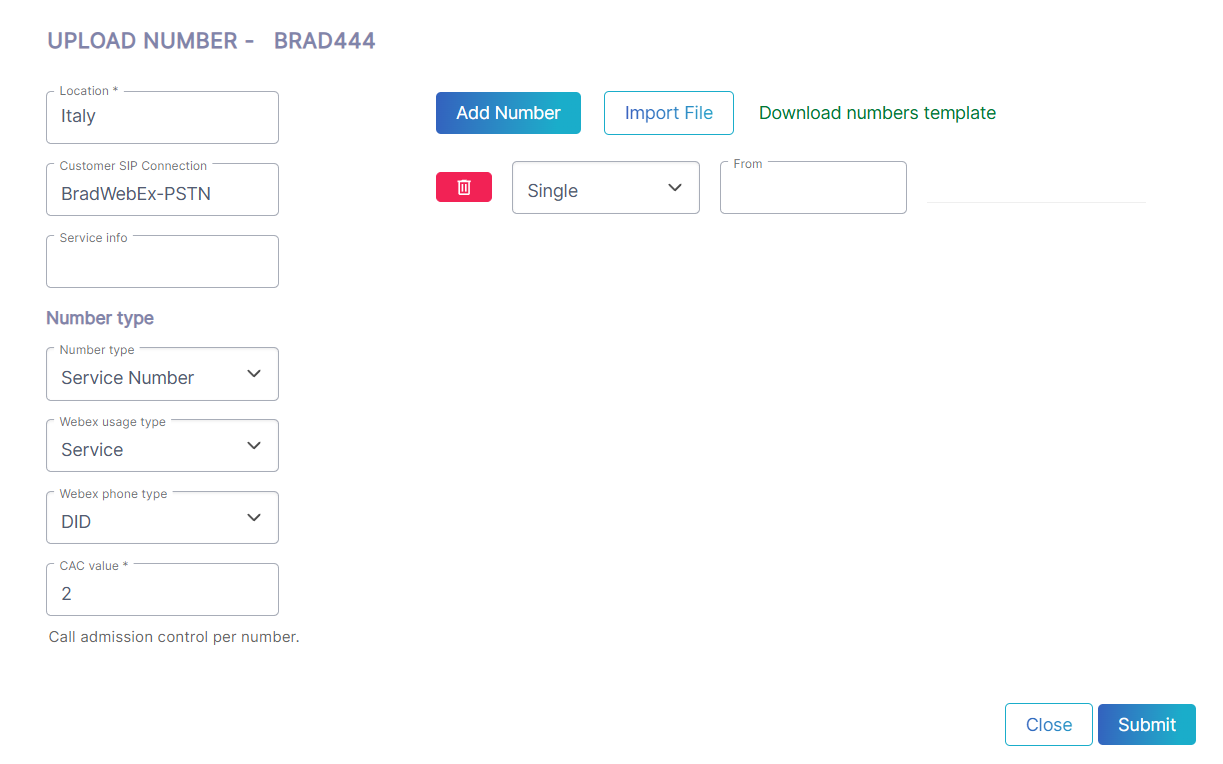
| 3. | Select the check box adjacent to the relevant service and then from the ...menu, choose Upload Numbers. |
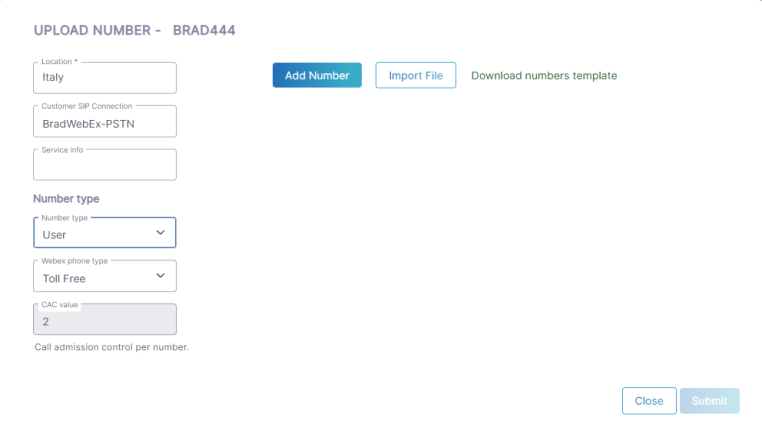
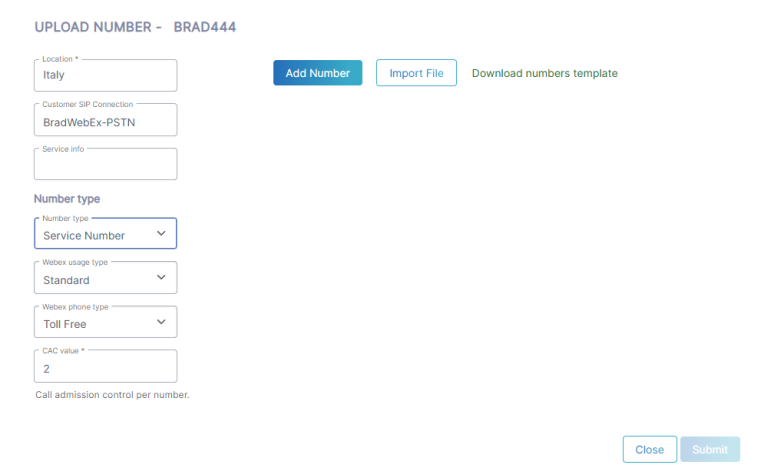
| 4. | Configure parameters according to the parameters in this page and then click Submit. |
|
Parameter |
Description |
|||||||||
|---|---|---|---|---|---|---|---|---|---|---|
|
Location |
Choose the site location to assign the number (see Attach Locations on Live Platform). |
|||||||||
|
Customer SIP Connection |
Type the name of a configured PSTN SIP Connection. |
|||||||||
|
Service Info |
Type the name of the service or related information. |
|||||||||
|
Number type |
From the Number type drop-down, select one of the following:
|
|||||||||
|
Web Usage Type |
From the Webex usage type drop-down, select one of the following:
This parameter is only displayed when the customer is deployed using the 'Integrated' mode. |
|||||||||
| Webex Phone Type |
From the Webex phone type drop-down, select one of the following:
This parameter is only displayed when the customer is deployed using the 'Integrated' mode. |
|||||||||
| CAC value |
Enter the maximum number of concurrent sessions to apply to the number. This value is configurable for Contact Center and Service numbers. The Number type 'User' is configured (range 2-10) |
| 5. | Click Add Number to add individual numbers. |
| 6. | From the drop-down, choose either Single or Range. |
All numbers should be configured in E.164 format with a maximum of 15 digits, and with the following validation rules:
| ● | A + sign. |
| ● | Country calling code (international). |
| ● | Local area code. |
| ● | Local telephone number or subscriber number. |
The number has the following structure: [+][country code][area code][subscriber number].
Example United States Telephone number: +12127881500
| ● | Country code: 1 |
| ● | Area code: 212 |
| ● | Subscriber number: 7881500 |
| 7. | Enter the numbers to upload in the relevant field and then click Submit. A confirmation message is displayed. |
| 8. | Click Download numbers template to open an example CSV file including the correct format for importing numbers. |
| 9. | Configure the file including the list of numbers that you wish to import. All numbers should be in E.164 format as described above. |
The figure below shows how to configure the cells with the '+' value before the country code prefix.
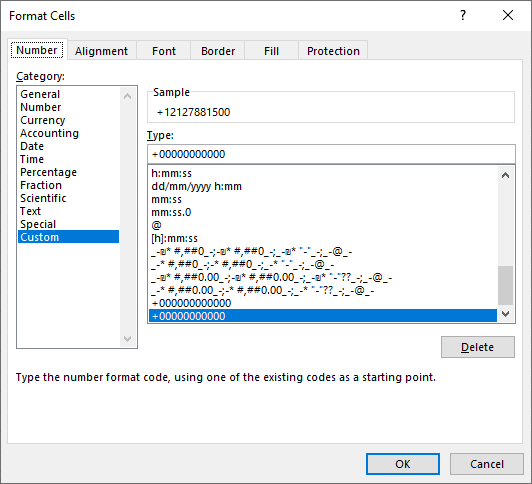
You cannot configure the Number Type in the CSV file, only single DID numbers or ranges.
| 10. | Click Import File. |
| a. | Browse to the location of the file. |
| b. | Click Import. |
The number of valid and invalid entries in the CSV file are indicated. Close the dialog.

The successfully imported number range is displayed in the Upload Number dialog box.
| c. | Click Submit; a success message is displayed. |
| 11. | In the Navigation pane, click Customers Leads. Once the number has been successfully uploaded, the Status 'Ready' is displayed. |

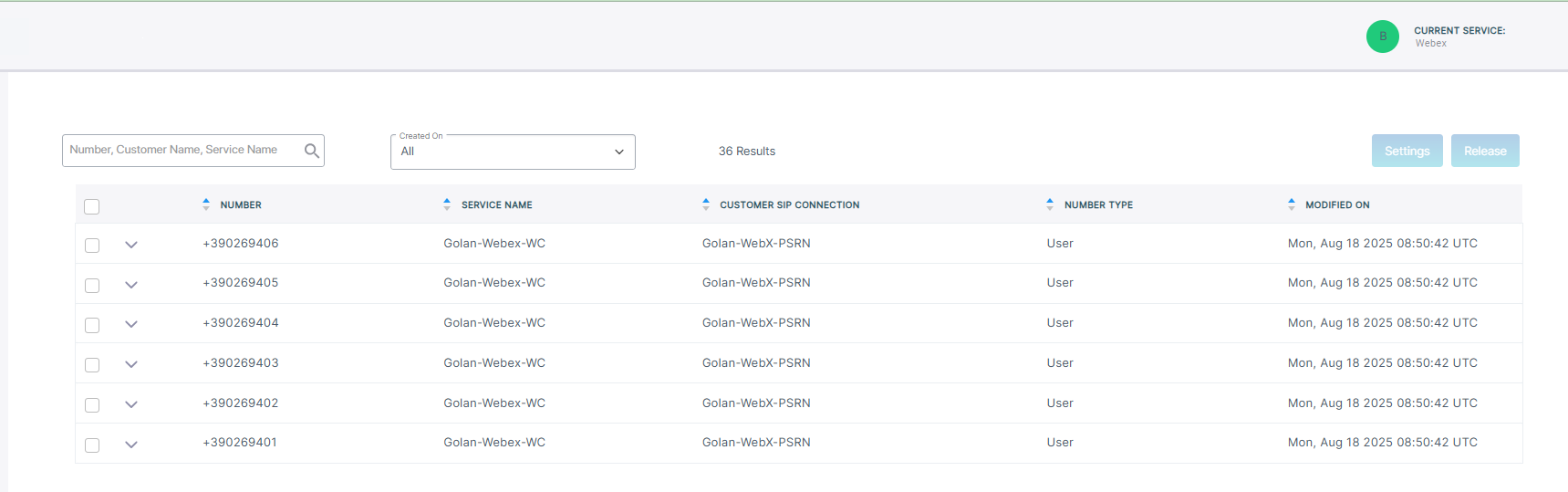
| 12. | In the Navigation pane, click Numbers Management. Search for your customer and view the new numbers that you have just added. |