Add a Service
Once you've created a customer, multiple services can be deployed under the customer entity. Customer operators can be configured and then when connected to Live Platform can manage all services deployed under the customer.
|
1.
|
Do one of the following: |
|
●
|
In the Customers page, click Add Service, and then from the down-down list, choose the desired service. |
|
●
|
In the Services page, click Add Service, choose the desired service, and then from the Select Customer drop-down list, choose the customer for which you wish to add the service, and then click Select. |
|
2.
|
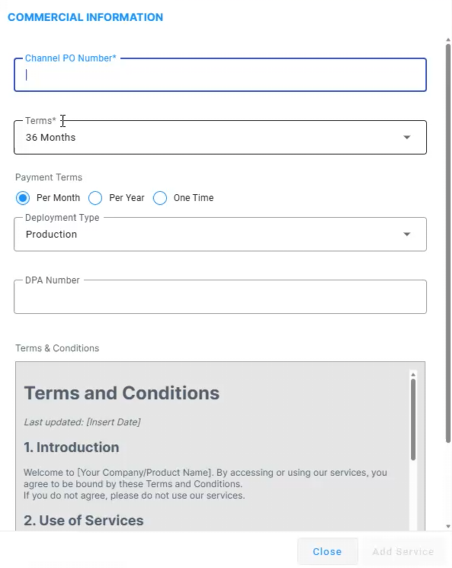
If Commercial Information is enabled by your provider's administrator, the Commercial Information dialog box appears: |
|
❖
|
Channel PO Number: Purchase Order (PO) number |
|
❖
|
Terms: Type of payment (pay-as-you-go, 12 months, 24 months, 36 months) |
|
❖
|
Payment Terms: When payment is made (per month, year, or one-time) |
|
❖
|
Deployment Type: Type of service deployment, which can be a live deployment (Production) or a trial (proof-of-concept / POC) |
|
❖
|
DPA Number: Discount code |
|
a.
|
Read the Terms and Conditions (T&Cs), and then select the 'Click to approve' check box to agree. |
|
3.
|
Proceed to the relevant procedure for deploying the specific service : |
|
●
|
Onboarding Device Manager Customers |