Number Inventory
The Live Platform Number Inventory serves as the central repository for all numbers managed through Live Platform services.
End customers can use the Service portal to control ARM voice routing between their Phone Systems and their BYOC or Service Provider Carrier network. The phone system may be configured as Microsoft Teams or other systems such as AudioCodes Voca CIC. The Number Inventory module manages phone number porting, provisioning, ordering, and account management processes. The Service portal provides an end-to-end automation service for Number management Call Routing and Phone system features.
| ■ | Direct routing Line URI numbers with an assigned PSTN gateway as a sub domain of the Service provider domain. |
| ■ | Reserved numbers that are not assigned to a customer. |
| ■ | Service Provider numbers that are not assigned to a customer and that are not configured in Live Platform |
The following numbers are saved in the Number Inventory and are not managed by Live Platform:
| ■ | Operator connect numbers with Calling Profile of the current Service provider and that are assigned to a customer |
| ■ | Microsoft Calling Plan numbers |
| ➢ | To configure Number Inventory: |
| 1. | In the Navigation pane, select Service > Number Inventory. |
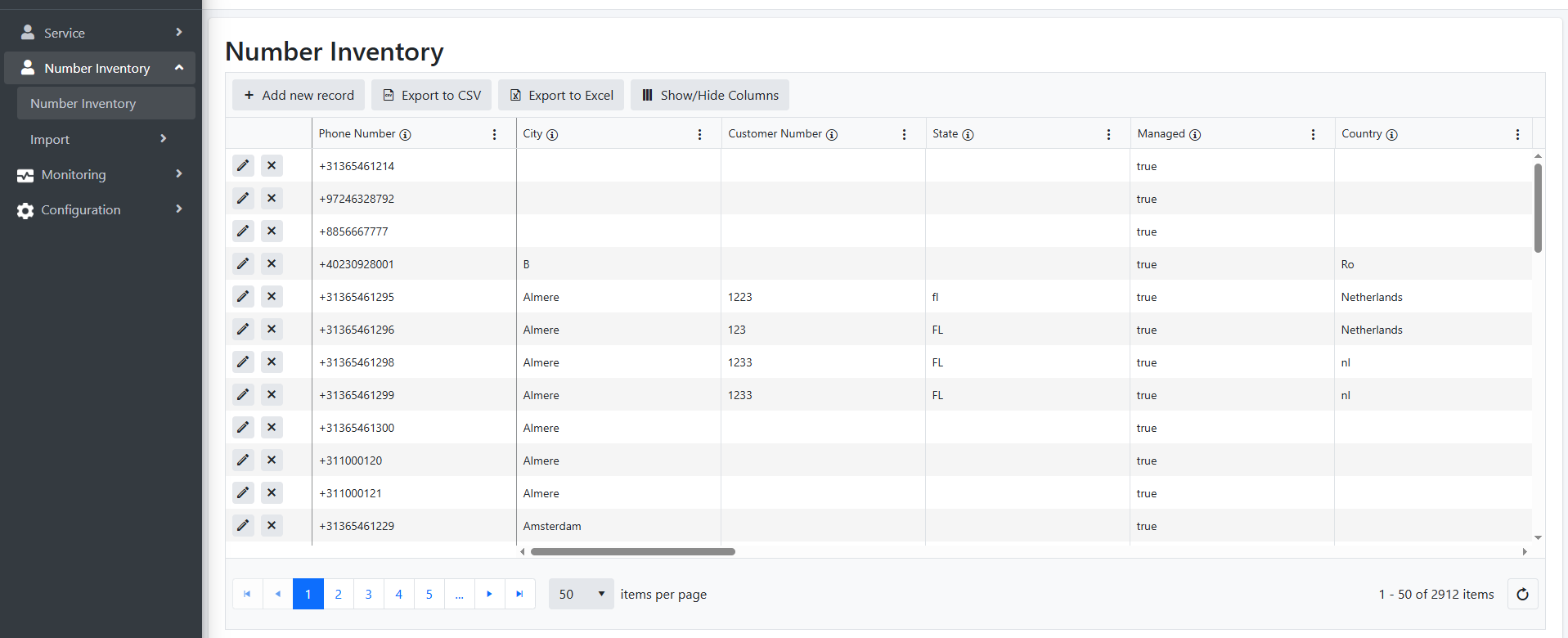
| 2. | Click Add a New Record. |

| 3. | Configure the required fields according to the table below and then click the blue tick. The new record is added. |
|
Parameter |
Description |
|---|---|
|
DID |
The phone extension. Telephone numbers cannot be edited; they must be deleted and readded. |
|
City |
The city of the associated DID. |
|
Customer Number |
The customer dialing number |
|
State |
The state or province of the associated DID. |
|
Managed |
Indicates of the DID is managed by the customer. |
|
Country |
The country of the associated DID. |
|
Export to CSV or Excel |
Click the Export to CSV button to export all records to a .CSV file or click the Export to Excel button to export all records to an Excel file. |
|
Show/Hide Columns |
You can determine which columns to display in the page. |