Getting Started with Direct Routing Hosted Essentials Plus
Once the new customer has been onboarded, M365 users must be applied the appropriate license and basic configuration before they can connect calls. Users are applied basic configuration in the Onboarding scripts, including a default route, a default voice routing policy and a configured PSTN gateway for connecting calls (see figures below). The Hosted Essentials Plus license includes a subset of the Hosted Essentials Plus functionality. The voice routing configuration (PSTN gateways, PSTN usages, voice routes and voice routing policies) is set up by the service provider and can be viewed, but not changed, in the Service portal. You can provision users manually or using templates, which you apply to the users listed in an uploaded file. You can then assign phone numbers (DIDs) and Online Voice Routing and other Teams Calling policies to the users. The figure below illustrates the logical associations between the different Configuration entities.
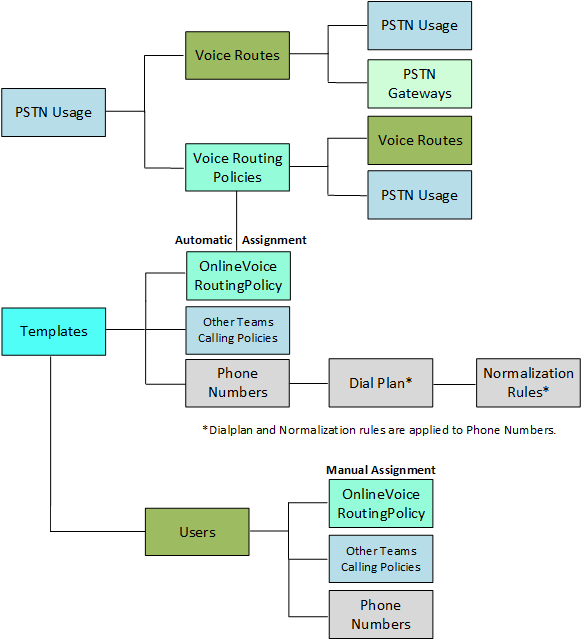
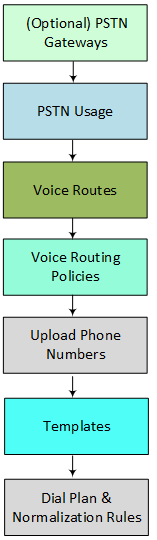
The following figure outlines the step-by-step provisioning instructions. The PSTN gateway, PSTN usage, voice route, voice routing policy and dial plan steps are configured by the service provider.
|
●
|
The M365 Onboarding script by defaults creates Online VoiceroutingPolicy Unrestricted. |
|
●
|
A subset of Teams Calling Policies are available for manual configuration. Provisioning of the full range of policies must be performed using template automation. |
|
1.
|
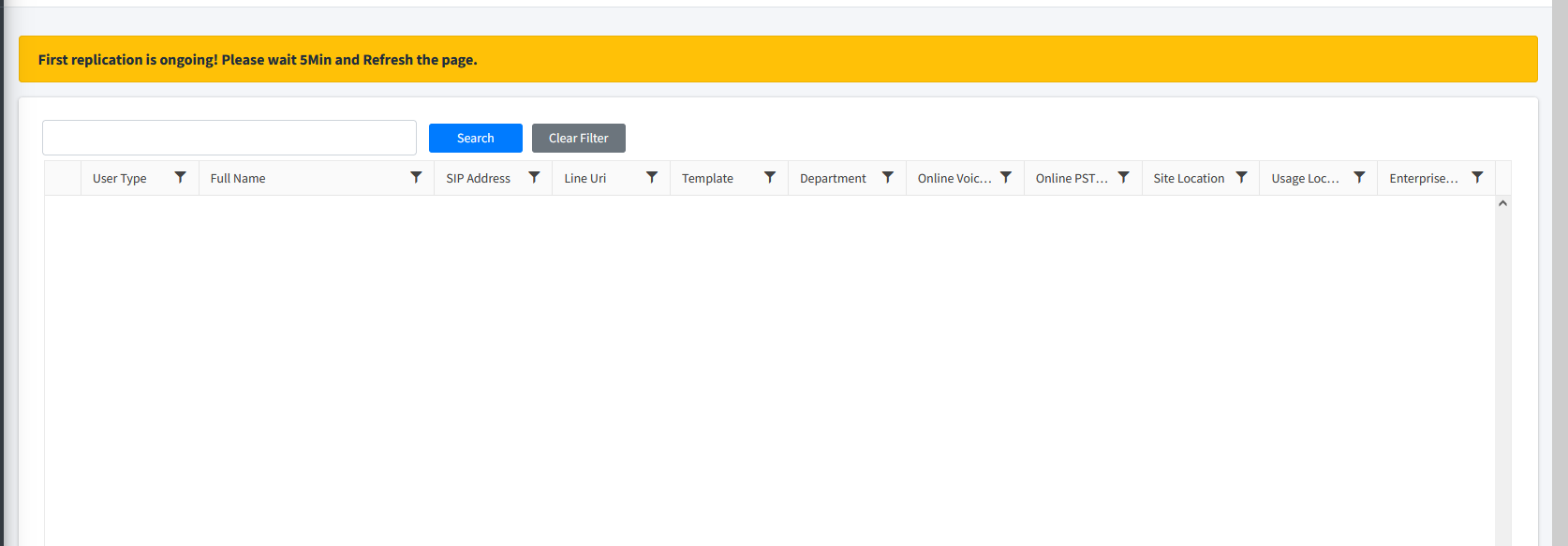
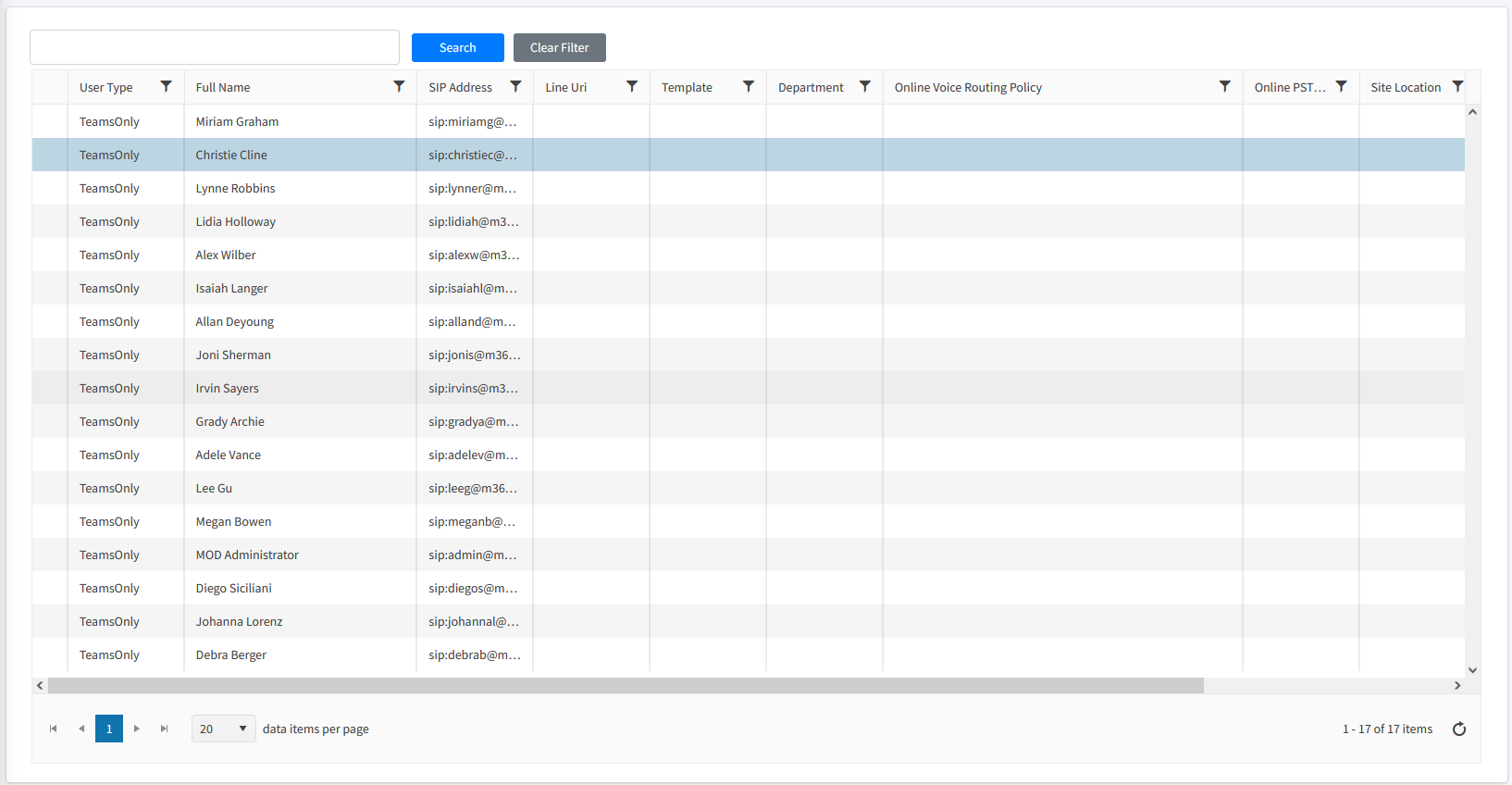
Open the Customer portal (see Accessing the Customer Portal (Direct Routing)) and wait for the initial replication process to complete. |
|
2.
|
In the Navigation pane, select Online Voice Routing > Voice Routes and Voice Routing Policy. See the default entries. These entries are read-only. |


If the Onboarding script for including the Site Name tag was applied (see SBC Site Name Script), it is appended to the default entry.


|
3.
|
Configure Voice Routing Policies: View the voice routing policies configured for the customer. You can assign these policies to users manually or in templates, but you cannot add or change them. See Managing Voice Routing Policy. |
|
4.
|
Configure SIP Connections and DIDs: Manage the SIP connections and DIDs of the customer site locations (see Managing SIP Connections). |
|
5.
|
Upload Numbers: Upload numbers to the SBC Dial plan (default CustDialPlan) with the PSTN Gateway tag for the Customer Site Location (see Load DIDs to Managed Service). |
|
6.
|
Import IP-PBX Users: Import a list of IP-PBX users (see Import IP-PBX Users). After a template has been applied, the users listed in the uploaded file are assigned the Calling Policies of the template. The Usage Location (configured in Azure) must be set for each user before phone numbers can be assigned (see Set Usage Location). |
|
7.
|
Number Inventory: Manage tenant phone numbers in the Number Inventory (see Number Inventory). |
|
8.
|
Assign Phone Numbers: Assign phone numbers to users manually (see Manually Assigning Phone Numbers to Users). Configuration of Number ranges for automatic number assignment are not available with the Hosted Essentials Plus license. |
|
9.
|
Configure Templates: Configure templates including Calling Policies. For example, apply the Online Voice Routing policy of each site location to its respective template, and enable Enterprise Voice. See LifeCycle Management Templates. A subset of Calling Policies can also be applied manually to the users (see Manually Applying M365 User Policies). |
Templates cannot be bound to security groups with the Hosted Essentials Plus license.