Running SfB2Teams Application
This section describes how to setup and run the SfB 2 Teams application. Download Files and Unblock.
|
1.
|
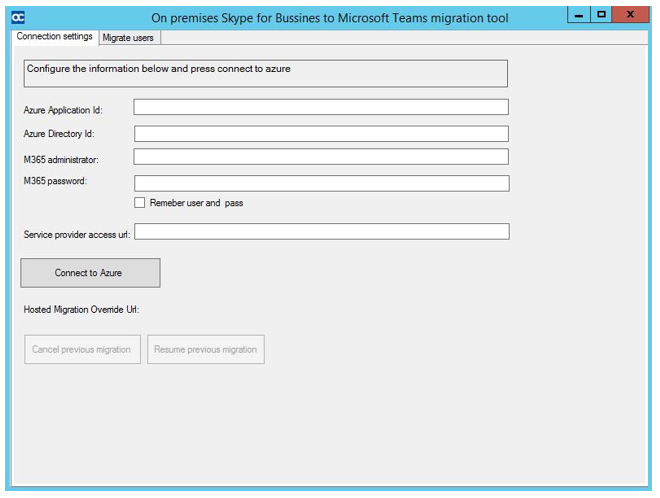
From the directory C:\SfB2Teams select the file SysAdmin.Skype2MsTeamsMigrator.exe. |
|
2.
|
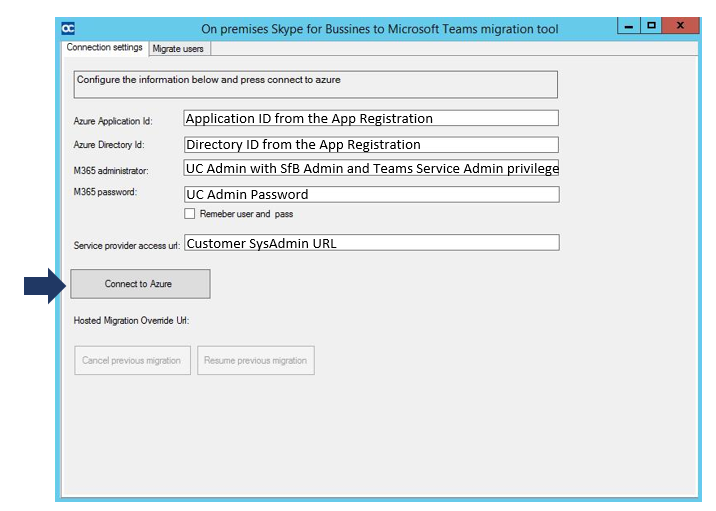
Connection Setting - Set the parameters as follows: |
|
●
|
Azure Application ID: Application ID from the App Registration |
|
●
|
Azure Directory ID: Directory ID from the App Registration |
|
●
|
M365 administrator: UC Admin with SfB Admin and Teams Service Admin privilege. |
|
●
|
M365 password: UC Admin Password. |
|
●
|
Service Provider access url: UMP Customer SysAdmin URL |
|
3.
|
Click Connect to Azure. |
|
●
|
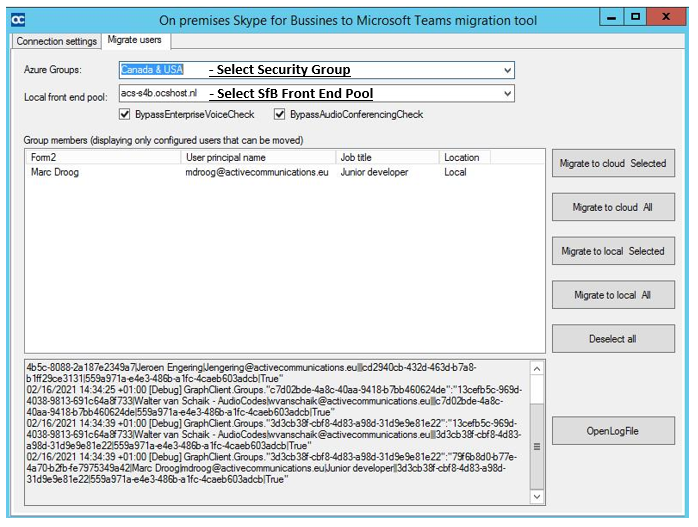
Azure Group: Select Security Group. |
|
●
|
Local front-end pool: Select SfB Front End Pool. |
|
5.
|
Select the users from the “Group members”. |
|
6.
|
Select one of the following actions: |
|
●
|
Migrate to Cloud Selected: Migrate selected Users to Teams |
|
●
|
Migrate to Cloud All: Migrate all users to Teams |
|
●
|
Migrate to Local Selected: Revert Selected Users to SfB |
|
●
|
Migrate to Local All: Revert All Users to SfB |
|
●
|
Deselect All: Deselect all Users |