Configuring SBC Communication Path in User Management Pack 365
Live Platform's User Management Pack 365 can communicate with deployed SBCs through Live Platform’s proxy or through a direct connection. Proxy-based communication is supported regardless of how Live Platform itself communicates with the User Management Pack 365.
User Management Pack 365 can also use the same communication path to reach SBCs (e.g., WebSocket) that Live Platform uses. Additionally, it can determine the appropriate communication method for each SBC, whether proxy-based, WebSocket, or direct (IP or FQDN), based on configuration (see below).
|
●
|
When using the WebSocket communication path for SBC communication and User Management Pack 365 is not connected to Live Platform via WebSocket, you must set the Ovoc.WsProxy.DiscoveryPort and Ovoc.WsProxy.EndpointPort values in User Management Pack 365 to 443 (or 80 for HTTP, although this is not recommended for security reasons). These ports are configured in the SQL database table [SysAdminTenant].[dbo].[ApplicationSetting]. |
If User Management Pack 365 is connected to Live Platform through WebSocket, configure the settings as shown below (default configuration):

|
●
|
After a wyUpdate upgrade, the SBC communication path is automatically set to Direct connection (Fqdn) (using FQDN from Live Platform). |
|
●
|
When adding an SBC in the User Management Pack 365, the SBC communication path can't be configured (i.e., 'SBC Communication Path' field below is not available) and it defaults to direct (Custom Address). |
|
➢
|
To configure SBC communication path: |
|
1.
|
In the Multitenant portal Navigation pane, open the Known SBCs page (Configuration > SBC). |
|
2.
|
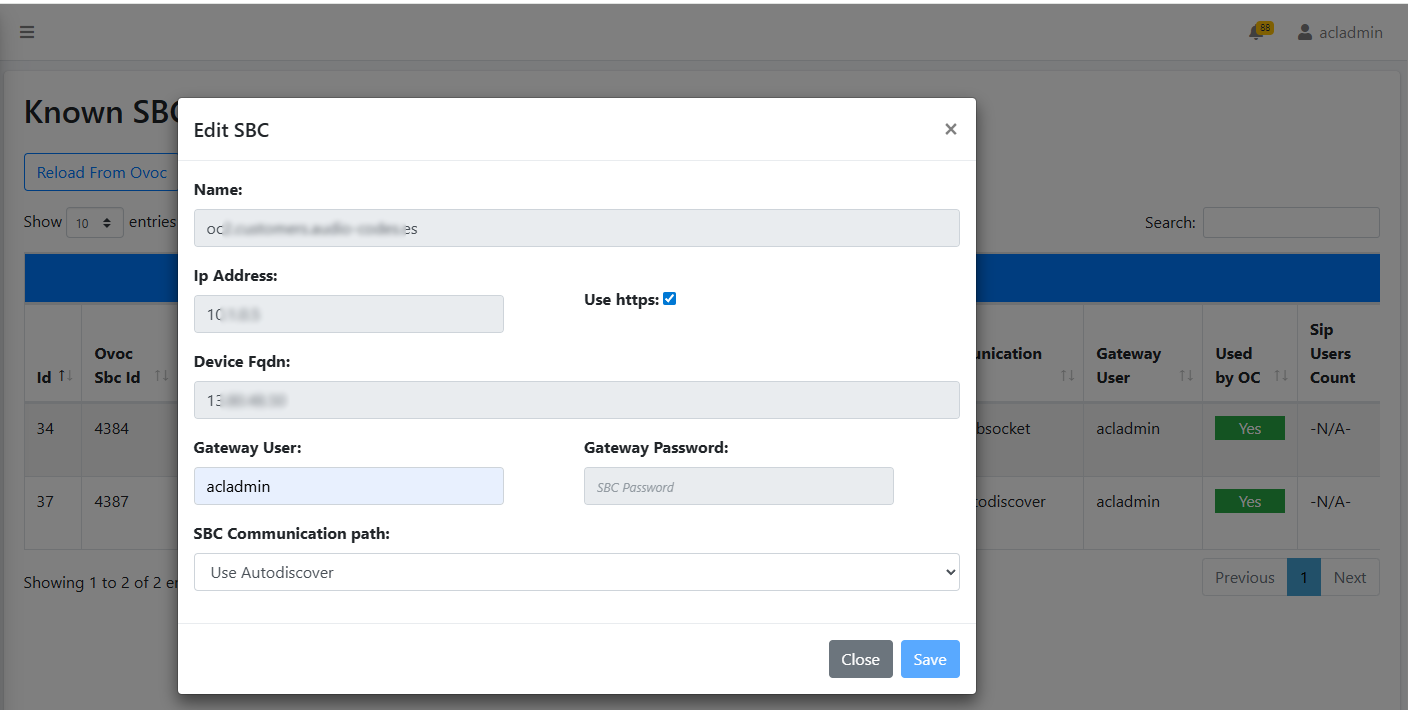
Click the Actions button of the SBC that you want, and then from the drop-down menu, choose Edit; the Edit SBC dialog box appears: |
|
3.
|
From the 'SBC Communication Path' drop-down list, choose the communication path: |
|
●
|
Use Autodiscover: Automatically determines the best communication path, using the following priority preferences listed in order: |
|
●
|
Use Websocket: Communication with the SBC is through Live Platform's WebSocket tunnel with the SBC. |
|
●
|
Direct connection (IP): Communication with the SBC is direct through the SBC's IP address. |
|
●
|
Direct connection (Fqdn): Communication with the SBC is through the DNS-resolved IP address from the FQDN received from Live Platform. |
|
●
|
Custom address: Communication with the SBC is through a customized IP address or FQDN. |
You can also verify connectivity with the SBC after configuring its communication path. To do this, click the Actions button of the SBC that you want, and then from the drop-down menu, choose Check Connection. If connectivity with the SBC succeeds, a message is displayed to notify you of this.