
Conversation node
Conversation node is the most frequently used node type. Its purpose is to engage in dialogue with the user. It doesn’t trigger any backend functions or perform external actions. Rather, it focuses solely on user-agent interaction.
Key points:
- This node supports multi-turn conversations: you don’t need to create a separate node for every single sentence the agent says.
- You should split into a new node when you hit branching logic, a very different topic, or when instructions become overly long.
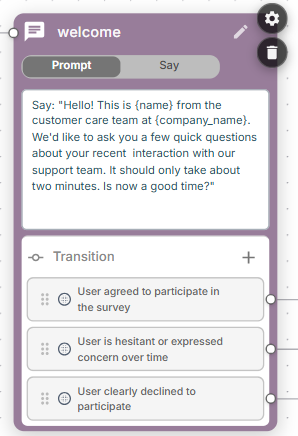
Operation mode
Conversation node may operate in one of the following modes:
Prompt– You write a dynamic prompt and the agent generates its response accordingly.Say– You provide a fixed sentence that the agent will say.
Instructions
You may use variables in conversation node instructions by enclosing their names in curly brackets, for example:
Hello! This is {name} from the customer care team at {company_name}.Variables may come from global flow configuration, conversation data, dynamic variables (such as user_utterance_count), or variables extracted / generated earlier in the flow. Note that variables extracted by this node's own Extract variables section are not available here, as that extraction runs only when the node exits.
You may also use prompt conditions ({{#if}} / {{#elseif}} / {{/if}} branching) in conversation node instructions, exactly as in an agent prompt.
Including another node's prompt
To reuse a block of instructions across several nodes, embed another conversation node's prompt with the following syntax, placed on its own line:
{{< node_name}}node_name is the Name of the conversation node whose prompt you want to include. At runtime the line is replaced with that node's prompt text, and variable expansion and {{#if}} branching are then applied to the combined result. If no node with that name exists, the line is left unchanged.
Transitions
Transitions determine when the specific conversation node has finished its job and what next node the conversation should transition to. Transitions are typically defined using free text and evaluated after each user utterance.
- For
Promptoperation mode conversation may stay at the specific conversation node for multiple turns / user utterances, until one of the defined transition conditions is satisfied. - For
Sayoperation mode you will typically configure an empty transition, which matches any user utterance, and thus conversation will proceed immediately to the next node after the first user utterance. - If you enable Skip response in node settings, conversation will immediately proceed to the next node without waiting for user response. You will have a single “Skip response” transition that should be connected to the next node.
Transitions are normally evaluated after user provides response, and not for the first phrase generated by the conversation node. This may be changed by enabling the Transition immediately parameter in the conversation node settings.
Text and logical transitions
When you add a transition by clicking the + button in the Transition section, you are asked whether it is a Text or a Logical transition:
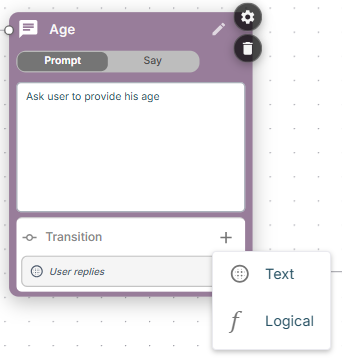
- A Text transition uses a free-text condition – for example
User provided his age– that the LLM evaluates after each user utterance. - A Logical transition uses a logical statement – for example
age > 0– that is evaluated against variables and conversation data, similar to a Logical condition node. See Expression syntax for the supported operators and functions.
If a node defines both text and logical transitions, the logical transitions take precedence over the text transitions, regardless of their visual order on the node card.
You can also embed a logical condition inside a Text transition by enclosing it in brackets – for example (age < 18). However, it is recommended to use a dedicated Logical transition instead, for clarity.
Logical statements can be used the same way in global node conditions – see Global nodes.
Empty and non-empty transitions
An empty Text transition shows the User replies placeholder. It matches any user utterance, so the conversation transitions to the next node after the user says anything:
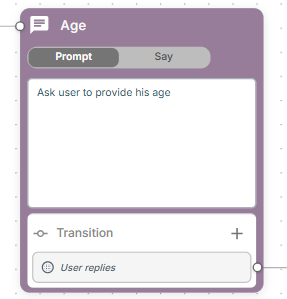
An empty Logical transition shows the Else placeholder and has the same effect – it matches regardless of what the user says.
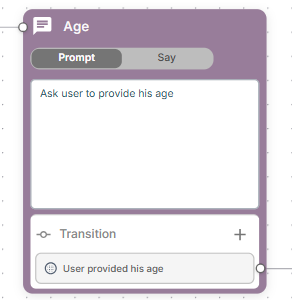
If instead you want the conversation to proceed only after the user provides the required information, use a non-empty transition that describes the expected condition – for example User provided his age:
Order of evaluation
When a node uses logical transitions, the order in which things happen matters:
- The node converses with the user until some transition is matched. The Extract variables section is not evaluated during these turns.
- Once the node "exits" – i.e. a transition is matched – the Extract variables section is evaluated.
- The logical transitions are then re-evaluated (and, as noted above, take precedence over text transitions). If one of them now matches, it is used instead of the transition that was matched initially.
This order is what lets you route the conversation based on variables that only become available after extraction. Note that because extraction runs only after the conversation stage ends, a node whose logical transitions depend on extracted variables needs an empty Else (or User replies) transition to end the conversation stage on each turn – otherwise the node would keep conversing and never reach the extraction step.
For example, consider the following City node:
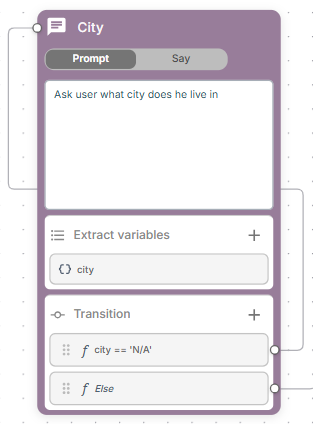
Its Extract variables section defines a city variable whose description explicitly instructs the LLM to assign the value N/A when the user doesn't provide enough information:
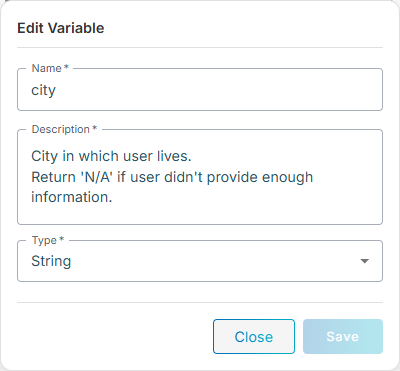
On each user reply, the empty Else transition ends the conversation stage, so the Extract variables section runs and city is set either to the city name or to N/A. The logical transitions are then re-evaluated: if city == 'N/A' the node keeps asking, otherwise the Else transition routes the conversation to the next node.
The next example, the Age node, combines logical transitions with the per-node user_utterance_count variable (see Dynamic variables) to limit the number of attempts:
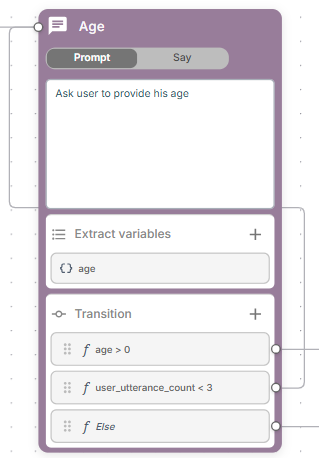
The transitions are re-evaluated, after extraction, in order:
age > 0– matches once the user has provided a valid age; the conversation proceeds to the next node.user_utterance_count < 3– matches while the user still hasn't provided a valid age but has made fewer than three attempts in this node, so the node keeps asking.- Else – the empty logical transition. Because it always matches, it ends the conversation stage after each user reply, ensuring the Extract variables section runs (and the logical transitions are re-evaluated) every turn. It is also the final fallback, reached only when the user has failed to provide a valid age three times in a row.
Extract variables
Conversation node may be optionally configured to extract variables from the conversation transcript that happened in the specific node. To enable this functionality, turn on Extract variables in node settings and configure the corresponding section that will be added to the conversation node card.
For each variable you need to define name, type and description. Make sure to provide meaningful description, as it is used by LLM to populate the variable’s data.
Alternatively you may populate a variable using a jq or JMESPath statement in its Description, as described in Using jq or JMESPath statements. The Description also supports dynamic variable expansion and {{#if}} branching, as well as an ENUM: prefix to restrict the value to a fixed set.
You may also perform the extraction as a separate step, using a dedicated Extract variables node. Unlike the inline extraction described here – which only sees the transcript of this node – a dedicated node can extract variables from the complete conversation history.
Note: The Extract variables section runs only when the node exits – i.e. when a transition is matched – and not after every user turn. If you need the variables to be refreshed (and logical transitions re-evaluated) on each turn, add an empty Else (or User replies) transition, as described in Order of evaluation.
Documents
You may provide conversation node with documents for grounding the responses. Conversation node uses “agentic RAG” mode for accessing the documents data – similar to the Semantic search (agentic, via doc_search tool) mode, as described in Using documents.
A structured lookup document may be attached the same way. It grounds the node's responses on the record it retrieves – or, with the #lookup directive, the node calls the lookup as a step of the flow instead; see Structured lookup below.
Conversation node settings
- Skip response – Skip to the next node without waiting for user response.
- Transition immediately – Allow evaluation of transitions before user says anything.
- Extract variables – Extract variables from conversation transcript that happened in the specific node.
- Custom LLM – You may define custom large language model (primary and fallback), temperature, and max output tokens to be used for the specific conversation node.
- Global node – Enables transition to this node from any other node in the conversation flow.
- Max utterances – Defines max number of turns / user utterances allowed in the specific conversation node. Default value
0means that there is no limit. - Documents – Defines documents that specific conversation node has access to.
- Document chunks – Defines number of chunks returned from the documents for every semantic search.
- Barge-in – Enables override of barge-in configuration (whether user can interrupt agent speaking) for a specific conversation node.
- Session params – Configures Bot connection parameters for the whole session.
- Activity params – Configures Bot connection parameters for this node.
Playing pre-recorded audio
A node in Say mode can play pre-recorded audio files instead of – or in addition to – speaking text. The files must first be uploaded as an audio document. To play them, add one or more #play_<cmd> directives, each on its own line, to the node's text:
#play_file <document> [<file> ...]– plays one or more audio files from an audio document.<document>is the document's name.<file>is one or more file names within the document, separated by spaces; each is played in order. If omitted, a single random file from the document is played. Because spaces separate file names, a file name itself cannot contain spaces. A file may be named with or without its.wav/.pcmextension.
#play_url <url>– plays an audio file from a publichttp://orhttps://URL.#play_digits <document> <digits>– plays one file per digit, reading<digit>.wav/<digit>.pcmfrom<document>for each digit in turn. Non-digit characters are ignored, so a phone number can be written naturally, for example(650) 555-1234.
Additional behavior:
- You can place several directives on separate lines – each one is played in order (and
#play_filewith several file names, and#play_digits, play one file per name / digit). - Any non-empty line that is not a
#play_*directive is spoken via TTS as a regular message, so you can interleave audio and spoken text within the same node. - Directive arguments may reference flow variables enclosed in curly brackets, for example
#play_file {doc_name}or#play_url {audio_url}. A variable may expand to several space-separated file names for#play_file. - If a played audio file has a matching transcript file, its text appears in the conversation log alongside the played audio. This applies to
#play_fileand to#play_digits. - The audio is re-played every time the flow visits the node – for example, when the conversation stays on the node across several user turns.
By default, audio files are assumed to be in wav/lpcm16 format. To use a different format, set the play_format flow variable; it accepts the same formats as the play_url pre-defined tool. For example:
play_format = wav/mulawThe example below greets the caller with a recorded prompt and then reads back a reference number digit by digit:
#play_file greetings welcome.wav
Your reference number is:
#play_digits digits {reference_number}
Pausing before speaking
A node in Say mode can stay silent for a while before speaking its text. Make #pause <seconds> the first non-empty line of the node's text; the node then waits the given number of seconds and only then sends the rest of the text:
#pause 1.5
I found the following records matching your request.<seconds>is an integer or a decimal number, from0to60seconds (larger values are capped at60).- The pause applies every time the flow enters the node. It is not repeated within the same visit – for example, when the node repeats its text after user silence.
#pausemay also precede the#play_<cmd>directives, delaying the audio:
#pause 2
#play_file greetings welcome.wav
Structured lookup
A conversation node can use a structured lookup document in one of two modes.
For grounding the node's responses – add the document to the node's Documents, like any other document. The node gains the document's lookup tool, and the agent decides when to call it and uses the matching record to word its own reply to the caller. This suits a node that is conversing: the agent can ask the caller to spell a name, try again, or read a couple of candidates back and ask which one was meant.
As a tool call – make #lookup the first non-empty line of the node's text:
#lookup find_customer {caller}
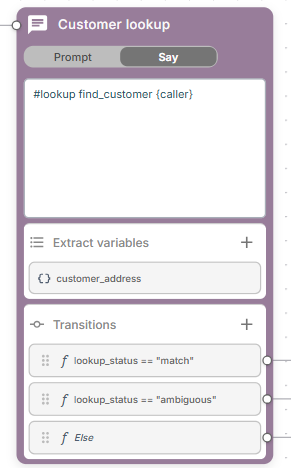
The node then stops being conversational and becomes the equivalent of a Call tool node whose tool is the document lookup: it performs exactly one lookup and moves on, never speaking and never waiting for the caller. The flow decides what happens next by branching on the outcome, rather than the agent wording a reply from the rows. When the value to look up comes from a variable, no LLM is involved at all.
So: use #lookup when you want the lookup called as a step whose result drives the flow ("we have the caller's account number – fetch the record and route accordingly"), and plain Documents when the record is there to inform what the agent says next.
The rest of this section describes the #lookup tool-call mode.
Syntax
The directive names the lookup to call — its tool_name, as configured on one of the node's attached documents — followed by what to look up: one value per search column, in the order the columns are configured.
| Form | Meaning |
|---|---|
#lookup find_customer {caller}
|
look up the value held by the caller variable |
#lookup find_customer "{caller}"
|
the same; for a single value the quotes are optional |
#lookup find_customer John D
|
look up a literal value |
#lookup find_customer "John D"
|
the same, quoted |
#lookup find_customer "{caller}" "{city}"
|
quotes required — one quoted value per search column, for a lookup matching on several columns |
#lookup find_customer
|
no values at all, so the model works them out from the conversation (Prompt mode only) |
Quotes are what separate one value from the next, so a lookup matching on several columns must quote every value. #lookup find_customer "{caller}" "{city}" passes two values; #lookup find_customer {caller} {city} passes one — everything after the tool name on an unquoted line is a single value, which is what a one-column lookup wants.
Values are always trimmed of surrounding whitespace.
Any further lines of the node's text become additional instructions for the model, used only when it has to work a value out from the conversation (see the next section).
A misconfigured directive — one that names no lookup, names one that none of the node's documents define, or sits on a node with no lookup document attached — reports lookup_status = error, so the node routes down its error branch. The problem is written to the conversation log.
Operation mode decides whether the LLM is involved
Say— the directive line must carry at least one value. The lookup then runs with no LLM call at all, so it also works in a flow whose LLM isnone. If the line carries no value — because it has none, or because every variable it references is empty or unknown —lookup_statusis set toerror.Prompt— the same, except that a line with no values at all lets the model work them out from the conversation, and it is then asked to call the lookup tool.
A flow used as a tool must have its values on the directive line, because it has no conversation of its own to work them out from.
What the node produces
While the node runs, three variables are available:
| Variable | Type | Value |
|---|---|---|
lookup_status
|
str | match, ambiguous, not_found or error |
lookup_result
|
str | the matching rows as a JSON array, best first; [] when nothing matched |
lookup_score
|
int | match score of the best row, 0 when there is none |
error means the lookup never ran — an unresolved value in Say mode, no LLM available, the model declining to call the tool, or a document whose lookup index hasn't been built.
Note: ambiguous means the match wasn't confident enough to act on. That is usually several similar-sounding records, but it can also be a single weak one — so branch on lookup_status, never on how many rows came back. See Tuning the thresholds.
The three variables are scoped to the node: they are removed as soon as the flow moves on, and are not visible to later nodes. lookup_status, lookup_result and lookup_score are therefore reserved names inside a #lookup node — a flow variable of the same name is shadowed for the duration of the node and restored afterwards.
Transitions
Use Logical transitions to branch on the outcome:
lookup_status == "match"      --> Confirm the account
lookup_status == "ambiguous"  --> Ask which record was meant
Else                          --> Offer to transfer
Free-text transition conditions are not evaluated on a #lookup node — there is no caller utterance to judge them against. Consequently:
- a node with a single outgoing transition simply always follows it, whatever its condition;
- with several free-text transitions, only the first is ever taken;
- a global node with a free-text condition does not fire while the flow is on a lookup node. Its logical conditions still do.
A #lookup node cannot transition back to itself.
Leave Skip response off on a lookup node — the node never waits for the caller anyway. If it is on, the node behaves like any other node with Skip response: it follows the single Skip response connection, and its own transitions — the ones the canvas hides — are not evaluated at all, so the node cannot branch on the outcome.
Using the matched record
The variables above route the flow, but they disappear with the node. There are two ways to use the record itself further on.
Consuming it in the next node
Exactly as with a Call tool node, the matched rows are added to the conversation context, so the next node's prompt can consume them. This is what makes the ambiguous branch above workable: that node already has the candidate records, so its instructions can simply be
The lookup returned several possible records. Ask the caller which of them they meant.The record is not spoken by the lookup node itself, and it is never shown to the lookup node's own LLM turn — only to the node the flow transitions to.
To suppress it, add a #discard_response directive on its own line, so the record stays out of the conversation context:
#lookup find_customer {caller}
#discard_response
Variables extraction still runs over the record, so you can copy out the fields a later node needs without exposing the whole record — worth doing when the document holds anything sensitive.
Extracting variables from it
Alternatively — or in addition — copy values out with the node's own Extract variables section, which runs against lookup_result. For example, a variable with:
- Name:
customer_address - Type:
string - Description:
.[0]["Address"]
captures the best-matching record's address, which then behaves like any other flow variable and can be referenced as {customer_address} anywhere later in the flow. All the usual extraction forms work — jq / JMESPath statements, the {} whole-response capture, and LLM-driven extraction.
Extraction runs on every outcome, including not_found and error, where lookup_result is the empty array []. A jq / JMESPath statement that matches nothing then yields an empty value — "" for a string variable, 0 for int and float, false for bool — without consulting the LLM. So in the example above, customer_address is "" when no record was found.
Prefer extraction when a later node needs one specific field, and the conversation context when the agent has to reason over the whole record — as the ambiguous branch does.
Special features for the AC DNN STT provider
When your agent uses the AC DNN speech-to-text provider, the following additional capabilities are available.
STT context
A node in Say mode can apply a speech-to-text context to the user's next utterance, biasing how the STT engine recognizes it.
Add a #stt_context <name> directive (alongside the #play_<cmd> directives) to the node's text. It attaches an sttContextId to the last play / message activity emitted by the node, so the named context applies to the user's next utterance. For example:
#play_file prompts confirm.wav
#stt_context D_Confirm_Context
Additional behavior:
- The directive itself produces no output. If the node emits no play / message activity, it is ignored.
- The context name may reference flow variables, for example
#stt_context {ctx}. - If several
#stt_contextlines appear, the last one wins.
user_utterance_alt variable
user_utterance_alt holds the STT interpretation of the current user utterance – the engine's normalized reading of what was said. It is available in both Agent and Flow prompts / dynamic variables.
For example, an utterance whose recognition yields "interpretation": "7 0 1 2 1 2 1 3" makes user_utterance_alt equal to 7 0 1 2 1 2 1 3.
The variable is cleared to an empty string on turns that carry no STT interpretation – for example chat messages, DTMF input, or no-user-input events.
user_utterance_ext variable
user_utterance_ext is a convenience variable that resolves to user_utterance_alt when the current turn carries an STT interpretation, and falls back to user_utterance otherwise. It is available in both Agent and Flow prompts / dynamic variables.
Use it when a prompt should prefer the STT interpretation "if present" without having to test user_utterance_alt for emptiness.
Unsuccessful speech recognition
When the STT engine reports that it could not recognize the user's speech, the agent receives a “fake” user utterance (similar to no user input handling):
no-input-timeoutbecomes aNO-USER-INPUTutterance;- any other cause becomes a
STT-NO-MATCHutterance.
Add explicit instructions to your prompt on how to react to STT-NO-MATCH – for example, asking the user to repeat.