
Global flow settings
To access the global flow settings:
- In the Navigation pane, expand AI Agents, and then click Flows.
- Find the flow that you want to modify and click Edit. The visual builder opens.
- On the top right corner, click Flow Settings.
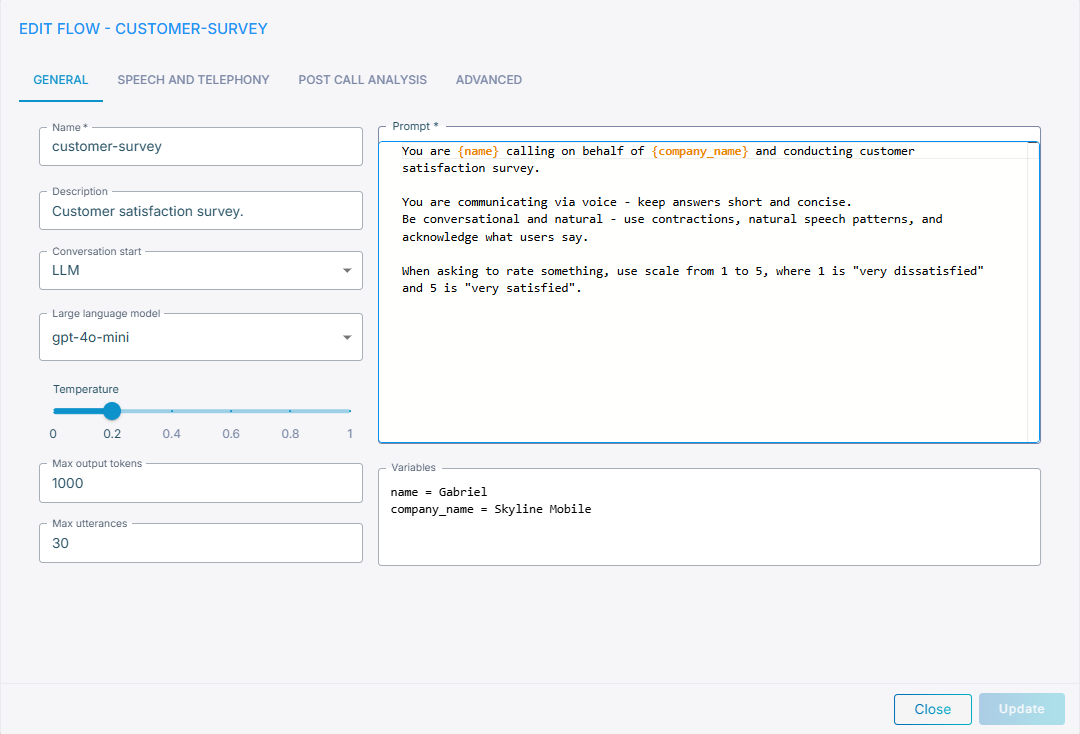
The following global flow settings are provided:
General
-
Prompt – Defines the global flow prompt. Use it to specify the agent’s persona, identity, security guardrails etc. Provided instructions will be used in each conversation node in addition to the node-specific prompt.
-
Conversation start – Defines how the conversation starts. Possible options include:
LLM– conversation flow is started immediatelyUser– conversation flow is started only after user speaks first (useful for outbound call scenarios)
-
Large language model – Defines the default large language model used by the Flow. You can choose from a wide range of pre-deployed models or bring your own API keys for an LLM provider of your choice. Note that Flows support only textual models, and not speech-to-speech models.
- Select
noneto run the flow without an LLM. This is useful for fully deterministic flows that route purely on logical conditions and play fixed prompts. In this mode:- Free-text transitions are silently dropped; the flow is routed only by logical, empty, and
(Else)transitions (see Conversation node transitions). - LLM-independent nodes keep working normally – Conversation nodes in
Saymode (including#play_<cmd>audio directives), End call, Transfer call, Logical condition, Calculate, and Pass to agent nodes. - Any node that would require the LLM – a
Prompt-mode Conversation node, an Extract variables node, or a Tool node whose parameters must be filled by the LLM – cannot run. Instead it logsLLM not availableand that same text is spoken to the user via TTS.
- Free-text transitions are silently dropped; the flow is routed only by logical, empty, and
- Select
- Temperature – Defines the LLM creativity and randomness. Use smaller values (typically between 0 and 0.3) to keep LLM behavior more predictable. Use larger values (0.6 and higher) to make LLM responses more generative and creative.
- Max output tokens – Defines the maximum number of tokens that can be output by LLM in a single response.
Large language model, temperature and max output tokens configuration can be overridden for specific flow nodes – e.g. for conversation nodes.
- Max utterances – Defines the maximum number of user utterances that can happen within a single flow conversation. Use it to limit maximum conversation length and protect from loops in the flow state machine.
- Variables – Defines named variables that may be used in flow’s global prompt, conversation nodes, tool nodes etc. Use
NAME = VALUEsyntax. Use multiple lines to specify multiple variables. For example:age = 18. To use variable in the prompt, enclose its name in curly brackets; for example{age}. Refer to Agent variables for details.
Speech and Telephony
- Speech and telephony (bot connection) – Set to Enabled, to enable voice calls for your AI Flow. This will implicitly create Bot connection and attach it to your flow.
- Bot connection region – Select the region where the Bot connection will be created. Make sure that this region matches the Voice channel entities – e.g. Phone number or SIP Connection – that will perform calls with your flow.
- Speech-to-text service – Defines the speech-to-text provider.
- Language – Defines the conversation language.
- Text-to-speech service – Defines the text-to-speech provider.
- Voice – Defines the voice for TTS provider.
- Barge-in – Defines whether user is able to interrupt the agent in the middle of the response.
- DTMF – Defines whether DTMF tones are passed to the agent.
- Max call duration – Defines maximum call duration (in minutes).
Post Call Analysis
Post call analysis – Defines post call analysis that are run at the end of the conversation. Post call analysis may be used to summarize the conversation or extract structured data from the conversation transcript. Refer to Post call analysis for details.
Advanced
Advanced flow configuration – Defines advanced flow configuration parameters. Use JSON format and auto-completion to configure parameters on this screen.