
AC DNN speech provider
An AC DNN speech provider lets Live Hub use your AudioCodes deep neural network deployment for speech-to-text (STT).
Adding the provider requires the address of your deployment. AC DNN's advanced configuration parameters can be set at either of two levels:
- Provider level: Enter the parameters in the 'Provider configuration' field. A parameter set on the provider applies to every bot connection that uses the provider.
- Bot connection level: Enter the parameters on the bot connection's Advanced tab. A parameter set on a bot connection applies to that connection only.
If the same parameter is set at both levels, the bot connection value takes precedence.
Add an AC DNN speech provider
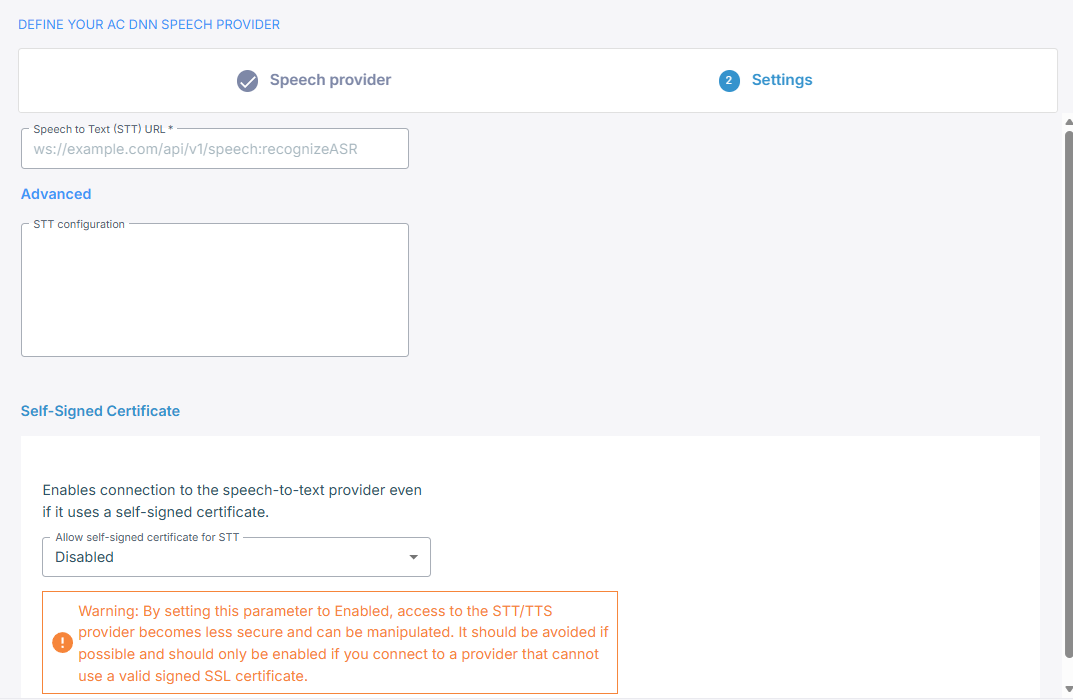
To add an AC DNN speech provider:
-
In the 'Speech-to-text (STT) URL' field, enter the address of your deployment's WebSocket endpoint, in the form
ws://example.com/api/v1/speech:recognizeASR. -
Optional: Under Advanced, in the 'Provider configuration' field, enter the advanced configuration parameters that apply to every bot connection using this provider, under
sttOverrideConfig. The value must be a JSON object: the field rejects anything else, including a bare array. See Configure advanced parameters at the provider level. -
Click Create.
Configure advanced parameters at the provider level
The JSON you enter in 'Provider configuration' is merged into the request that starts
recognition, so it applies to every bot connection using this provider. Put the
parameters under sttOverrideConfig; the parameter names are hyphenated. The following
example gives the recognizer less silence before it treats an utterance as complete:
{
    "sttOverrideConfig": {
        "speech-complete-timeout": 800
    }
}
If your deployment presents a self-signed certificate, set sttAllowSelfSignedCert to
true.
Enabling this makes the connection to your deployment less secure and open to manipulation. Use it only where your deployment cannot present a properly signed certificate.
Configure advanced parameters at the bot connection level
You can set the same parameters on a single bot connection rather than on the provider,
under sttPassthruConfig in the JSON editor on the connection's Advanced tab. See
Manage bot connections.
{
    "sttPassthruConfig": {
        "speech-complete-timeout": 800
    }
}
Language and model
You select the language and the model per bot connection, on its Settings tab, not on the provider. See Manage bot connections.