
API clients
An API client is a user that is not a person. It represents a program such as a dialer, an integration, or a script, and it gains access to an account in the same way a user does, by being placed in a user group.
Instead of an email address and a password, an API client has a client ID and a client secret. Those credentials are what a program presents to Live Hub:
- Outbound calling authenticates the dialout request with the ID and secret directly.
- The REST API exchanges them for an access token, and uses the token on every request.
You create and manage the client ID and secret under API Clients in Access control (IAM).
Add an API client
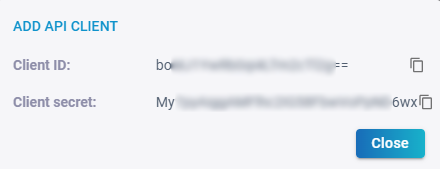
The client secret is shown once, while you are creating the client. It cannot be retrieved afterwards, so copy it now, or you will have to change it and update whatever was using it.
To add an API client:
-
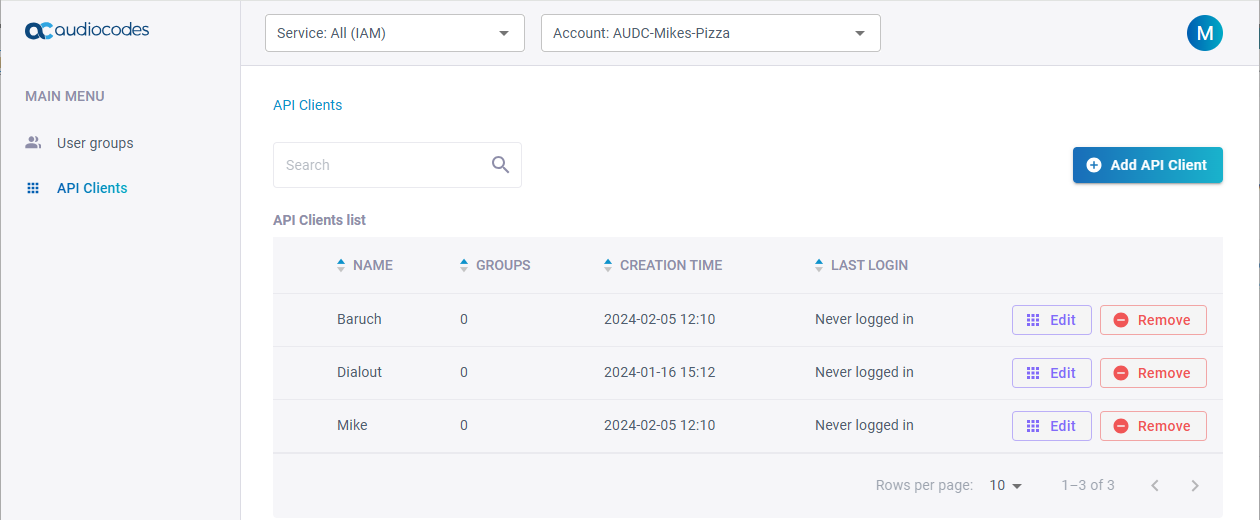
Open Access control (IAM), and select API Clients.
-
Click Add API Client.
-
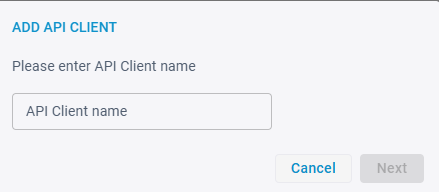
Enter a name, and then click Next.
Live Hub generates the client ID and client secret and shows them.
-
Copy both with the copy-to-clipboard icons, and then store them somewhere safe.
-
Click Close.
A new client has no rights yet. Grant them by adding it to a user group; for outbound calling, that means Call Control and Call Data Manager.
Change the client secret
Rotating the secret invalidates the old one, so anything still using it stops working until you update it.
To change the client secret:
-
Open Access control (IAM), and select API Clients.
-
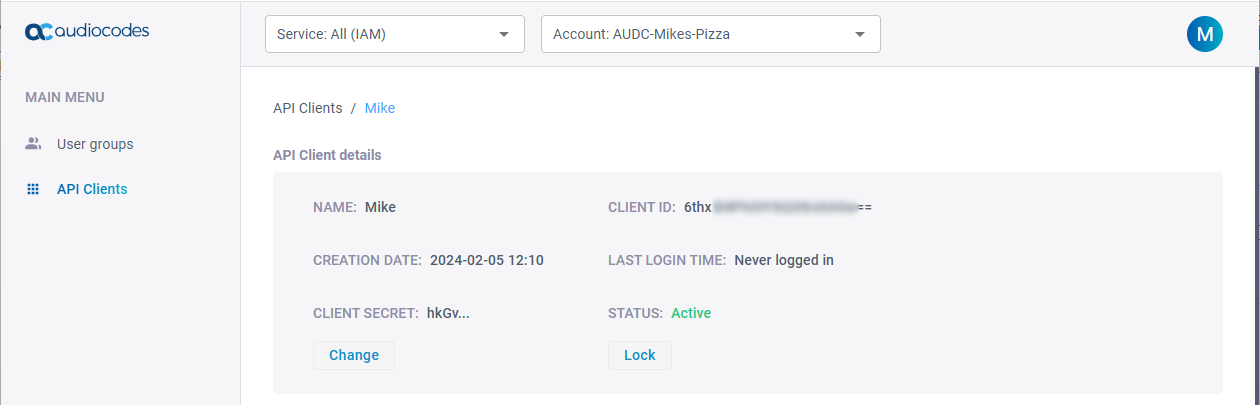
Click Edit on the API client.
-
Beside 'Client secret', click Change, and then confirm.
Lock an API client
Locking switches a client off without deleting it: its credentials stop working, and unlocking restores them. Lock a client when you suspect its secret has leaked, or when an integration is being retired and you are not ready to remove it.
To lock an API client:
-
Open Access control (IAM), and select API Clients.
-
Click Edit on the API client.
-
Click Lock.
'Status' changes to Locked, and the button becomes Unlock.
Assign an API client to a group
You can add a client to a group from either end. To work from the group, see Add an API client to a group.
To add an API client to a user group from the client:
-
Open Access control (IAM), and select API Clients.
-
Click Edit on the API client.
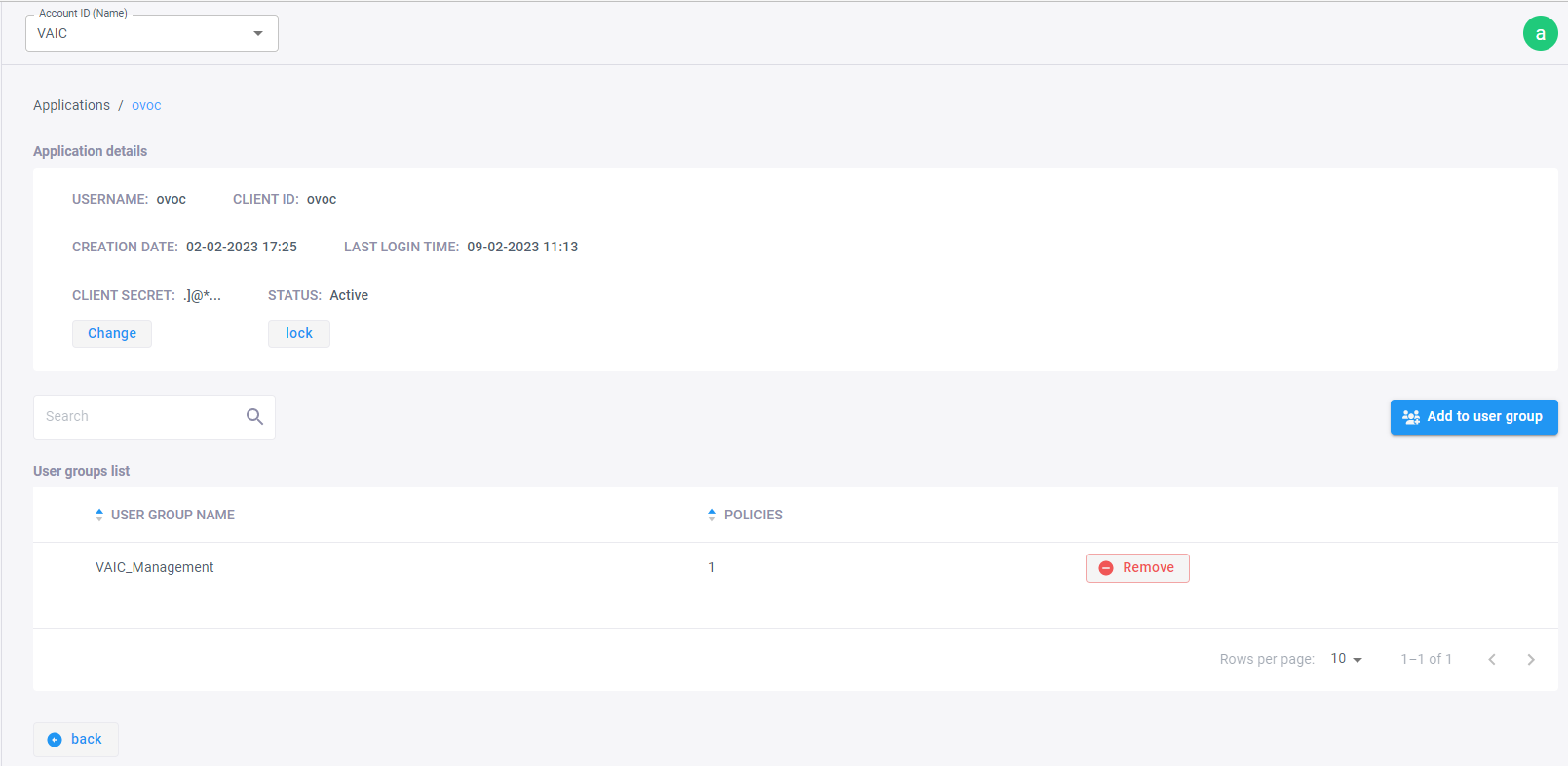
-
Click Add to user group.
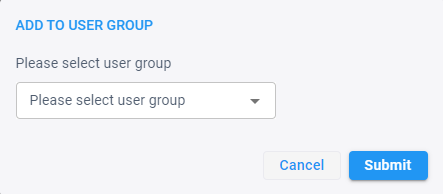
-
Select the group, and then click Submit.
The client's details list the groups it belongs to, and Remove on a row takes it out of that group.
Delete an API client
Deleting an API client removes it from the account. To switch a client off without removing it, lock it instead: see Lock an API client.
To delete an API client:
-
Open Access control (IAM), and select API Clients.
-
Click Remove on the API client, and then confirm with Remove.