
Alarms
Live Hub watches your account and raises an alarm when something goes wrong: a SIP connection that stops responding, a registration that fails, a threshold you set that has been crossed. When the problem clears, so does the alarm.
An indicator carries the count of active alarms wherever you are in the portal, and refreshes when you open the Alarms screen. If you have notifications switched on, alarms are also emailed to you.
An account can hold up to 20 active alarms at a time.
The Alarms screen has three tabs: Active alarms, Alarms history, and, if you have permission to see it, Thresholds.
View active alarms
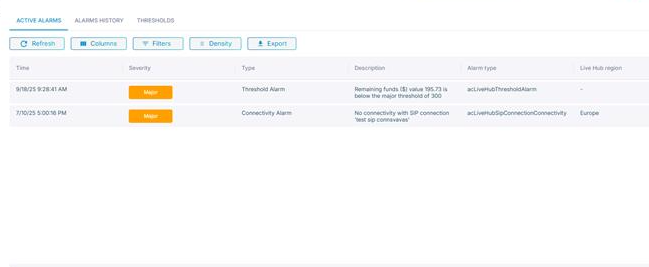
The Active alarms tab lists the alarms that are currently open.
To view active alarms:
-
In the Navigation pane, select Alarms.
-
Read the table.
Column What it holds Time When the alarm was raised or cleared. Severity Critical, Major, Minor, Warning, Indeterminate, or Cleared. Type The name of the alarm. Description What went wrong. Alarm type Connectivity Alarm, Registration Alarm, or Threshold Alarm. Live Hub region Where the alarm was raised. -
Narrow or rearrange the list with any of the following:
-
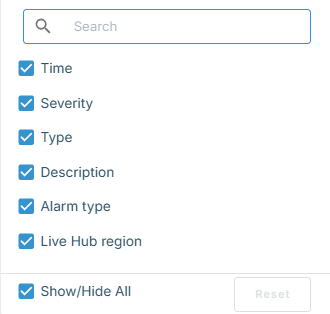
Columns: Select which columns to show. In the 'Find column' field, type a column name to locate one, or click Show/Hide All.
-
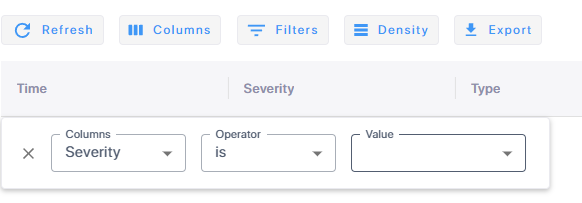
Filters: Set a condition on a column by selecting the column, the operator, and the value. Severity and alarm type offer their values as a list, while the description matches on text.
-
Density: Select Compact, Standard, or Comfortable.
-
-
Click Export to download the list as a
.csvfile, click Refresh to reload it, and click Previous and Next to page through it.
View alarm history
Cleared alarms do not disappear. Live Hub keeps the last 1,000 alarms per account, discarding the oldest as new ones arrive.
To view alarm history:
-
In the Navigation pane, select Alarms.
-
Select the Alarms history tab.
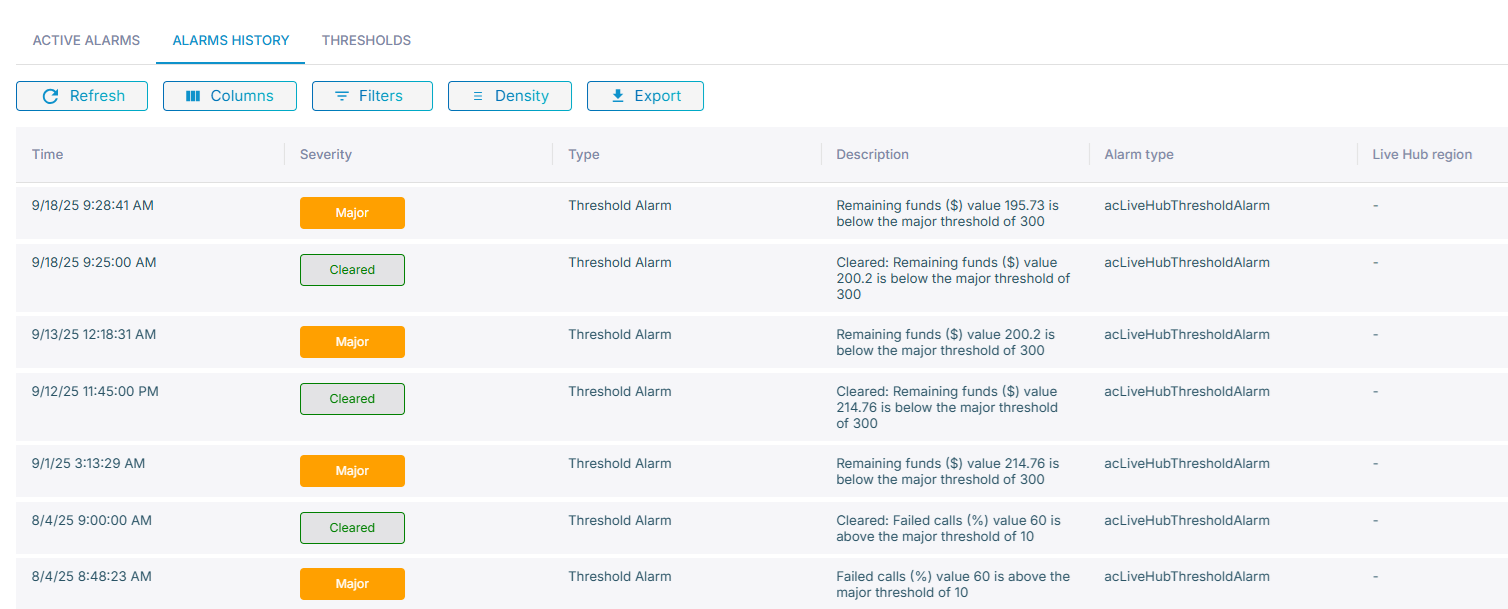
The table and its controls work exactly as they do for active alarms.