
Azure OpenAI speech provider
An Azure OpenAI speech provider lets Live Hub use your Azure OpenAI resource for text-to-speech (TTS), speech-to-text (STT), or both.
Create the resource in Azure and deploy the models you want before you start. See Create and deploy an Azure OpenAI in Azure AI Foundry Models resource. You need its endpoint, its key, and the deployment names you gave it.
Azure OpenAI's advanced configuration parameters are set on a bot connection rather than on the provider. See Configure advanced parameters at the bot connection level.
Add an Azure OpenAI speech provider
To add an Azure OpenAI speech provider:
-
In the 'Endpoint' field, enter the base URL of the resource, in the form
https://<your-resource-name>.openai.azure.com/, including the trailing slash. Azure shows it under Resource Management > Keys and Endpoint. -
In the 'Authentication key' field, enter the key shown under Resource Management > Keys and Endpoint.
-
Under Text-to-Speech (TTS):
- In the 'TTS Deployment' field, enter the deployment name of the text-to-speech
model, such as
gpt-4o-mini-tts. Azure AI Foundry shows it in the deployment details. - In the 'Initial buffer time (MS)' field, enter how much audio to buffer before
playing it to the caller, from
0to5000. Buffering absorbs the model's start-up delay so playback does not stutter.
- In the 'TTS Deployment' field, enter the deployment name of the text-to-speech
model, such as
-
Under Speech-to-Text (STT):
- In the 'STT Deployment' field, enter the deployment name of the speech-to-text model.
- From the 'STT Model' drop-down list, select whisper-1, gpt-4o-transcribe, gpt-4o-mini-transcribe, or gpt-realtime-1.5.
-
Click Create.
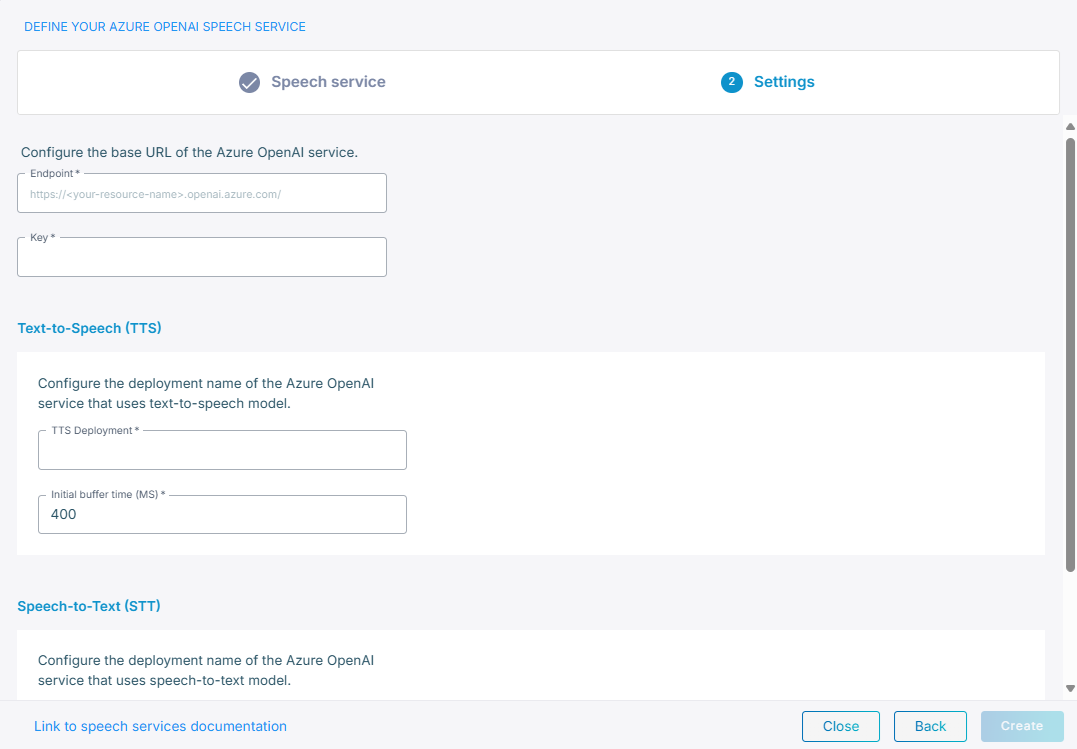
Only the sections for the speech types you selected appear.
Configure advanced parameters at the bot connection level
Synthesis parameters go under ttsPassthruConfig in the JSON editor on the bot
connection's Advanced tab, and Live Hub merges them into the request it sends to
Azure OpenAI. See Manage bot connections.
The full set of text-to-speech parameters is Create Speech in OpenAI's audio API documentation.
{
    "ttsPassthruConfig": {
        "speed": 1.25
    }
}
The model comes from the 'TTS Deployment' field on the provider.
Set the speaking style
ttsInstructions tells the model how to speak. It goes on the same Advanced tab,
alongside ttsPassthruConfig rather than inside it:
{
    "ttsInstructions": "Speak in a cheerful and positive tone."
}
Tune recognition
Recognition parameters go under sttPassthruConfig on the same tab. Live Hub sends them
in the session it opens with the Azure OpenAI realtime API, so they take the shape that
API defines:
{
    "sttPassthruConfig": {
        "input_audio_noise_reduction": {
            "type": "near_field"
        }
    }
}
Turn-taking
Live Hub ends the caller's turn after a period of silence. One field on the bot connection's Settings tab, under Speech-to-Text (STT) Settings, sets how long Live Hub waits. The field has a bot parameter behind it, which you can set on the Advanced tab instead:
| Field | Bot parameter |
|---|---|
| 'End-of-turn timeout (ms)' | sttSegmentationSilenceTimeoutMs
|
The default is 800 ms, and the range is from 100 to 5000 ms. If the timeout is too short, Live Hub ends the turn while the caller is still speaking. If the timeout is too long, the bot waits after the caller has finished.
Language and voice
You select the language and the voice per bot connection, on its Settings tab, not on the provider. See Manage bot connections.