
Google CX Agent Studio
This section describes how to create a bot connection using Google CX Agent Studio. First, define the bot framework and then the details.
Bot management in Live Hub is based on AudioCodes VoiceAI Connect platform. Therefore, it's recommended to first read the VoiceAI Connect documentation on integrating Google CX Studio Agents with telephony providers.
Prerequisites
Before configuring the bot connection, make sure you have:
Google Service Account
-
Enable APIs: In the Google Cloud Console, navigate to APIs & Services > Library and ensure the Dialogflow API is enabled.
-
Create Account: Create a Google service account with the following IAM permissions:
-
Dialogflow API Client
-
Dialogflow Agent Assist Client
-
-
Download Key: Download the JSON key file.
Conversation Profile ID
Obtain the Conversation Profile ID by following the steps in Obtaining a conversation profile ID.
Define the bot framework
To define the bot framework and details:
-
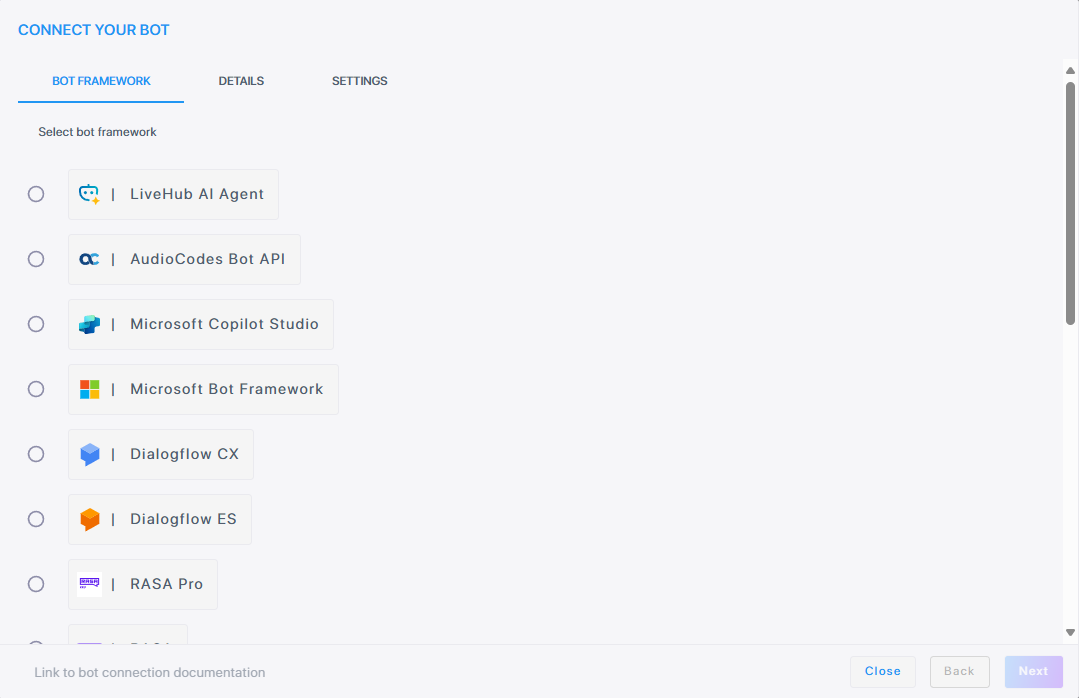
In the Navigation menu pane, select Bot connections, and then click Add new voice bot connection; the following appears:
-
Select Google CX Agent Studio, and click Next.
-
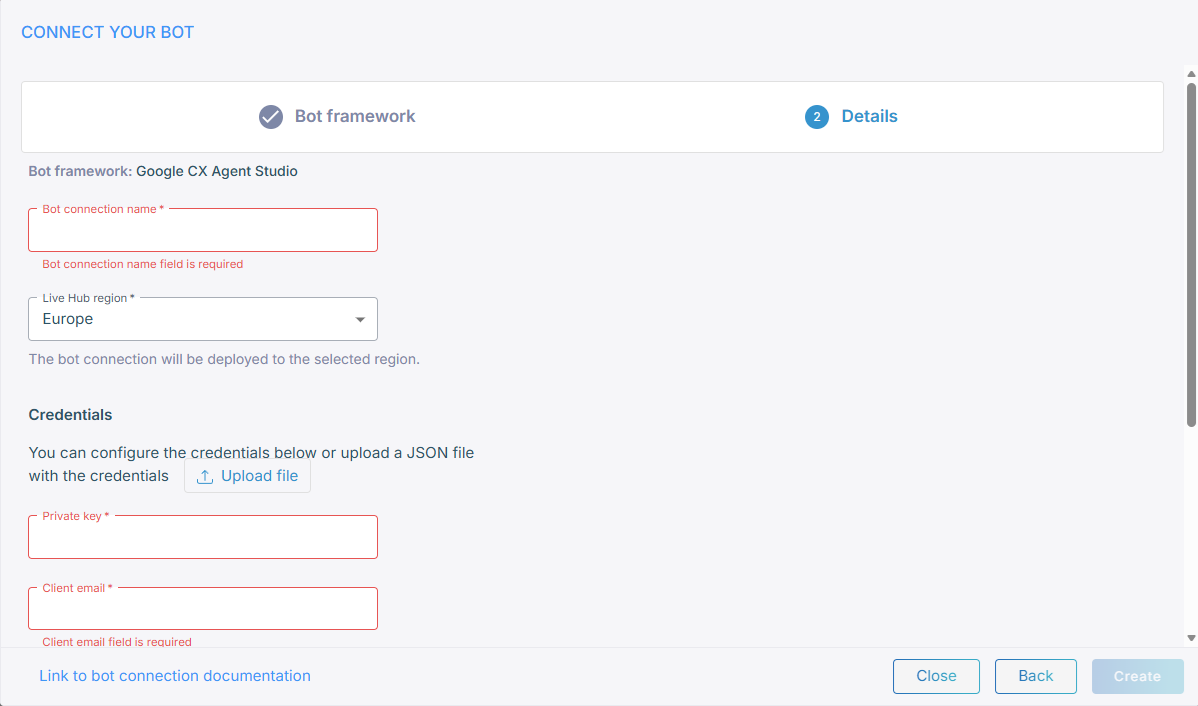
In the 'Bot connection name' field, enter the name for the bot connection.
-
From the 'Live Hub region' drop-down, select the geographical location (region) in which Live Hub voice infrastructure is deployed.
-
Configure the credentials using one of the following methods. These credentials are generated according to the Prerequisites listed above.
-
Upload a JSON credentials file: Click Upload file and select the JSON credentials file. The system automatically populates the 'Private Key', 'Client email', and 'Project ID' fields.
-
Enter the credentials of your service account key:
-
Private key - enter the private key as configured for the Google speech service.
-
Client email - enter the email address of the client.
-
Project ID - enter the Project ID.
-
-
-
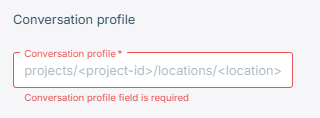
Under Conversation profile, enter the 'Conversation profile.
-
Click Create.