
Soniox speech provider
A Soniox speech provider lets Live Hub use your Soniox account for speech-to-text (STT), text-to-speech (TTS), or both.
Adding the provider requires the authentication key from your Soniox account and, optionally, host names that override the Soniox defaults. All other Soniox behavior is governed by the vendor's advanced configuration parameters, which you can set at either of two levels:
- Provider level: Enter the parameters in the 'STT configuration' and 'TTS configuration' fields. A parameter set on the provider applies to every bot connection that uses the provider.
- Bot connection level: Enter the parameters on the bot connection's Advanced tab. A parameter set on a bot connection applies to that connection only.
If the same parameter is set at both levels, the bot connection value takes precedence. Language, model, and voice are configured on the bot connection only; they are not available on the provider.
Add a Soniox speech provider
To add a Soniox speech provider:
-
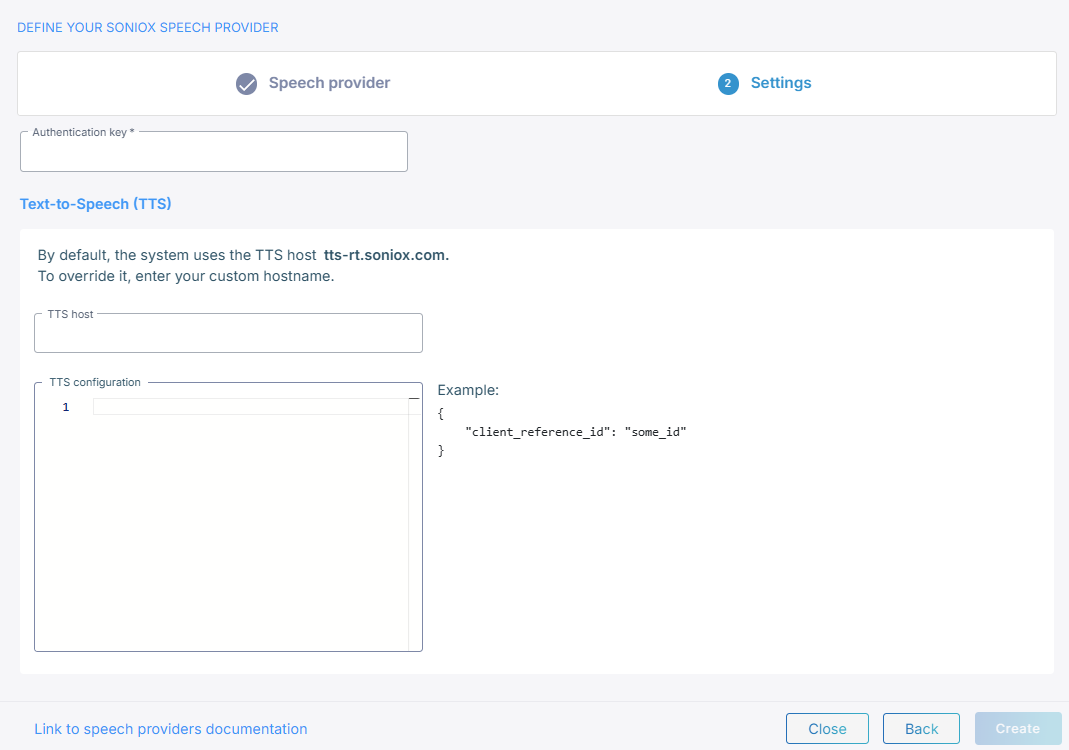
In the 'Authentication key' field, enter the API key from your Soniox account.
-
Under Text-to-Speech (TTS):
- Optional: In the 'TTS host' field, enter a hostname that overrides the
default,
tts-rt.soniox.com. - Optional: In the 'TTS configuration' field, enter the Soniox advanced configuration parameters that apply to every bot connection using this provider. See Configure advanced parameters at the provider level.
- Optional: In the 'TTS host' field, enter a hostname that overrides the
default,
-
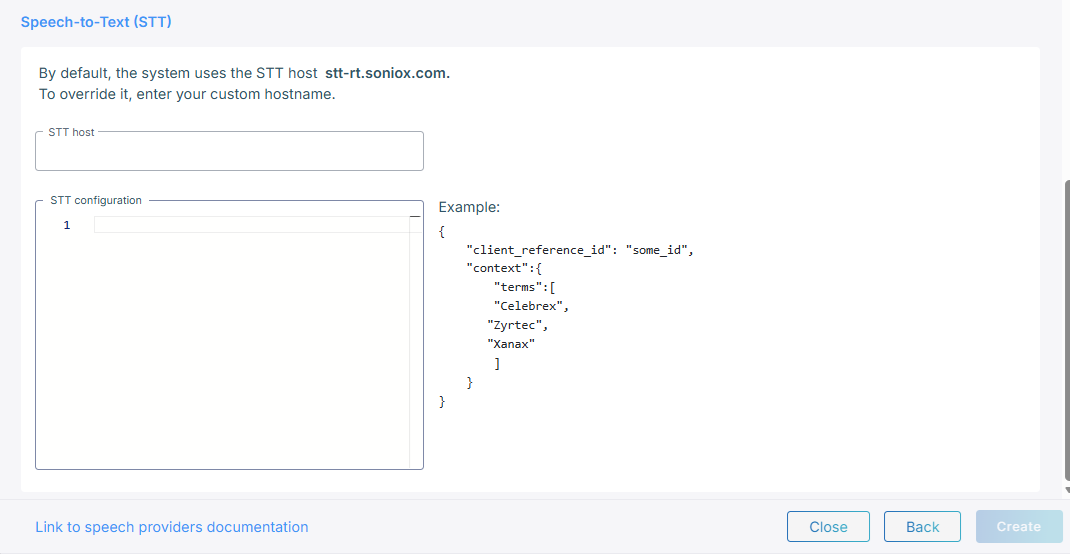
Under Speech-to-Text (STT):
- Optional: In the 'STT host' field, enter a hostname that overrides the
default,
stt-rt.soniox.com. - Optional: In the 'STT configuration' field, enter the Soniox advanced configuration parameters that apply to every bot connection using this provider. See Configure advanced parameters at the provider level.
- Optional: In the 'STT host' field, enter a hostname that overrides the
default,
-
Click Create.
Only the sections for the speech types you selected appear.
Configure advanced parameters at the provider level
The JSON you enter in 'TTS configuration' and 'STT configuration' is merged into every request Live Hub sends to Soniox, so it applies to every bot connection using this provider. Each field takes only its own direction's parameters.
Example Text-to-speech configuration
For the full set of text-to-speech parameters in Soniox, see the text-to-speech WebSocket API documentation.
{
    "reduce_silence": true
}
Example Speech-to-text configuration
For the full set of speech-to-text parameters in Soniox, see the speech-to-text WebSocket API documentation.
{
    "endpoint_sensitivity": 0.3
}
To supply recognition context, use the sttSpeechContexts and sttInstructions bot
parameters rather than Soniox's own context parameter. See
Recognition parameters.
Configure advanced parameters at the bot connection level
Soniox's advanced configuration parameters go under ttsPassthruConfig and
sttPassthruConfig in the JSON editor on the bot connection's Advanced tab, where
they apply to that bot connection alone. See
Manage bot connections.
Example:
{
    "ttsPassthruConfig": {
        "reduce_silence": true
    },
    "sttPassthruConfig": {
        "endpoint_sensitivity": 0.3
    }
}
Recognition parameters
Live Hub has its own bot parameters for tuning Soniox recognition. Set them on the bot connection's Advanced tab:
| Parameter | What it does |
|---|---|
sttSegmentationSilenceTimeoutMs
|
Sets the length of silence that ends recognition, from 500 to 3000 ms. Setting it to 0 turns endpoint detection off. Live Hub sends it to Soniox as max_endpoint_delay_ms, and falls back to the provider default with a warning if the value is out of range. |
sttSpeechContexts
|
Lists phrases that bias recognition toward your own terminology, such as product names and jargon. All the phrases you list are merged and sent to Soniox as context terms. |
sttInstructions
|
Supplies free text telling Soniox what to expect, to sharpen recognition. $LAST_BOT_MESSAGE in the text is replaced with the bot's most recent spoken message before the request goes out. |
Speech contexts take a list of phrase groups:
{
    "sttSpeechContexts": [
        {
            "phrases": ["AudioCodes", "VoiceAI", "WebRTC", "SIP"]
        }
    ]
}
Language, model, and voice
Language, model, and voice are always configured on the bot connection's Settings tab, not on the speech provider. See Manage bot connections.
Soniox takes language codes in ISO 639-1 form. Live Hub adapts regional variants for
you: a bot connection set to en-US reaches Soniox as en.
Language detection
Instead of specifying a single language, Soniox can detect the spoken language
automatically. On the bot connection's Advanced tab, set languageDetectionActivate
to true, choose the primary language in language and list the alternative languages in alternativeLanguages:
{
    "languageDetectionActivate": true,
    "language": "en-US",
    "alternativeLanguages": [
        { "language": "es-ES" },
        { "language": "fr-FR" }
    ]
}