
Support
The  Help Center icon, next to your
profile avatar at the top right, links to help topics and support.
Help Center icon, next to your
profile avatar at the top right, links to help topics and support.
View the documentation
The Help Center menu opens the Live Hub documentation, where you can search for a topic or browse the table of contents.
To view the help documentation:
- Click Help Center at the top right of the screen, and then select Documentation.
- To find a specific topic, use the search bar at the top of the page. Alternatively, browse the table of contents.
Open a support ticket
For anything the documentation does not answer, raise a ticket with the technical support team.
To open a support ticket:
-
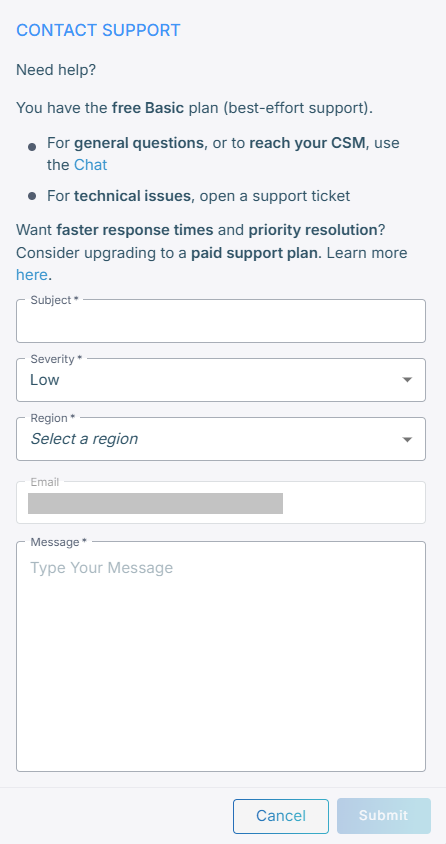
Click Help Center, and then select Contact support.
-
Fill in the form. Set 'Severity' to Low, Medium, High, or Urgent according to the impact on your service.
-
Click Submit.
The ticket goes to the AudioCodes technical support team.
On a Premium support plan, raise tickets through the Service Portal instead.
Start a chat with support
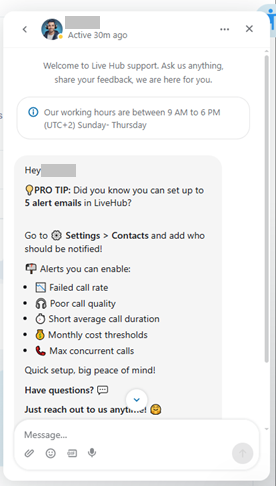
Use the support assistant to ask questions and search the help content from any screen in the portal.
To start a chat:
-
Click the chat icon
 in the
bottom-right corner of the screen.
in the
bottom-right corner of the screen. -
Type your question and press Enter.
Use the AI Assistant in AI Agents
The AI Assistant is a different assistant from the support assistant. It is part of AI Agents, and Build with AI at the top of the screen opens it.
The AI Assistant answers questions from the documentation, and it can also:
- create and edit agents, flows, tools, and documents
- simulate a chat conversation with one of your agents or flows, and report back what happened
- run your test suites
- search past conversations to explain why an agent behaved as it did
For issues in AI Agents, ask the AI Assistant before you create a support ticket. The AI Assistant can often resolve the issue directly instead of only providing guidance. See AI Assistant.
Share call content with support
By default, support cannot access the content of your calls. If support needs this information to investigate an issue, either enable ongoing access in the settings or send the relevant files yourself.
Two settings control support access: one for AI Agents and one for all other features. Both settings are disabled by default. Enable the appropriate setting when support needs access, and disable it again after the investigation is complete.
| Setting | Where | What it shares | Scope |
|---|---|---|---|
| 'Share call transcripts with AudioCodes support team' | Bot connections > Edit > Features, under Call Transcript | Transcripts of that bot connection's calls | One bot connection |
| 'Share AI agent logs with AudioCodes support team' | Settings > Advanced | AI agent logs, transcripts included, for calls handled by AI Agents | The whole account |
Recordings have no such setting. Nothing grants support standing access to call audio, so the only way to give them a recording is to send it yourself.
Share call transcripts
The 'Share call transcripts with AudioCodes support team' option appears on the bot connection's Features tab, below the Call Transcript setting. This option is unavailable until you enable call transcription, because there are no transcripts to share when transcription is disabled. See Call transcript.
This setting applies only to the selected bot connection. You can share transcripts from the bot connection you are troubleshooting while keeping transcripts from other bot connections private.
Share AI agent logs
The 'Share AI agent logs with AudioCodes support team' setting is available on Settings > Advanced. Use this setting to enable or disable sharing of AI Agent logs with AudioCodes Support.
AI Agent logs include call transcripts and other information generated by AI Agents. Unlike the transcript-sharing setting for bot connections, this setting applies to the entire account rather than to an individual agent.
Both sharing settings follow your account's retention policies. Enabling either setting does not extend how long transcripts, logs, or other data are stored. See Recording and transcripts.
Send files to support yourself
Sending files yourself is the only way to share call recordings with Support. You can also use this method to share call transcripts and AI Agent logs, regardless of whether the sharing settings are enabled.
Download the files that Support needs from Call history, and then send them by email or through a file-sharing service of your choice. This approach gives you full control over which calls and files you share and does not require ongoing access.
After a call reaches the end of its retention period, you can no longer download its recordings, transcripts, or logs. If an open investigation depends on this data, download it before it expires. See Call history.