
Test your Teams connectivity
After you create a Teams connection, you can test it by making a test call.
You can test your Teams connection without creating a new rule.
There are two ways you can test your Teams connection:
-
Directly from the Teams connection card
-
Through editing your Teams connection
Test your Teams connection directly
To test your Teams Connectivity directly:
-
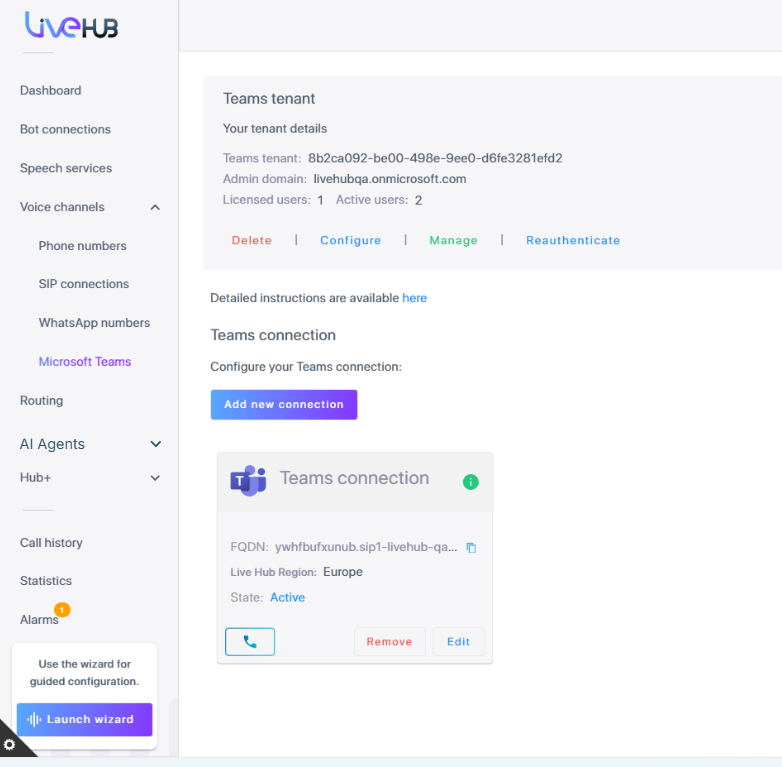
In the Navigation menu pane, select Microsoft Teams.
-
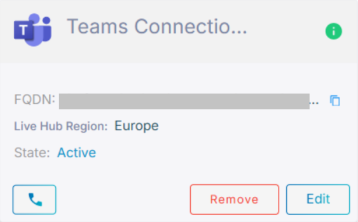
Find the Teams connection you want to test.
-
Click the
 phone icon.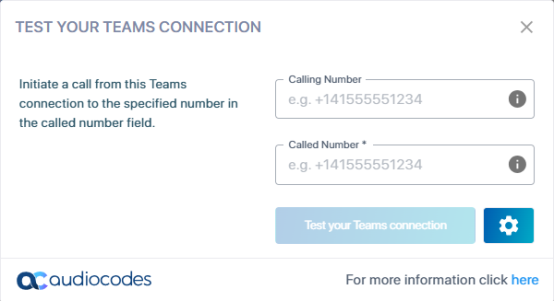
-
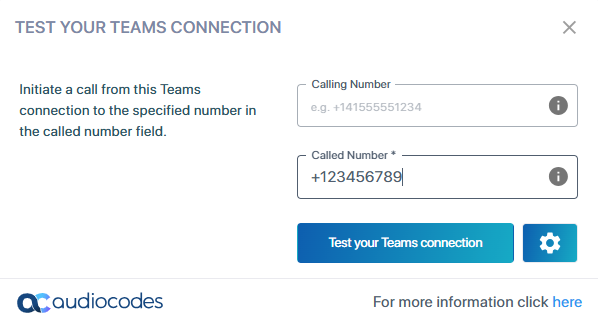
(Optional) Enter the Calling Number. This is the number that will be displayed to the call recipient.
-
Enter the Called Number. This is the phone number of the call destination.
-
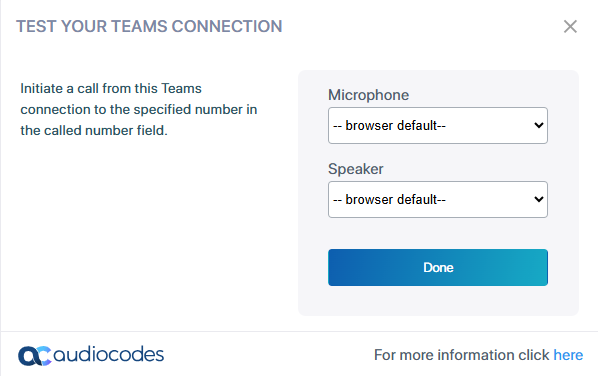
(Optional) Click the settings icon
 to change the default microphone and speaker settings.
 -
Click Done.
-
Click Test your Teams connection.
Test your Teams connection via edit
To test your Teams Connectivity while editing:
-
In the Navigation menu pane, select Microsoft Teams.
-
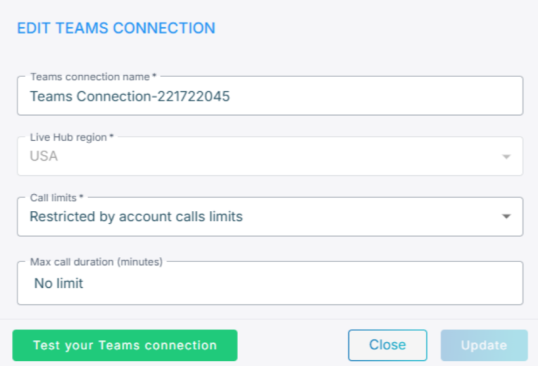
Click the Edit button corresponding to the Teams connection that you want to test; the Edit Teams dialog box appears.
-
Click the Call your Teams connection button.
-
(Optional) Enter the Calling Number. This is the number that will be displayed to the call recipient.
-
Enter the Called Number. This is the phone number of the call destination.
-
(Optional) Click the settings icon
to change the default microphone and speaker settings. -
Click Done.
-
Click Test your Teams connection.