View billing history
Live Hub allows you to view your billing history.
You can only view billing history if you have Live Hub billing privileges (i.e., assigned to IAM-based User Group "Billing Administrator or Billing Viewer"). For more information, see Overview of users management.
You can view the following types of reports:
-
Active: Displays a report for the current month. The report is updated until the month ends and the final report is generated.
-
Closed: Displays the final report for previous months, which cannot be changed.
To view billing history:
-
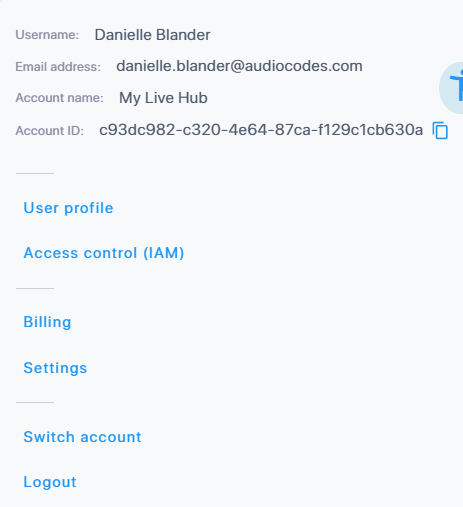
Click your profile icon located in the top-right corner of the Live Hub window; a drop-down menu appears.
-
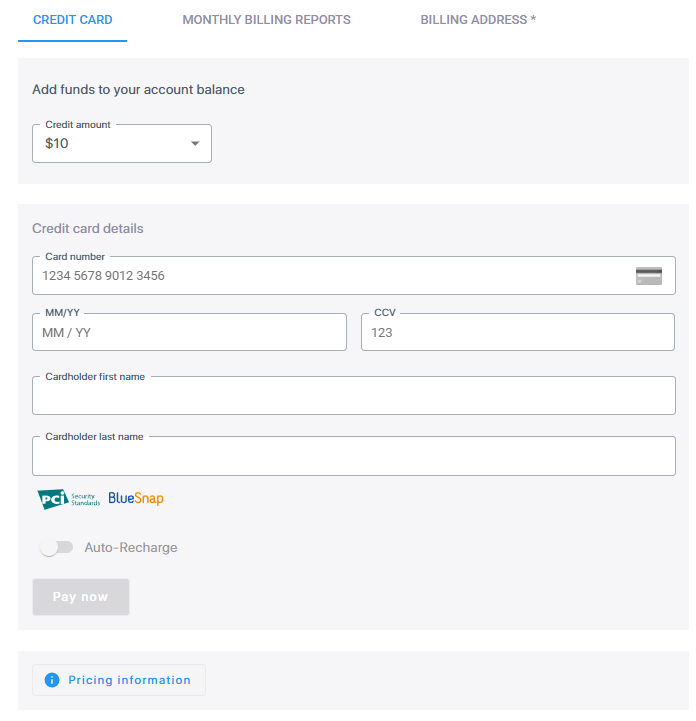
Select Billing. The Credit Card tab is selected, displaying your account plan.
-
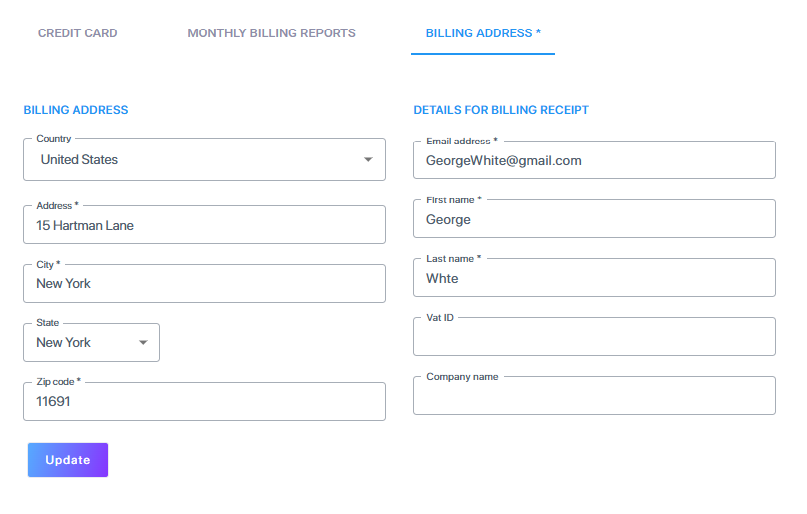
If you haven't provided a billing address, click the billing details link, and then enter your billing address in the opened page.
-
Select the Monthly Billing Reports tab, and select the year for which you want to view monthly payment details:
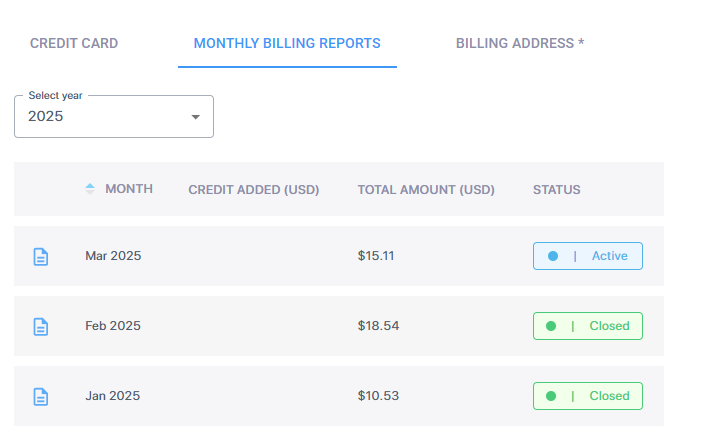
Each line summarizes the amount you are charged per inbound and outbound calls, payment of numbers and the total amount of credit you added during the appropriate month. For the current month, the line is constantly updated according to the activities made in the account – calls, charges for new and existing numbers and adding credit actions. If during the month the Administrator has changed the payment type, the month will have more than one billing report.
-
Month: Displays the month.
-
Credit Added: Displays the total credit you added to the account during the month. This is only applicable to Prepaid accounts.
-
Total Amount: Displays the total amount you paid for the month.
-
Status: Displays the type of monthly report:
-
"Active": Displays a report for the current month. The report is updated until the month ends and the final report is generated.
-
"Closed": Displays the final report for previous months, which cannot be changed.
-
-
To view a detailed monthly billing summary, click the
 icon for the specific month; the following appears. Use the scroll bar to view all the billing information.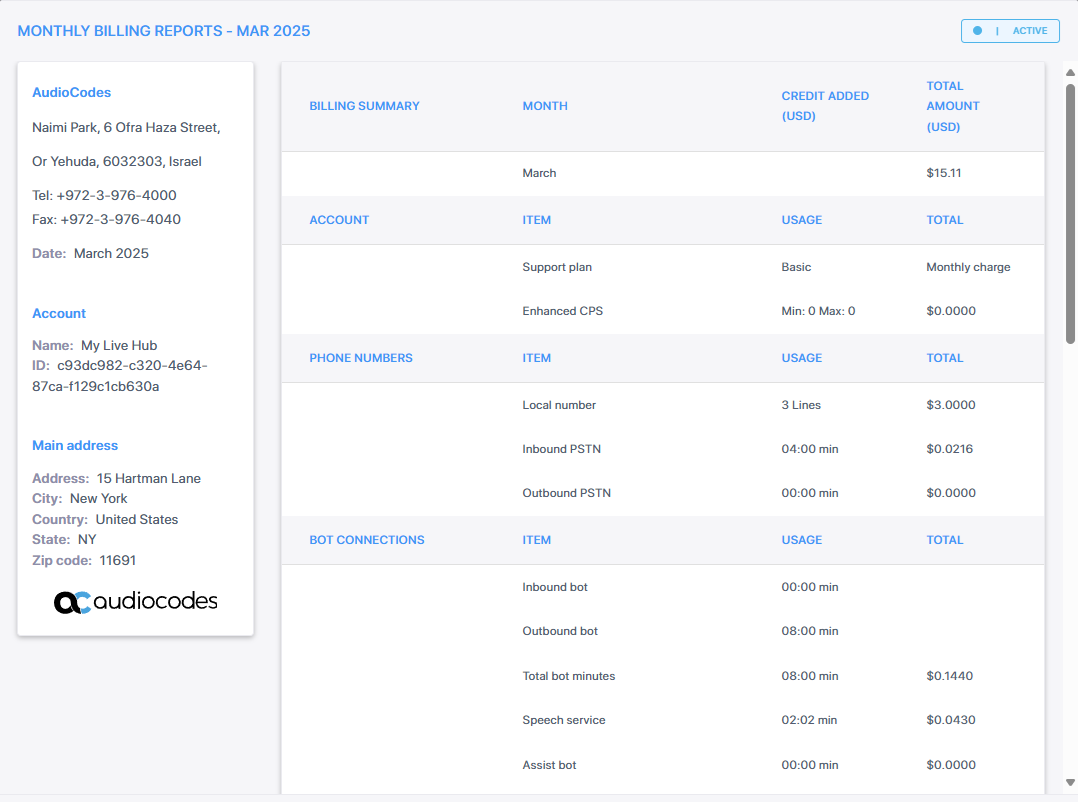
-
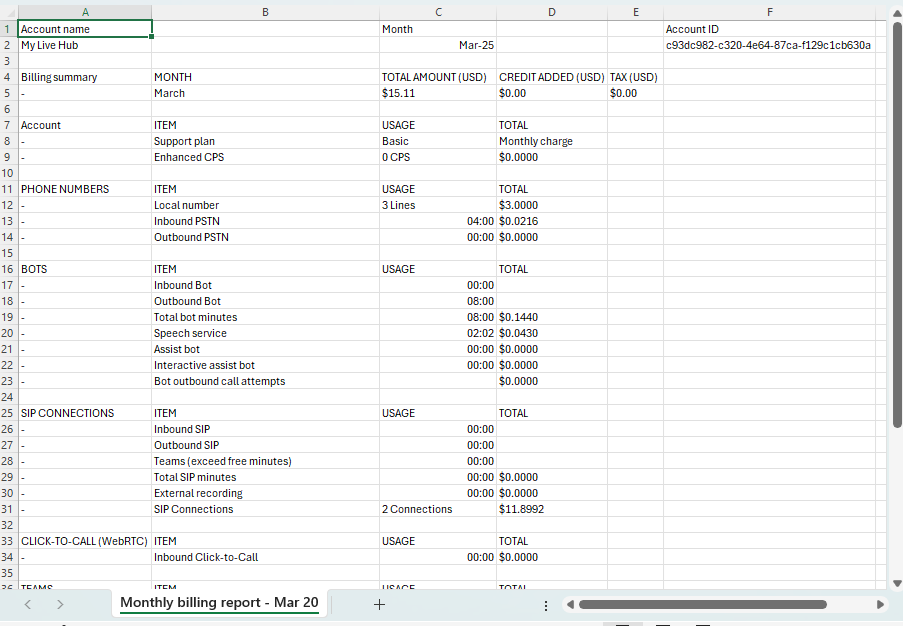
To download the billing information to a CSV file, click Save as CSV. The following shows an example of a downloaded CSV file: