
Voca Conversational Interaction Center
This guide connects AudioCodes Voca Conversational Interaction Center (CIC) to Live Hub.
The following figure shows a typical deployment topology:
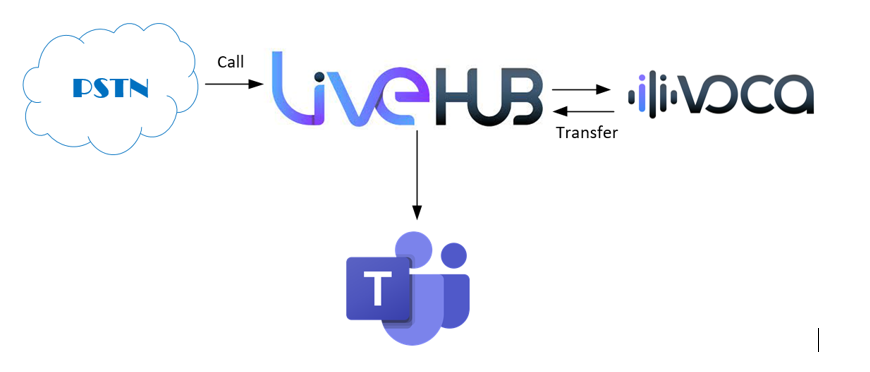
Calls originating from the PSTN side are sent to Live Hub through phone numbers. Live Hub then routes these calls to Voca CIC. As part of the IVR state machine, the call may be transferred back to Live Hub, which then routes the call to a Microsoft Teams human agent.
To establish this deployment topology, complete the following steps:
- Create a phone number in Live Hub.
- Create a SIP connection for Voca CIC in Live Hub.
- Configure Voca CIC.
- Connect your Microsoft Teams tenant and create a Teams connection.
- Create routing rules in Live Hub.
Create a phone number in Live Hub
Follow the instructions in Phone numbers to purchase a PSTN phone number. This number is used to dial the Voca CIC IVR from the public switched telephone network (PSTN).
Create a SIP connection for Voca CIC in Live Hub
To create the SIP connection that represents your Voca CIC account:
-
Log in to Live Hub.
-
In the Navigation pane, select SIP connections, and then click Add new SIP connection.
-
Select the General tab:
-
Under the General group:
- In the 'Name' field, enter a unique SIP connection name (for example, Voca IVR).
- From the 'Provider type' drop-down list, select Contact Center.
- From the 'Provider' drop-down list, select Voca Interaction Center.
-
-
Click Create.
Configure Voca CIC
To create a Voca CIC IVR, refer to the Voca CIC documentation.
Voca CIC assigns your IVR a random telephone number when you create it. Change it to the phone number that you created in Live Hub.
To change the IVR telephone number:
- Open the Telephony Settings page (Configuration > Telephony Settings).
- Select your telephone number, and then from the 'Actions' drop-down list, select Edit Flow Settings.
- In the 'DNIS Number' field, enter the phone number that you created in Live Hub, for
example
+141555551234. - Click Save Changes.
Connect your Microsoft Teams tenant and create a Teams connection
Follow the instructions in Connect Live Hub to a Teams tenant and Create a Teams connection to establish connectivity between Live Hub and your Teams tenant.
Create routing rules in Live Hub
Create the routing rules in Live Hub that do the following:
- Forward incoming PSTN calls to Voca CIC
- Transfer calls from Voca CIC to the Microsoft Teams human agent
To create the routing rules:
-
Log in to Live Hub.
-
In the Navigation pane, select Routing.
-
Click Add new routing rule to add the first routing rule.
- From the 'Connected service' drop-down list, select the SIP connection that represents Voca CIC, for example Voca IVR.
- From the 'Connection type' drop-down list, select Inbound.
- From the 'Connected with' drop-down list, select Phone Number.
- Click Save.
-
Click Add new routing rule to add the second routing rule.
- From the 'Connected service' drop-down list, select the SIP connection that represents Voca CIC, for example Voca IVR.
- From the 'Connection type' drop-down list, select Transfer.
- From the 'Connected with' drop-down list, select Teams Connection.
- Click Save.