Configuring Camera Teams Settings from the RX-PAD
Admins can set up a camera’s Teams- related settings from the RX-PAD. To do this:
|
2.
|
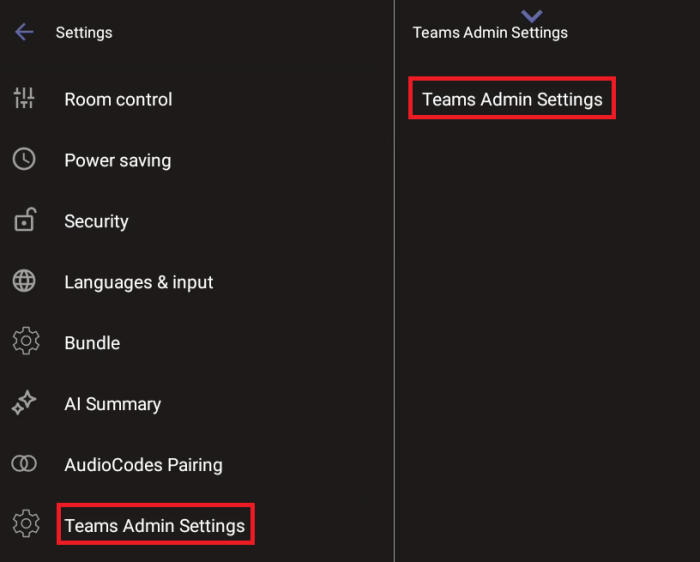
Under ‘Device admin settings’, scroll down and tap Teams Admin Settings. |
|
3.
|
Tap Teams Admin Settings and configure camera settings as required. |
Alternatively, you can access these settings from the Teams Admin Center (TAC). For details, see the Microsoft Teams documentation.
The ‘Teams Admin Settings’ option is only available in the RX-PAD Device Admin Settings if you access settings if its navigation is Teams originated. Consequently:
|
●
|
If you access Settings by tapping More on the RX-PAD homepage and then tapping Settings > Device Settings, the ‘Teams Admin Settings’ option will appear in the Settings sidebar menu. |
|
●
|
If you access Settings via the pull-down menu tray, the ‘Teams Admin Settings’ option will not appear. |