Operating with the Remote Keyboard
| ➢ | To operate with the remote keyboard: |
| 1. | After pairing your RX-PAD with the MTRA, scroll down in the RX-PAD to the menu tray: |
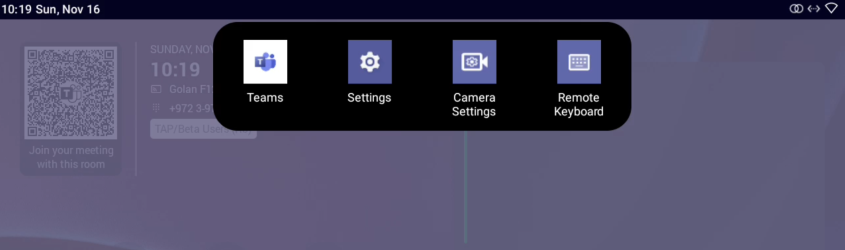
| 2. | Tap the Remote Keyboard option. |
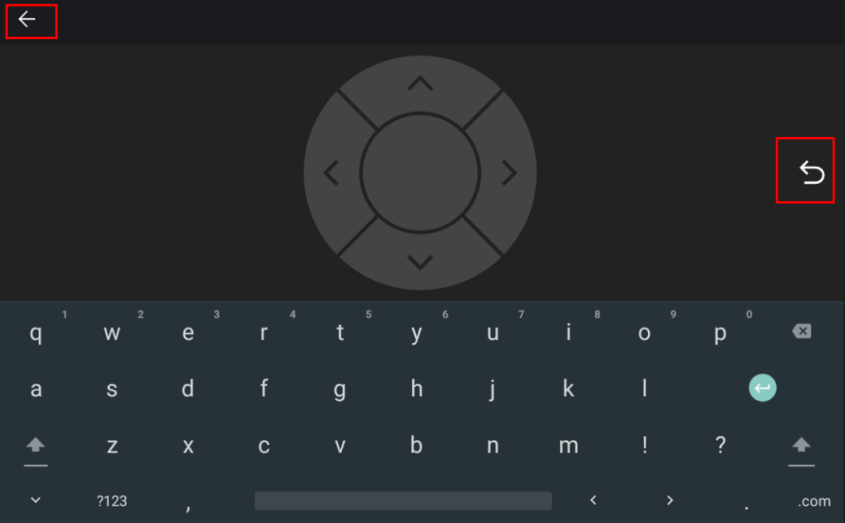
| 3. | Enable touchscreen controls for remote control of the MTRA. |
| 4. | Use the RX-PAD’s remote keyboard to: |
| ● | Sign in to an MTRA |
| ● | Toggle between the MTRA’s Teams menus and device menus |
| ● | Navigate to MTRA settings for adjustment of relevant features (such as Bundle selection, etc.) |
| 5. | Tap the right arrow indicated in the preceding picture to go back to the previous menu in the MTRA. |
| 6. | Tap the uppermost left arrow indicated in the preceding picture to exit Remote Keyboard mode. |