Performing Recovery Operations using the Power Button
While RX-PAD is powering up, admin can perform recovery operations by inserting a sharp pointed object, for example, a paper clip or pin, into the pinhole button shown below and pressing for the length of time shown in the following table.
`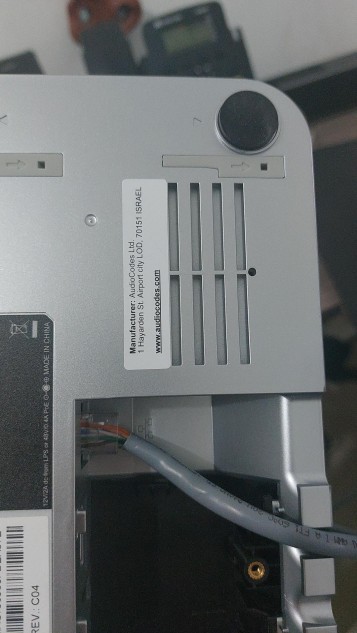
When pressing the pinhole button, the device’s main LED changes color after every n seconds; each color is aligned with a recovery operation option.
| ● | Besides manual recovery options, Android devices also feature an independent, automatic problem detection and recovery attempt capability that can culminate in recovery mode or in switching image slots. |
| ● | Android devices also feature a ‘hardware watchdog’. This feature resets the device if Android is stacked and doesn’t respond (though Android stacking is unlikely); there’s no recovery process; the device is only reset. |
Use this as reference as to how to use the pinhole button to perform recovery operations.
|
When? |
Action |
Press for how long? |
LED flashes 3x after release |
|---|---|---|---|
|
Start pressing immediately after power up (on U-Boot / Universal Boot Loader) |
Recovery mode (you can restore defaults from there) |
~ 4 seconds |
Red |
|
Switch slots A / B |
~ 10 seconds |
Green |
|
|
Loader |
~ 15 seconds |
Blue / Yellow |
|
|
Restore defaults |
~25 seconds |
Green + blue / Green + yellow |
|
|
When successfully booted (on Android) |
Reboot |
From the Recovery menu |
- |
|
Restore defaults |
Long-press the Hold key for ~15 seconds |
Flashes yellow once after release |