Selecting RXVCam70 Camera Tracking Mode
Regular users can only create temporary presets during ongoing meetings. These presets are automatically deleted at the end of the meeting.
To permanently configure the default Room preset or create permanent presets, you need to be logged in as admin (see Accessing Device Admin Settings).
| ➢ | To select a Tracking Mode: |
| 1. | Do either of the following: |
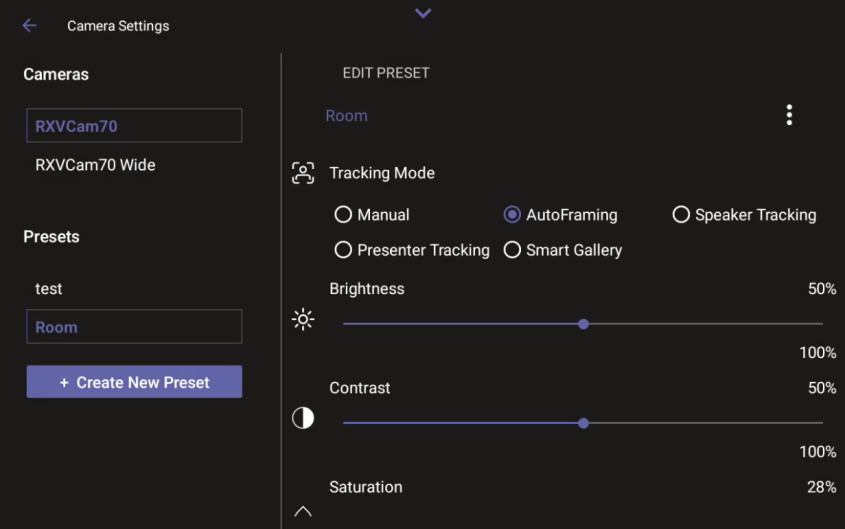
| ● | From your RX-PAD, open the Edit Preset page (Camera Settings > Room > Edit Preset). |
| ● | From your RXV200, navigate to the camera display (via Camera Settings) and tap the Tracking Mode option on the vertical toolbar. |
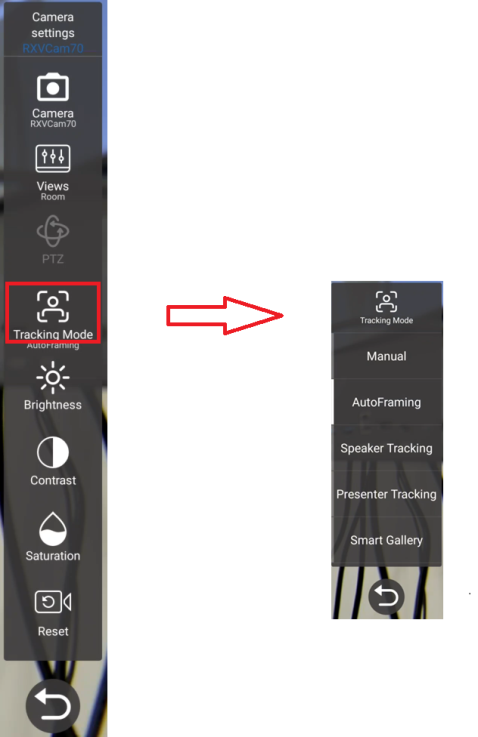
| 2. | Select one of the following RXVCam70 camera tracking mode options: |
| ● | Auto Framing (default), also known as Group Framing |
| ● | Manual |
| ● | Speaker Tracking |
| ● | Presenter Tracking |
| ● | Smart Gallery |
See the next step for a description of each tracking mode.
| 3. | Use the following descriptions as a reference when configuring a tracking mode: |
|
Group Framing (Auto Framing) |
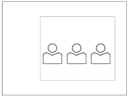
[Supported by RX-PAD Camera Settings] Default mode Automatically detects and frames all the participants in the room. Effective distance: 8m |
|
|


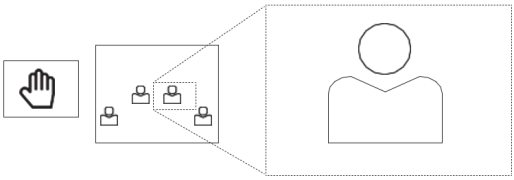
Manual |
Select this option to manually adjust the Zoom, Tilt or Pan. In RX-PAD’s ‘Camera Settings’ page, use the sliders to set Zoom, Tilt or Pan. Using the RCU, after selecting an area to display, zoom in | out, move up | down, and move left | right. This mode does not have AI functions. |
|
|
|
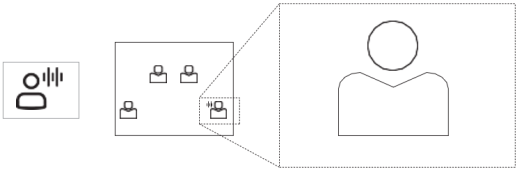
Speaker Tracking |
Select this option to manually adjust the Zoom, Tilt or Pan. Automatically tracks speakers who speak continuously for 3-5 seconds Focuses on the speaker (displays them close-up allowing participants to focus more) Effective distance: 6m |
|
|

|
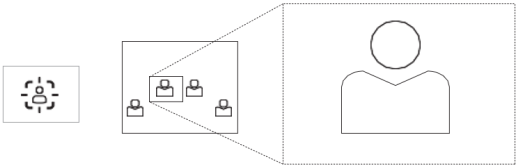
Presenter Tracking |
Automatically identifies and tracks the position of the presenter to ensure that that person remains centered. Press the left and right keys to select the target to track. Press OK to choose the target. |
|
|

|
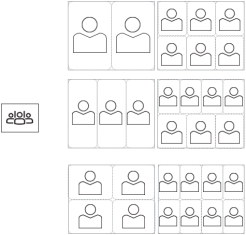
Smart Gallery |
Automatically identifies up to 18 people Automatically lays out the display When a person moves, the camera automatically tracks them and keeps them centered Switching from one person to another is accompanied by dynamic effects of entry and exit |
|
|
