Setting up the Paired MTRA using the Initial Configuration Wizard
The Initial Configuration Wizard allows you to easily set up your MTRA from its RX-PAD after pairing.
| ➢ | To set up your MTRA using the wizard: |
| 1. | When you set up a MTRA paired with an RX-PAD, the RX-PAD prompts you to select the language for the UI. Select the requested language. |

| 2. | The MTRA prompts you to connect to |
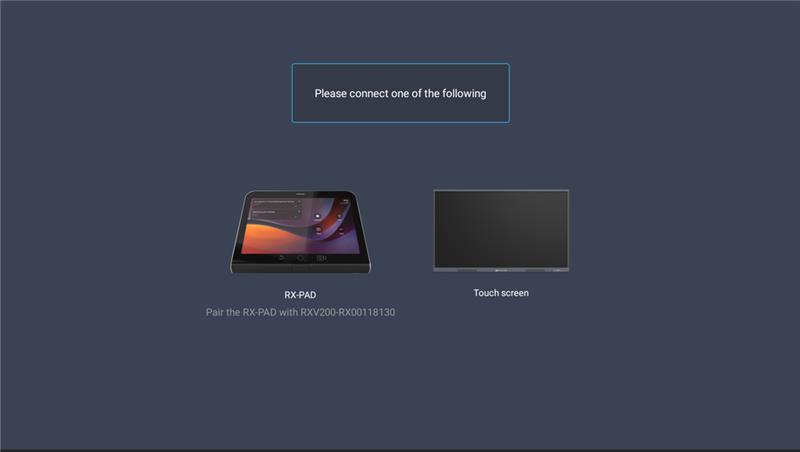
| 3. | Upon selecting the input device, the AudioCodes Pairing page is displayed, listing available devices: |
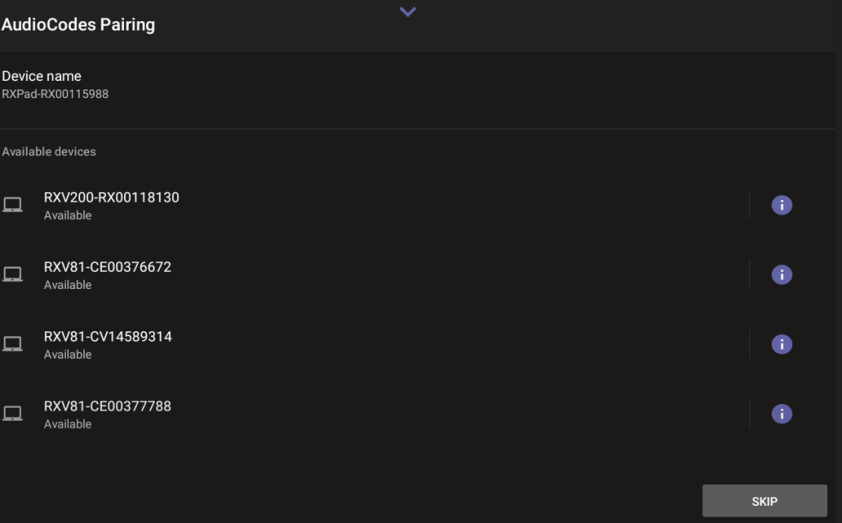
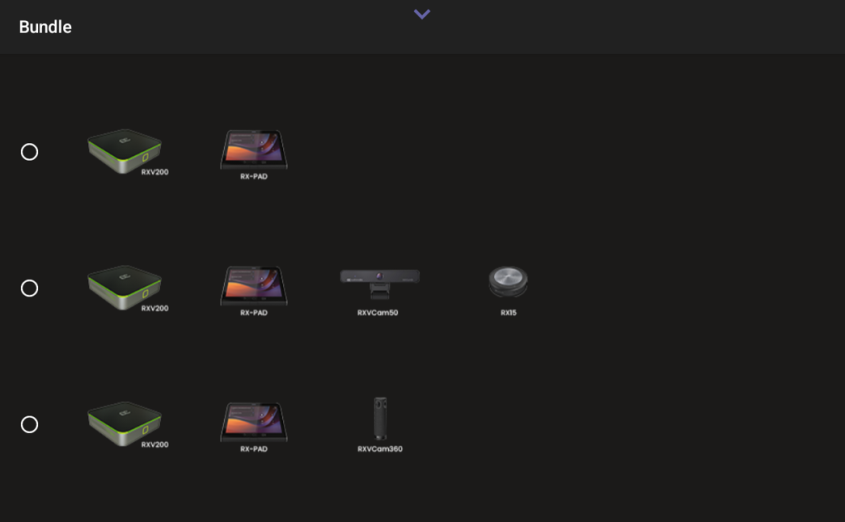
| 4. | Tap the relevant device and confirm the selection. The RX-PAD finalizes the pairing process and assigns the appropriate bundle with the MTRA. |
If you need to choose a bundle, the Bundle page is displayed:
| 5. | After this process is completed, the Microsoft Teams sign-in page is displayed on both devices, showing the code you need to sign into your Microsoft account. |
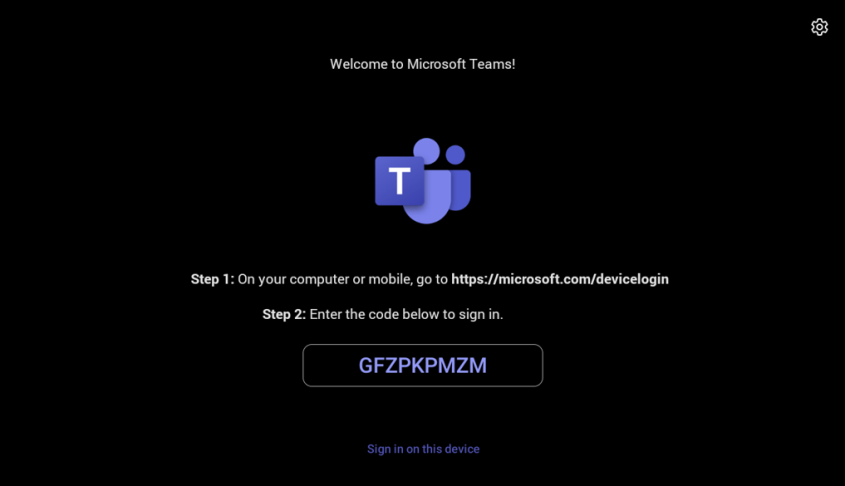
| 6. | On both devices, sign in to your Microsoft account. |