Set up RXV200 with the Initial Configuration Wizard
The Initial Configuration Wizard allows you to easily set up your MTRA with RX-PAD.
|
1.
|
Connect the RXV200 and the RX-PAD to the power supply and the same local network. |
|
●
|
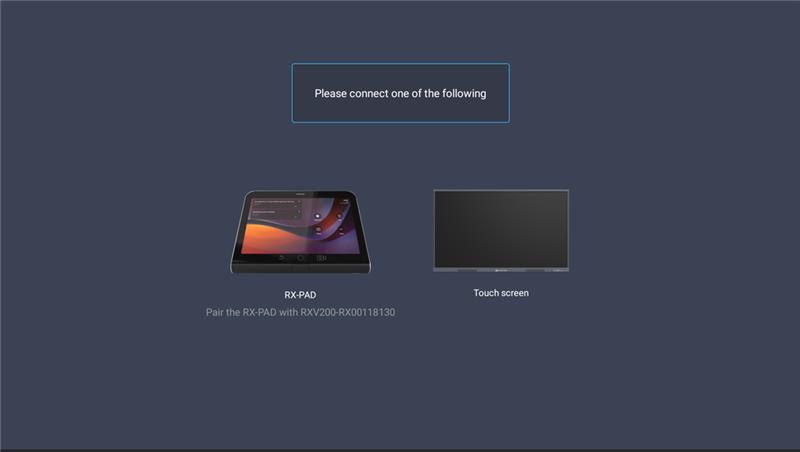
The RXV200 starts up and prompts you to connect an RX-PAD or a touch screen. |
|
●
|
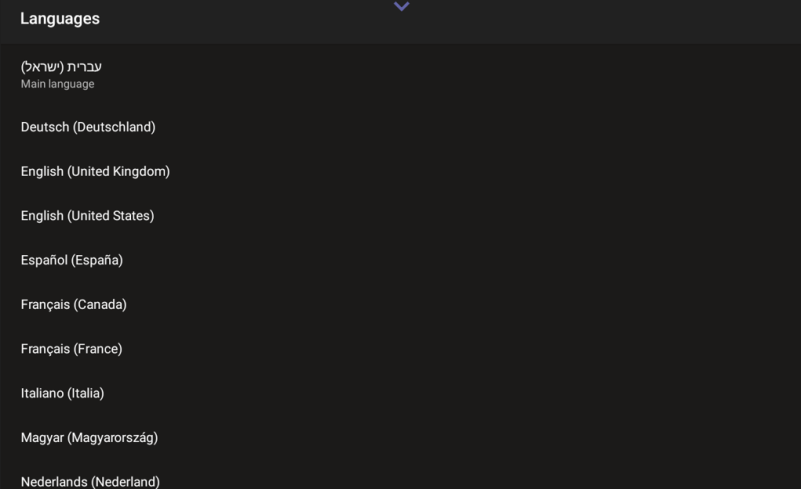
The RX-PAD starts up and prompts you to select a language for the UI. |
|
2.
|
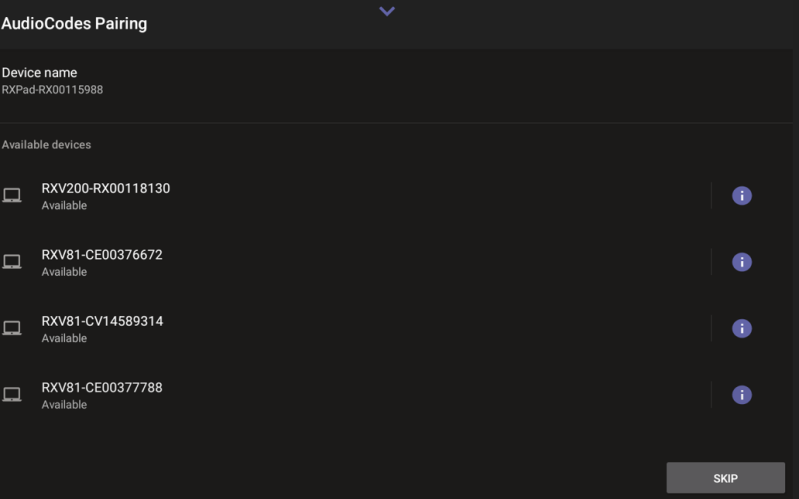
On the RX-PAD, select the requested language. The AudioCodes Pairing page is displayed, listing the available MTRAs: |
|
3.
|
Select the relevant RXV200. The RX-PAD finalizes the pairing process. |
|
4.
|
If a camera is connected to the RXV200, you are prompted to set up the camera settings: |
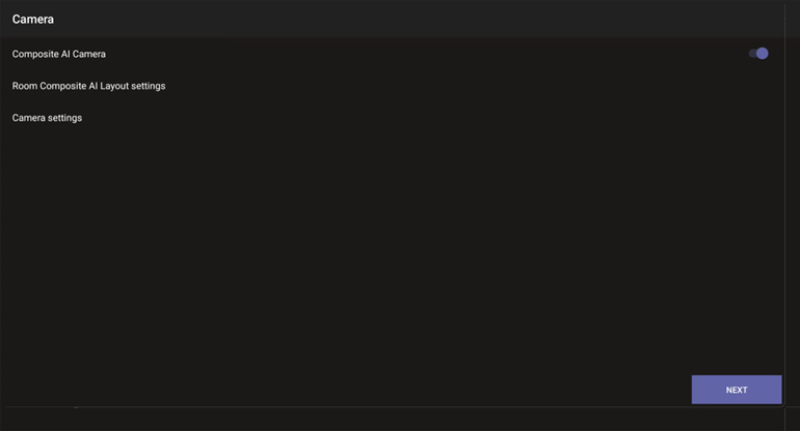
Set up the camera settings as required (see MTRA Camera Settings and Set up Composite AI). When done, click Next.
|
●
|
Alternatively, you can set up camera settings at a later stage, after completing the wizard. |
|
●
|
Composite AI camera configuration is only relevant if multiple cameras are connected. |
|
5.
|
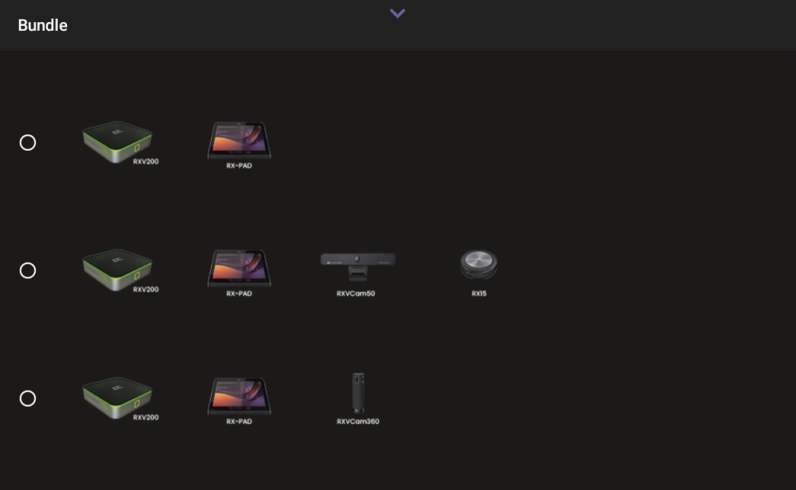
You are prompted to select a bundle. |
|
6.
|
Select the bundle (see Bundles for an explanation). The RX-PAD assigns the bundle with the RXV200. |
|
7.
|
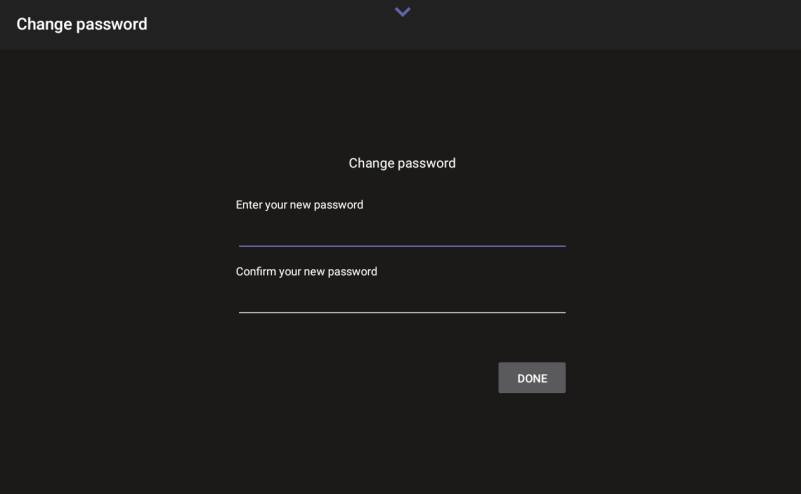
You are prompted to change the (default) admin password. |
|
8.
|
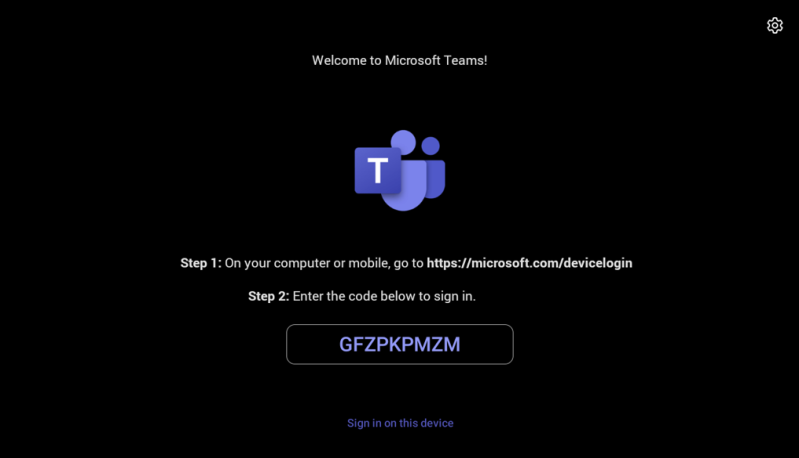
After this process is completed, the Microsoft Teams sign-in page is displayed on both devices, showing the code you need to sign into your Microsoft account. |
|
9.
|
On both devices, sign in to your Microsoft account. |
If the device is not connected to a network during setup, a Network Configuration page is displayed after selecting the language, prompting you to set up the network before continuing with the wizard.