Managing Views for RXV200 MTRAs without RX-PAD
Systems that do not include an RX-PAD do not support presets. Instead, users can create or modify permanent views via the MTRA UI. To do this:
|
1.
|
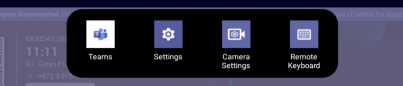
On the touch screen, swipe down to display the main menu tray, then tap Camera Settings. |
|
2.
|
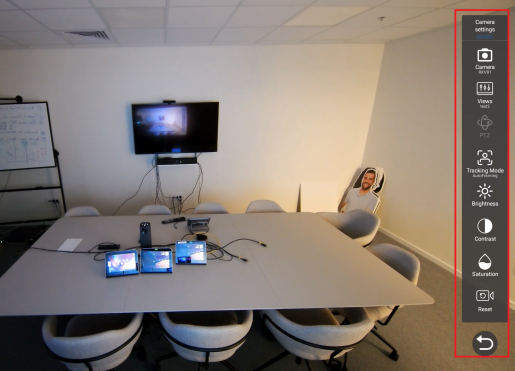
The camera output is displayed, with a vertical toolbar in front of it: |
|
3.
|
Change camera settings as required using the options on the vertical toolbar. Pan, Tilt, and Zoom (PTZ) can only be modified if 'Tracking Mode' is Manual. |

|
4.
|
Tap the Views option on the toolbar. A list of existing views (presets) is displayed. |
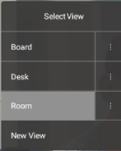
In the 'Select View' list, only the default (i.e., Room) view and up to two additional views are visible. If there are more views, you need to scroll down to see them.
|
5.
|
Do either of the following: |
|
●
|
To update an existing view with the current camera settings, tap that view. |
|
●
|
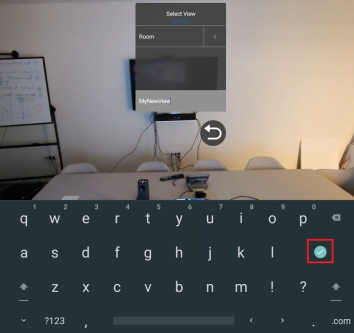
To create a new view with the current camera settings, tap New View, type a name, and then tap the checkmark key on the virtual keyboard. |
|
6.
|
To rename or delete a view, tap the vertical ellipsis to the right of its name, and then from the pop-up menu tap the Rename or Delete option. |