Configure Advanced Audio Settings
This section is only relevant for systems with an AudioCodes RX-HDL200 sound bar (see RXV200-B50 Bundle).
You can configure the audio settings of your RX-HDL200 sound bar.
| ➢ | To configure RX-HDL200 audio settings: |
| 1. | If not already logged in, log in to Device Administration to get admin access (see Log in to Device Administration). |
| 2. | Under ‘Device admin settings’, scroll down and tap Advanced Audio. |
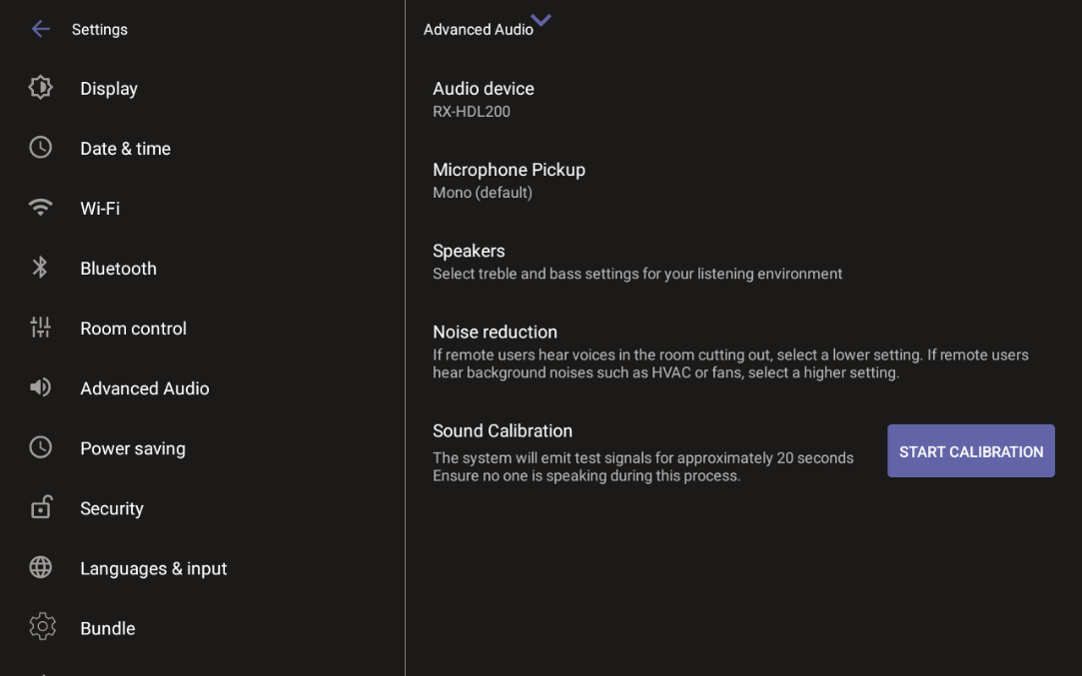
| 3. | Calibrate the sound and configure settings as required. You can also check for firmware updates. |
The following table describes the advanced audio settings:
|
Setting |
Description |
|---|---|
|
Microphone Pickup |
Default is Mono. Set to Stereo only in special circumstances, for example, to capture spatial room ambiances in large meeting rooms. |
|
Speakers |
Default is Meeting room. Set to Classroom for lectures given in large spaces. Customize treble and bass settings when room acoustics are difficult or the room size is unusual. It is recommended to keep bass under 80%. |
|
Noise Reduction |
Default is Medium. Set to Low if environmental noise is minimal and voices sound unnatural or muffled to remote users. Set to High if remote users hear noise in the background. |
|
Sound Calibration |
Select START CALIBRATION to perform a recalibration of the sound bar. This is recommended after significant changes to the room configuration or furniture layout. The calibration procedure outputs several loud sounds for up to 2 minutes. Before starting, make sure the room is quiet. We recommend protecting your hearing by covering your ears or wearing hearing protection. A message acknowledging the calibration request is displayed before the calibration process begins. During the calibration process, the sound bar's status indicator led alternates between red and blue. |