Storing Debug Recording Files on External Cloud Storage
You can configure the device to send and store debug recording files on an external cloud storage platform. The external storage platform can be your Microsoft Azure Blob Storage account (container) or AWS S3.
When you start debug recording, the device duplicates all sent and received messages. The device writes these messages to debug recording files, which it creates and stores temporarily in its RAM.
<Deployment ID>_<Prefix>_DR_<Serial Number>_<YYYY>_<Month>_<DD>_<HH_MM_SS>_<Sequence>.gz
Where:
|
■
|
<Deployment ID> is a deployment identification that is included only when the device is deployed through AudioCodes Live Platform. The ID is configured by AudioCodes (DeploymentID ini file parameter). |
|
■
|
<Prefix> is an optional, user-defined prefix string (discussed later in this section). A prefix may be useful for easily identifying and categorizing debug recording files. |
|
■
|
<Serial Number> is the device's serial number (S/N). |
|
■
|
<YYYY>_<Month>_<DD>_<HH_MM_SS> is the date and time of the file creation. |
|
■
|
<Sequence> is a unique sequence number which is incremented for each new file. |
Once the file created, the device sends it to the selected external storage platform .
|
➢
|
To store debug recording files on external cloud storage: |
|
1.
|
Open the Logging Filters table (see Configuring Log Filter Rules), and then enable local storage for debug recording, by configuring a log filtering rule with the following settings: |
|
●
|
'Filter Type': Configure this parameter to any value. |
|
●
|
'Value': If 'Filter Type' is configured to any value except Any, then configure this parameter; otherwise, leave it empty. |
|
●
|
'Log Destination': Select File Storage. |
|
●
|
'Log Type': Select any value (except CDR and SIP Ladder). |
|
3.
|
Open the Debug Recording page (Troubleshoot tab > Troubleshoot menu > Logging folder > Debug Recording). |
|
4.
|
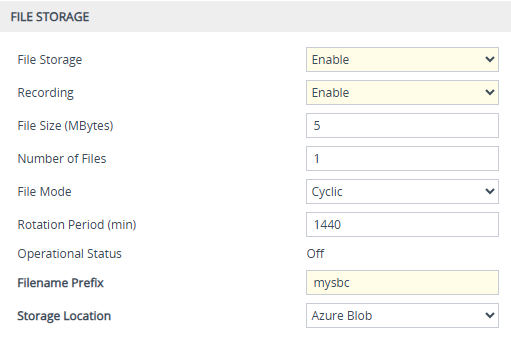
Under the File Storage group, configure the following: |
|
a.
|
From the 'File Storage' drop-down list, select Enable. |
|
b.
|
From the 'Recording' drop-down list, select Enable to start file creation of debug recording. |
|
c.
|
In the 'File Size' field, enter the maximum size of the debug recording file. When the "Current" file reaches this size, the device creates a debug recording file. However, if the 'Rotation Period' parameter value (see below) is reached before the file has reached this maximum size, the debug recording file is created.
|
|
d.
|
In the 'Rotation Period' field, enter the periodic duration (in minutes) of how often a debug recording file is created from the "Current" file (even if empty). For example, if configured to 60, a debug recording file is created every hour (or before, if the maximum size is reached). |
|
e.
|
(Optional) In the 'Filename Prefix' field, type a prefix for the name of the debug recording file. |
|
f.
|
From the 'Storage Location' drop-down list, select External Storage. |
|
5.
|
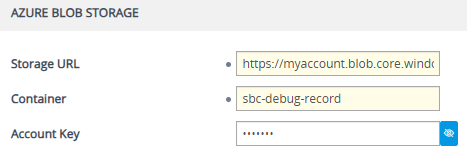
Under the External Storage group, configure the following: |
|
a.
|
From the 'Debug Recording External Storage' drop-down list, select the cloud storage platform that you configured in the External Storage table (see Step 2). |
The status of file storage is displayed in the read-only 'Operational Status' field:
|
■
|
"On" indicates that debug recording is active (recording) |
|
■
|
"Off" indicates that debug recording is not active |