Configuring External Cloud Storage for Debug Recording and Debug Files
The External Storage table lets you configure up to two External Storage platforms for storing the following types of files generated by the device:
| ■ | Debug Recording files (see Configuring Debug Recording) |
| ■ | Debug log files (see Creating Core Dump and Debug Files upon Device Crash) |
The device supports the following cloud storage platforms:
| ■ | Microsoft Azure Blob Storage |
| ■ | Amazon Web Services (AWS) S3 |
After you configure the storage platform, you need to assign it to the file type you want to store:
| ■ | Debug Recording files: Assign the storage for Debug Recording files using the 'Debug Recording External Storage'' parameter (see Storing Debug Recording Files on External Cloud Storage). |
| ■ | Debug log files: Assign the storage for Debug log files using the 'Debug File External Storage' parameter (see Storing Debug Files on an External Cloud Storage Platform). |
| ● | You can configure only one storage platform per storage type (i.e., one for Azure Blob Storage and one for AWS S3). |
| ● | It's recommended to use separate storage platforms for Debug Recording files and Debug log files. |
| ● | Before configuring Azure Blob Storage, make sure you have the following required information: |
| ✔ | SAS token key |
| ✔ | URL of storage container |
For more information, see Generating SAS Token for Azure Blob Storage.
| ● | Before configuring AWS S3 storage, make sure you have the following required information: |
| ✔ | Bucket URL |
| ✔ | Access key ID |
| ✔ | Secret access key |
For more information, see Obtaining Required Information for AWS S3 Storage.
| ● | If you upgrade the device from a software version that doesn't support the External Storage feature, any existing external storage parameter settings for Debug Recording (i.e., parameters now obsolete) are automatically migrated to the External Storage table. The storage entry is also automatically assigned to Debug Recording files. |
The following procedure describes how to configure external storage platforms through the Web interface. You can also configure it through ini file [ExternalStorage] or CLI (configure troubleshoot > external-storage).
| ➢ | To configure external storage: |
| 1. | Open the External Storage table (Troubleshoot menu > Logging folder > External Storage). |
| 2. | Click New; the following dialog box appears: |
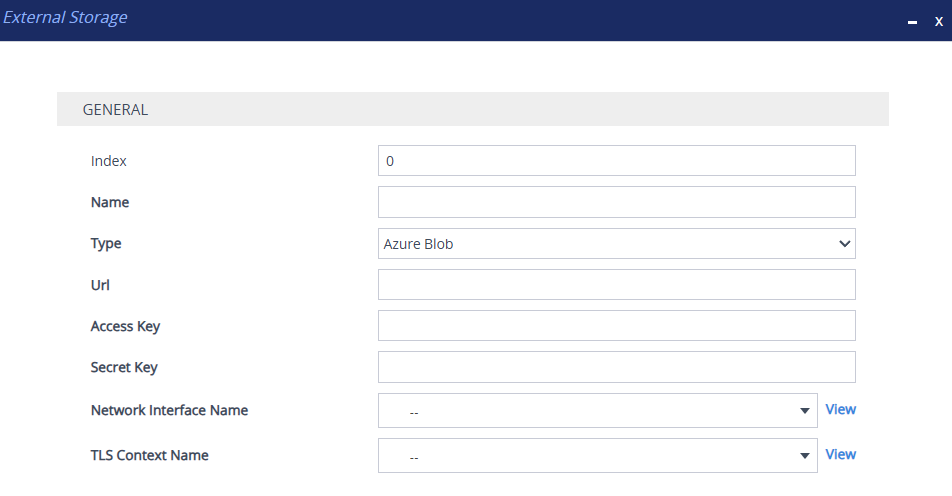
| 3. | Configure an external storage according to the parameters described in the table below. |
| 4. | Click Apply. |
External Storage Parameter Descriptions
|
Parameter |
Description |
||||||
|---|---|---|---|---|---|---|---|
|
'Index' |
Defines an index number for the new table row. Note: Each row must be configured with a unique index. |
||||||
|
'Name' name [Name] |
Defines a descriptive name. The name is used when selecting this row from other configuration parameters. The valid value is a string of up to 63 characters. The default name is "ExternalStorage_<index number>" (e.g., "ExternalStorage_0". Note: The name must be unique. |
||||||
|
'Type' type [Type] |
Defines the storage platform type.
|
||||||
|
'Url' url [Url] |
Defines the URL address of the external storage platform. The URL can include a specific directory and folder if needed. The URL depends on the storage type:
|
||||||
|
'Access Key' access-key [AccessKey] |
Defines the access key for the external cloud storage. The access key depends on the storage type:
|
||||||
|
'Secret Key' secret-key [SecretKey] |
Defines the secret access key (private) for accessing AWS S3. Note: The parameter is applicable only to AWS S3. |
||||||
|
'Network Interface Name' network-interface-name [InterfaceName] |
Assigns an IP Interface from the IP Interfaces table (see Configuring IP Network Interfaces) for communication with the external cloud storage platform. By default, the device uses the default IPv4 OAMP IP interface. |
||||||
|
'TLS Context Name' tls-context-name [TLSContextName] |
Assigns a TLS Context (certificate) for the TLS connection with the storage platform. By default, the device uses the default TLS Context (ID 0). |