Importing an Externally Created Private Key for a TLS Context
You can import an externally created private key for a TLS Context. If your organization's security policy requires keys to be generated and managed externally, you may need to import a private key (and device certificate) that were created outside the device, instead of generating the private on the device (as described in Generating a Private Key for a TLS Context).
This section describes how to import and assign an externally created private key to a TLS Context, and how to import the matching device certificate (if needed) provided by your security administrator.
|
●
|
You can import an externally created private key to a TLS Context only if ACME-based certificate management is disabled for the TLS Context. |
|
●
|
It's not recommended to replace the private key. If you need to replace it, make sure that you're connected to the device over a physically secured network. |
|
●
|
The imported private key file must match the currently installed device certificate file (public key) for the TLS Context. |
|
➢
|
To import an externally created private key to a TLS Context: |
|
1.
|
Obtain a private key in textual PEM (PKCS #7) or PFX (PKCS #12) format. The private key is typically provided by your security administrator. The file may be encrypted with a short passphrase. |
|
3.
|
Select the TLS Context. |
|
4.
|
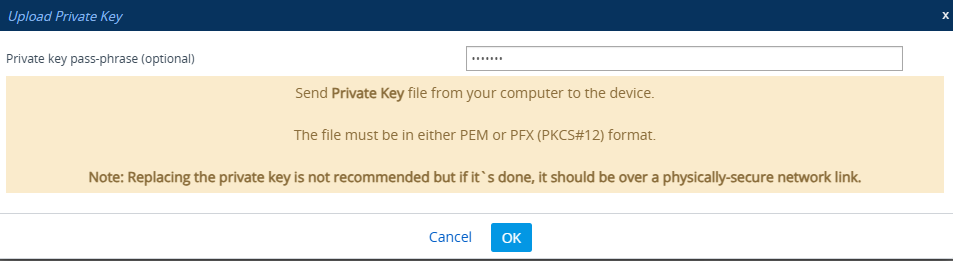
Click Action, and then from the drop-down menu, choose Import Private Key; the following dialog box appears: |
|
5.
|
(Optional) In the 'Private key pass-phrase' field, enter the password for the encrypted private key file. If the file has no passphrase, leave the field blank. |
|
●
|
The passphrase can contain up to 32 characters. |
|
●
|
The passphrase can't contain wide characters. |
|
●
|
The default passphrase is audc. |
|
6.
|
Click OK, and then browse to and select the private key file on your computer; the device uploads the private key file and displays a message when complete. |
|
7.
|
Click Close to close the message. |
|
8.
|
If your security administrator has provided a device certificate file, import it into the TLS Context: |
|
a.
|
Select the TLS Context. |
|
b.
|
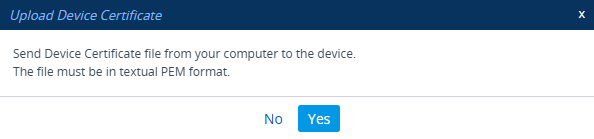
Click Action, and then from the drop-down menu, choose Import Device Certificate; the following dialog box appears: |
|
c.
|
Click Yes, and then browse to and select the device certificate file on your computer; the device uploads the device certificate and displays a message when complete. |

|
d.
|
Click Close to close the message. |
|
10.
|
Verify that the private key is correct: |
|
a.
|
Select the TLS Context. |
|
b.
|
Verify that the 'Certificate Status' field displays "Keys match successfully". If it doesn't, consult with your security administrator: |
