Configuring Logging Filter Rules
The Logging Filters table lets you configure up to 60 rules for filtering debug recording packets, syslog messages, and Call Detail Records (CDR). The logging filter determines the calls for which you want to generate the log. For example, you can add a rule to generate syslog messages only for calls belonging to IP Groups 2 and 4, or for calls belonging to all IP Groups except IP Group 3.
You can also configure logging filters for generating CDRs only and saving them on the device (local storage). Debug recording logging filters can include signaling information (such as SIP messages), syslog messages, CDRs, media (RTP, RTCP, and T.38), and pulse-code modulation (PCM) of voice signals from and to the TDM.
You can configure debug recording logging filters to save debug recording files in Azure Blob Storage.
You can configure the following special logging filters for OVOC:
|
■
|
You can filter logged SIP messages that the device sends to OVOC so that OVOC can display SIP call dialog sessions as SIP call flow diagrams (SIP ladder). |
|
■
|
You can filter Quality of Experience (voice metrics in CDRs) reports that the device sends to OVOC. |
If you don't configure any rules in the Logging Filters table and you have globally enabled debug recording (by configuring the Debug Recording server's address - see note below), syslog (global parameter - see note below), and/or CDR generation (global parameter for enabling syslog - see note below), logs are generated for all calls. Therefore, the benefit of logging filters is that it allows you to create logs per specific calls, eliminating the need for additional device resources (CPU consumption) otherwise required when logs are generated for all calls.
You can control to which syslog server to send the logs of a specific Logging Filter rule. By default, the device sends logs to all configured syslog servers.
You can enable or disable a Logging Filter rule. Enabling rules that are not for debugging recording, activates the rule so that the device generates syslog messages or CDRs. For debug recording rules, you need to explicitly start the debug recording, as described in Starting and Stopping Debug Recording. Disabling a rule is useful, for example, if you currently no longer require the rule, but may need it in the future. Therefore, instead of deleting the rule, you simply disable it.
The following procedure describes how to configure logging filter rules through the Web interface. You can also configure it through ini file [LoggingFilters] or CLI (configure troubleshoot > logging logging-filters).
|
➢
|
To configure a Logging Filter rule: |
|
1.
|
Open the Logging Filters table (Troubleshoot menu > Troubleshoot tab > Logging folder > Logging Filters). |
|
2.
|
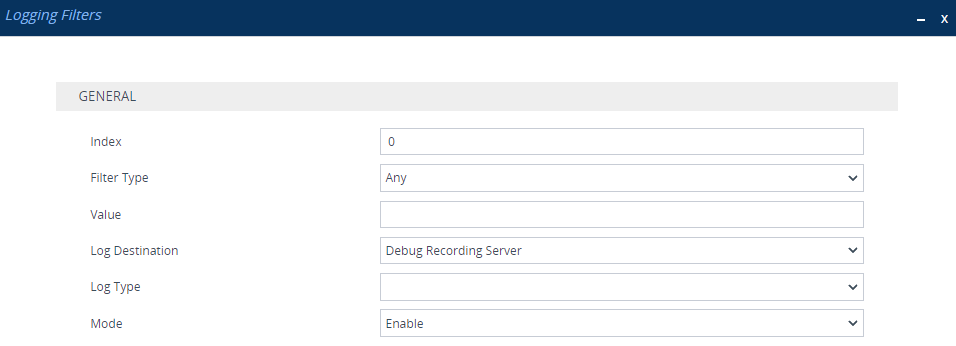
Click New; the following dialog box appears: |
|
3.
|
Configure a Logging Filtering rule according to the parameters described in the table below. |
Logging Filters Table Parameter Descriptions
|
|
|
|
'Index'
[Index]
|
Defines an index number for the new table row.
Note: Each row must have a unique index.
|
|
'Filter Type'
filter-type
[FilterType]
|
Defines the log filter type.
|
■
|
[1] Any= (Default) Debug recording is done for all calls. |
|
■
|
[2] Trunk ID = Filters the log by Trunk ID. |
Note: This option is applicable only to the Gateway application.
Note: Applicable only to the Gateway application.
|
■
|
[4] Trunk & B-channel = Filters the log by Trunk and B-channel. |
Note: This option is applicable only to the Gateway application.
|
■
|
[5] FXS or FXO = Filters the log by analog port (FXS). |
Note: This option is applicable only to the Gateway application.
Note: This option is applicable only to the Gateway application.
Note: This option is applicable only to the Gateway application.
Note: This option is applicable only to the SBC application.
Note: This option is applicable only to the SBC application.
|
■
|
[12] User = Filters the log by user. The user is defined by user part or user@host part in the source or destination headers of the SIP request. The device searches for a match in any of the following SIP headers: |
For example, the following INVITE request matches the user "2002" because of the SIP To header:
INVITE sip:sip:random123@10.33.45.201 SIP/2.0
From: sip:1001@enterprise.com
To: sip:2002@enterprise.com
|
■
|
[15] System Trace = Filters the log to include logged information not related to calls. This can include, for example, the device's CPU, or a disconnection with the LDAP server. |
|
■
|
[16] IP Group Tag = Filters the log by the IP Group's tag (source and destination). The tag is configured by the 'Tags' parameter in the IP Groups table. |
|
|
'Value'
value
[Value]
|
Defines the value of the filtering type ('Filter Type' parameter).
The value can include the following:
|
■
|
For system traces ('Filter Type' parameter is System Trace), configure the value to one of the following: |
|
✔
|
syslog: This option includes SIP INFO packet types. |
|
✔
|
tpncp: This option includes device events and command packets, as displayed when using the Wireshark filter 'tpncp'. |
|
■
|
A range using a hyphen "-" between two values. For example, to specify IP Groups 1, 2 and 3, configure the parameter to: 1-3. |
|
■
|
Multiple, non-contiguous values, using commas "," between each value. For example, to specify IP Groups 1, 3 and 9, configure the parameter to: 1,3,9. |
|
■
|
Trunks, FXS of a specific module, using the syntax module number/port or port, for example:
|
|
✔
|
1/2 means port 2 of module 1. |
|
✔
|
1/[2-4] means ports 2 through 4 of module 1. |
|
■
|
To exclude specific configuration entities from the log filter, use the exclamation (!) wildcard character. For example, to include all IP Groups in the filter except IP Group ID 2, configure the 'Filter Type' parameter to IP Group and the 'Value' parameter to !2. |
Note: For SBC calls, a Logging Filter rule applies to the entire session (i.e., inbound and outbound legs). Therefore, if you want to exclude logging of specific calls, you need to configure the 'Value' parameter with both legs. For example:
|
✔
|
If you want to exclude logs for calls between IP Group 1 and IP Group 2, configure the parameter to: !1,2. |
|
✔
|
If you want to exclude logs for calls between SIP Interface 4 and SIP Interface 9, configure the parameter to: !4,9. |
Note: You can use the index number or string name to specify the configuration entity for the following 'Filter Types': Tel-to-IP, IP-to-Tel, IP Group, SRD, Classification, IP-to-IP Routing, or SIP Interface. For example, to specify IP Group "My SIP Trunk" at Index 2, configure the parameter to one of the following values:
|
|
'Log Destination'
log-dest
[LogDestination]
|
Defines where the device sends the log files.
|
■
|
[0] Syslog Server = The device generates syslog messages and sends them to a syslog server. To select the syslog server, use the 'Syslog Server' parameter in this table. |
|
■
|
[1] Debug Recording Server = (Default) The device generates debug recording packets and sends them to the Debug Recording server. To configure the Debug Recording server's address, see Configuring Debug Recording Server Address. |
|
■
|
[2] Files Storage = The device generates and stores CDRs or debug recording files: |
|
■
|
[3] OVOC (QoE) = The device generates any of the following and sends them to OVOC: |
|
✔
|
SIP messages: The SIP messages can be used by OVOC to display SIP call dialog sessions as SIP call flow diagrams (SIP ladder). For this functionality, you also need to configure the 'Log Type' parameter to SIP Ladder. For more information, see Enabling SIP Call Flow (Ladder) Diagrams in OVOC. |
|
✔
|
Quality of Experience (QoE) voice metric reports: To configure reporting and filtering of QoE to OVOC, see Reporting QoE to OVOC. For this functionality, you also need to configure the 'Log Type' parameter to CDR. |
Note:
|
■
|
If you configure the parameter to Syslog Server: |
|
✔
|
If you have also configured the debug level to No Debug (see the [GwDebugLevel] parameter in Configuring Syslog Debug Level), the syslog messages include only system warnings and errors. |
|
✔
|
The 'Log Type' parameter (below) is not applicable (all syslog messages are sent to the syslog server). |
|
■
|
If you configure the 'Filter Type' parameter to IP Trace, you must configure the parameter to Debug Recording Server. |
|
■
|
For local storage of CDRs, configure the parameter to Files Storage and the 'Log Type' parameter to CDR.
|
|
■
|
For Azure Blob Storage of debug recording files, configure the parameter to Files Storage and the 'Log Type' parameter to any value (except CDR or SIP Ladder). |
|
■
|
If you configure the parameter to Debug Recording Server, you can also include syslog messages in the debug recording packets sent to the debug recording server. To include syslog messages, configure the 'Log Type' parameter (see below) to the relevant option. |
|
|
'Log Type'
log-type
[CaptureType]
|
Defines the type of messages to include in the log file.
|
■
|
[0] = (Default) Not configured. The option is applicable only for sending syslog messages to a syslog server (i.e., 'Log Destination' parameter is configured to Syslog Server). |
|
■
|
[1] Signaling = The option is applicable only to debug recording (i.e., 'Log Destination' parameter configured to Debug Recording Server or Files Storage for Azure Blob Storage of debug recording files). The debug recording includes signaling information such as SIP signaling messages, syslog messages, CDRs, and the device's internal processing messages. |
|
■
|
[2] Signaling & Media = The option is applicable only to debug recording (i.e., 'Log Destination' parameter configured to Debug Recording Server or Files Storage for Azure Blob Storage of debug recording files). The debug recording includes media (RTP/RTCP/T.38), and only signaling and syslog messages associated with the recorded media. |
Note: The device requires a lot of resources for media debug recording. The number of media sessions (and associated signaling) that the device records depends on available resources. Therefore, when many media sessions need to be recorded (e.g., when the 'Filter Type' parameter is configured to Any) not all media sessions (and associated signaling) are recorded. If the device has no resources to debug record any media, it doesn't debug record any signaling as well. As debug recording of signaling requires less resources than media debug recording, if you want to perform debug recording only on signaling, then it is recommended to configure the parameter to Signaling.
|
■
|
[3] Signaling & Media & PCM = The option is applicable only to debug recording (i.e., 'Log Destination' parameter configured to Debug Recording Server or Files Storage for Azure Blob Storage of debug recording files). The debug recording includes signaling, syslog messages, media, and PCM (voice signals from and to TDM). |
|
■
|
[5] CDR = Only CDRs are generated. This option is applicable only when you configure the 'Log Destination' parameter to Files Storage or OVOC (QoE) for QoE reporting to OVOC. To configure global CDR settings such as at what stage of the call the device generates CDRs (e.g., call start or call end), see Configuring CDR Filters and Report Level. |
|
■
|
[6] SIP Ladder = The device sends SIP messages (in XML format), as they occur in real-time, to OVOC for displaying SIP call dialog sessions as call flow diagrams. For this functionality, you also need to configure the 'Log Destination' parameter to OVOC (QoE). For enabling this functionality, see Enabling SIP Call Flow (Ladder) Diagrams in OVOC. |
|
■
|
[7] SIP Only = The option is applicable only to debug recording (i.e. the 'Log Destination' parameter configured to Debug Recording Server or Files Storage for Azure Blob Storage of debug recording files). The debug recording includes only SIP messages. |
Note:
|
■
|
The parameter is not applicable when the 'Log Destination' parameter is configured to Syslog Server. |
|
■
|
For local storage of CDRs: |
|
✔
|
Configure the 'Log Destination' parameter to Files Storage. |
|
✔
|
Configure the 'Log Type' parameter to CDR.
|
|
■
|
For Azure Blob Storage of debug recording files: |
|
✔
|
Configure the 'Log Destination' parameter to Files Storage. |
|
✔
|
Configure the 'Log Type' parameter to any value except CDR or SIP Ladder. |
|
■
|
The parameter is not applicable when the 'Filter Type' parameter is configured to IP Trace. |
|
■
|
To include syslog messages in debug recording, it is unnecessary to enable syslog functionality. |
|
|
'Syslog Server'
syslog-server
[SyslogServer]
|
Assigns a syslog server from the Syslog Servers table to where you want the device to send the syslog messages of this Logging Filters rule.
To send the filtered syslogs to all syslog servers, configure the parameter to Any (default).
Note:
|
■
|
The parameter is applicable only when the 'Log Destination' parameter is configured to Syslog Server. |
|
■
|
To send syslog messages to a syslog server, you must enable the device's syslog feature (see Enabling Syslog). This is not required for Logging Filter rules for debug recordings that include syslog messages, which are sent to a Debug Recording server. |
|
|
'Mode'
mode
[Mode]
|
Enables and disables the rule.
Note: For debugging recording rules, you need to explicitly start the debug recording, as described in Starting and Stopping Debug Recording.
|