Password Obfuscation in Downloaded CLI and INI Files
You can enhance security by obfuscating passwords in downloaded ini and CLI Script files. Password encryption is achieved using the AES-256 algorithm with a 16-bit random CFB initialization vector (IV) cipher mode, using an encryption key. This method offers robust protection of sensitive data.
Obscured passwords are displayed in the following syntax:
| ■ | ini File: |
Syntax: $2$<obfuscated password>
Example:
WSTunPassword = $2$8EGYm+FG+JJT/p8ZOytU64uplPMKcw==
| ■ | CLI Script File: |
Syntax: <obscured password>== encrypted
Example:
password B55osyLT1t7+oorwkaNB3bxEX4Bl8g== encrypted
You can manually define the encryption key for password obfuscation or you can trigger the device to automatically generate a key. If you want to manually configure the key, it must be at least 32 characters long, and it can contain a combination of the following characters:
| ■ | Letters (A-Z and a-z) |
| ■ | Numbers (0-9) |
| ■ | Special characters: !, #, $, %, &, (, ), *, +, ,, -, ., /, <, =, >, ?, @, [, ], ^, _, `, {, }, ~. A-Z, a-z, 0-9, !, #, $, %, &, (, ), *, +, ,, -, ., /, <, =, >, ?, @, [, ], ^, _, `, {, }, ~ |
| ➢ | To configure encryption key for password obfuscation: |
| ■ | Web interface: |
| a. | Open the Security Settings page (Setup menu > IP Network tab > Security folder > Security Settings). |
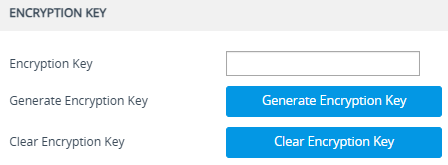
| b. | Scroll down the page to the Encryption Key group: |
| c. | Configure the encryption key, using one of the following methods: |
| ◆ | Manually: In the 'Encryption Key' field, enter your encryption key. |
| ◆ | Automatically Generated by Device: Click the Generate Encryption Key button; a message is displayed at the bottom of the page indicating that the key was successfully generated and copied to your clipboard. In addition, the key is partially displayed in the 'Encryption Key' field, showing the first four characters followed by three asterisks (*), for example, "F/sZ***". For future use, you can paste the key from your clipboard to a safe location. |
| ■ | CLI: |
| ● | Manually: configure network > security-settings > encryption-key assign <your key> |
| ● | Automatically Generated by Device: configure network > security-settings > encryption-key generate |