View active and history alarms
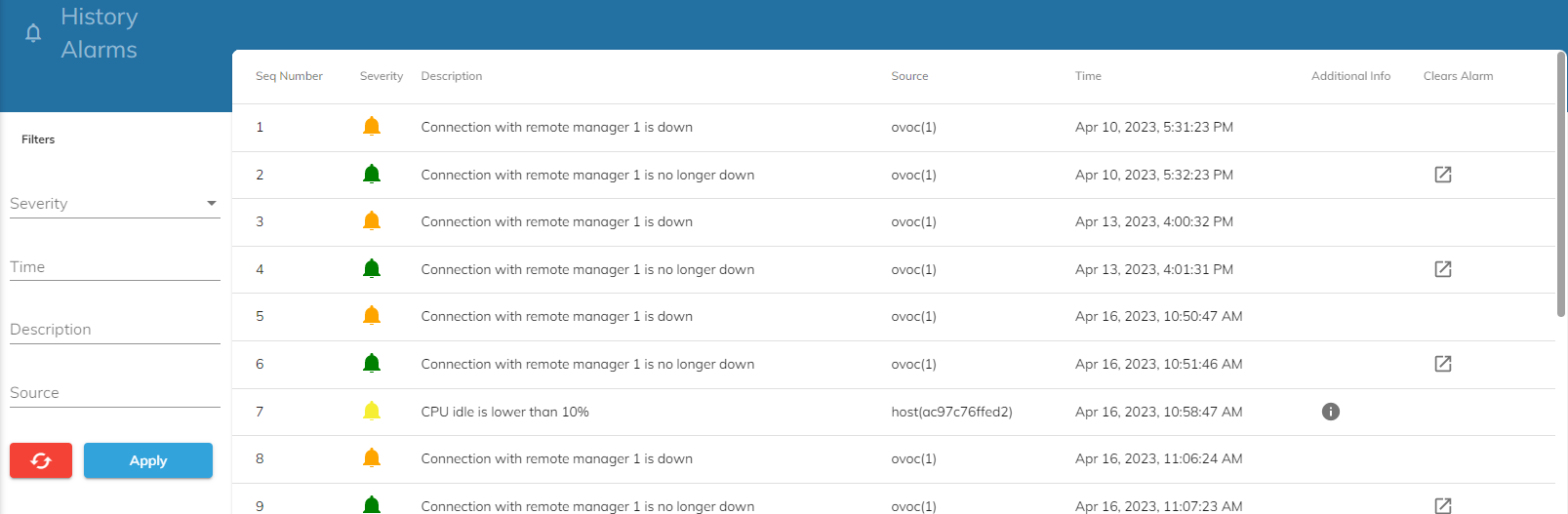
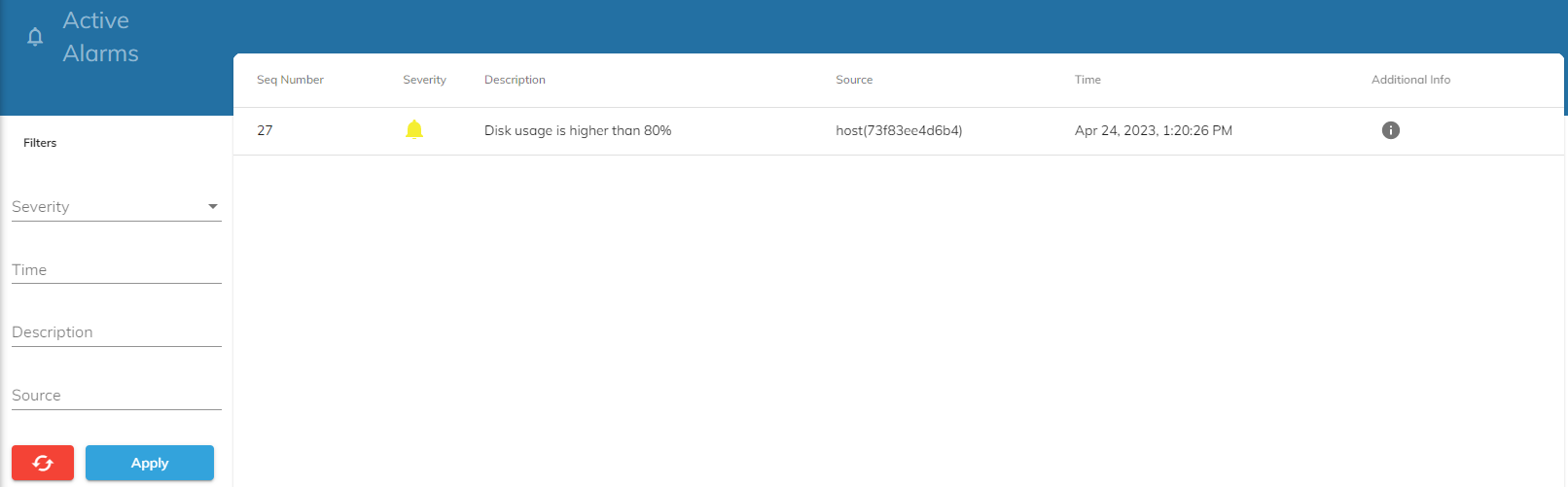
You can view active and history alarms through the VoiceAI Connect Web UI. When an alarm is cleared, it's removed from the Active Alarms table. All alarms are stored in the History Alarms table. Stored alarms are only removed from the History Alarms table when the table reaches maximum capacity.
You can filter the alarms by severity level, time raised, description, and source. In addition, you can sort the History Alarms table by time in ascending or descending order, by clicking the Time column header.
For viewing active and history alarms , your Administrator needs to provide you with the appropriate IAM policy (roles and scopes). For more information, see Manage users.
To view active and historical alarms:
-
Active alarms: From the Navigation menu, click Active Alarms:
-
History alarms: From the Navigation menu, click History Alarms: