
View call history, CDRs, transcripts, and play recordings
The CDRs page allows you to do the following:
-
View a list of all the calls handled by VoiceAI Connect. You can filter the list using multiple filter options, for example, by bot name.
-
View the call detail record (CDR) of a call.
-
View the transcription of a call.
-
Listen to a recorded call, download the call recording, or delete it.
For viewing call history and transcripts, your Administrator needs to provide you with the appropriate IAM policy (roles and scopes). For more information, see Manage users.
To open the CDRs page
-
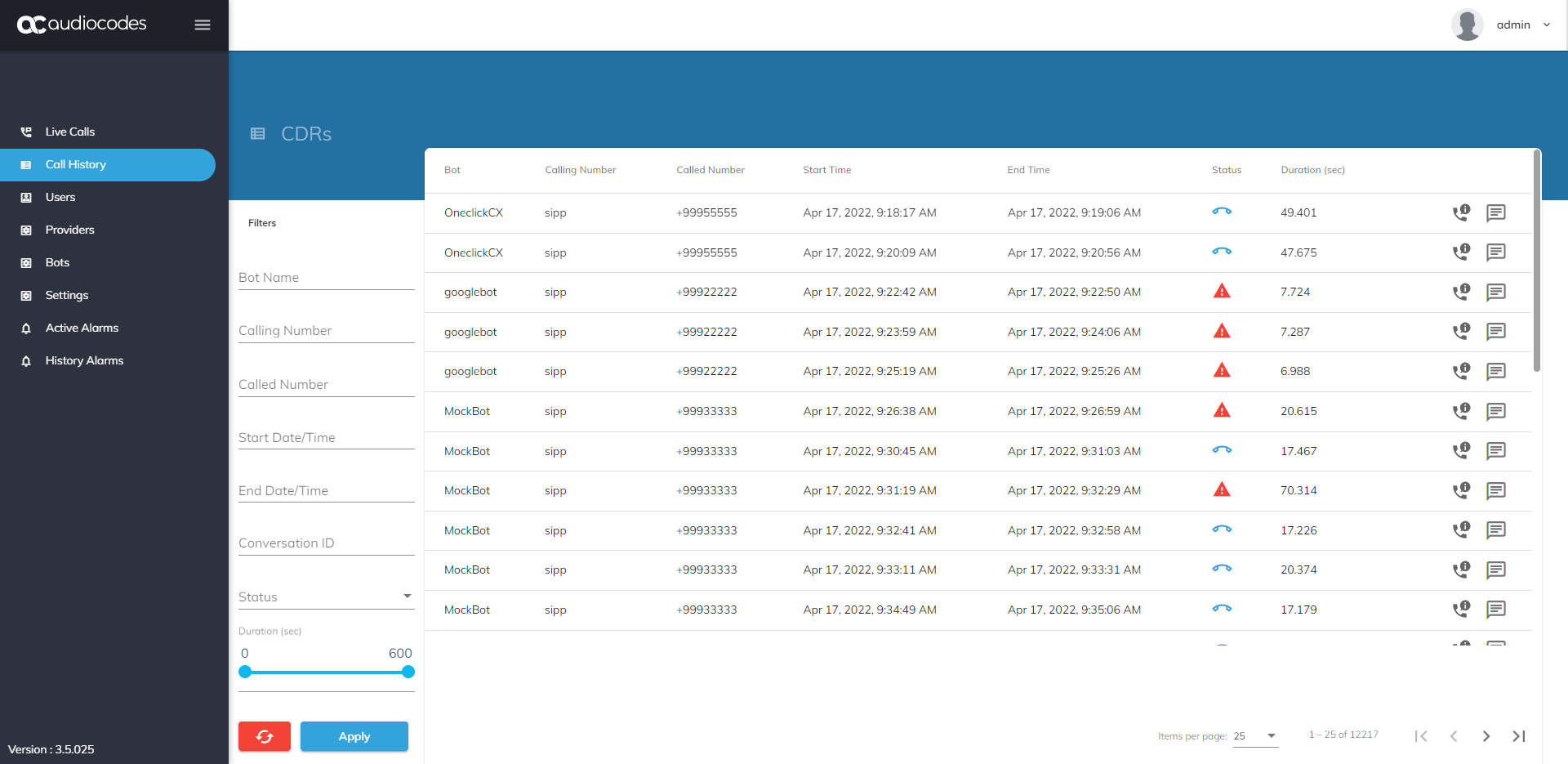
From the Navigation menu, click Call History; the following page appears:
Filter the call list
You can filter the call history list by the following:
-
Bot name
-
Calling number
-
Called number
-
Date range of when the calls occurred
-
Conversation ID
-
Call status (successful or failed)
-
Call duration range (in seconds)
To filter the call list:
-
On the CDRs page, configure the filter options that you want.
-
Click Apply.
The call history list shows only the calls that match your filter.
To clear the filter, click the refresh button next to the Apply button.
View the CDR of a call
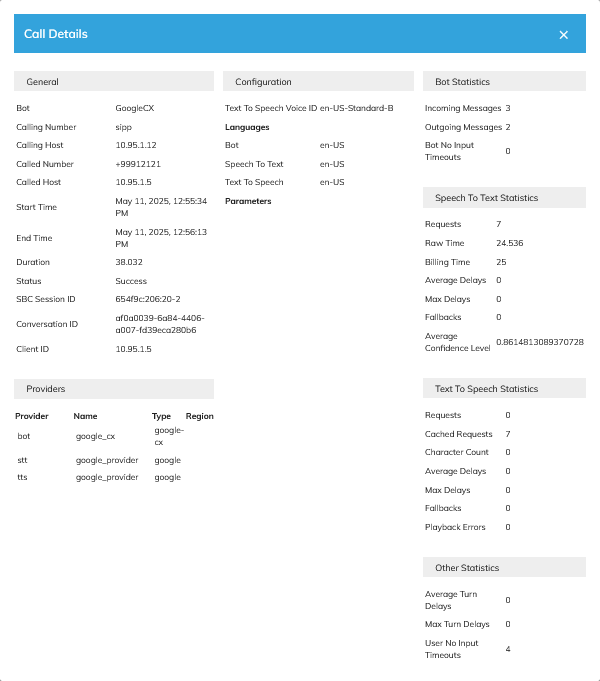
The call detail record (CDR) contains details about the call, such as bot name, called number, call duration, bot provider, speech-to-text provider, and text-to-speech provider.
To view the CDR of a call:
-
On the CDRs page, click the telephone handset
 icon of the call.
The Call Details window appears, as shown in the following example:
View the transcription of a call
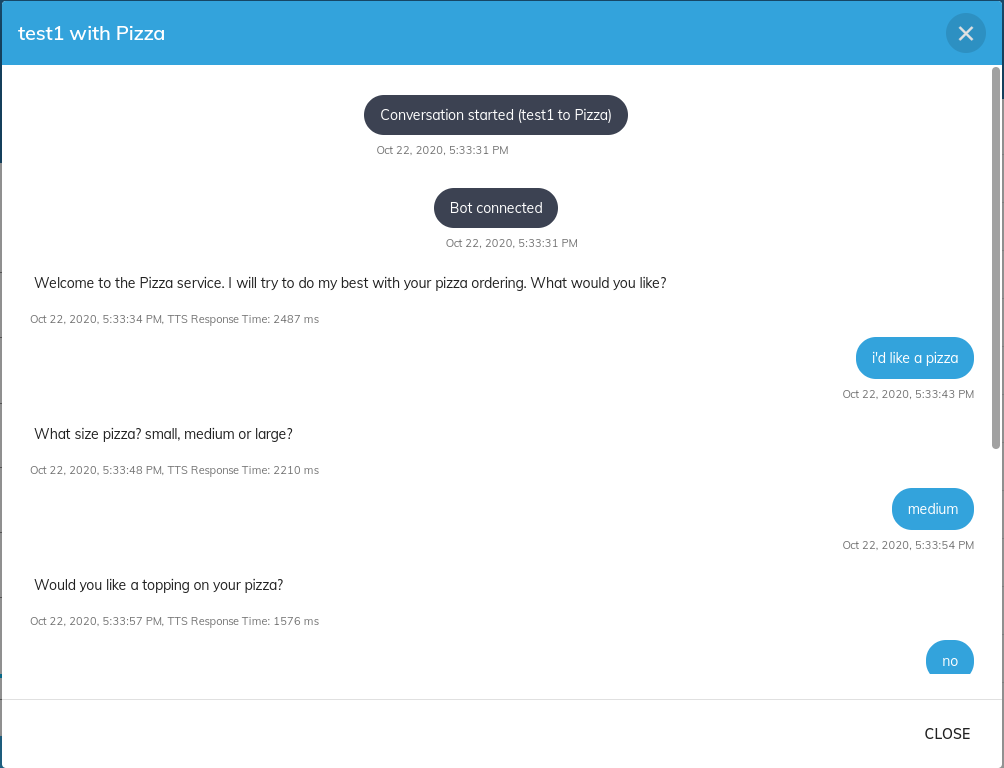
The transcription shows what the caller and the bot said during the call.
VoiceAI Connect stores a call's transcription for a retention period that's configured by the transcriptsRetentionSeconds parameter.
To view the transcription of a call:
-
On the CDRs page, click the transcription
 icon of the call.
A window appears showing the transcription of the call. The transcription shows each turn of the conversation in the order it happened and with a timestamp.
If the stored transcript was removed from the database (due to expired stored duration), the window displays the message "No Transcript History".
Manage call recordings
If a call was recorded, you can listen to the recording, download it, or delete it.
To configure call recording, see Record calls.
By default, recordings are available for a retention period of 30 days. You can change the period though REST API (see Call recordings), or contact AudioCodes professional services.
Listen to a call recording
To listen to a call recording:
-
On the CDRs page, under the Info column, click the play icon. The Recordings window opens, titled with the calling number and the bot name.
The window shows the recording as two waveforms, one for each side of the call. Parts of the call that weren't recorded, such as the start of a call before the bot started recording, are shown as a striped gray area.
The player has these controls:
|
Control |
What it does |
|---|---|
|
Play, skip to start, skip to end |
Plays the recording and moves to its start or end. |
|
Playback speed (x1) |
Changes the playback speed. |
|
Zoom in, zoom out, fit |
Changes how much of the waveform is shown. |
|
Download recording |
Downloads the recording as a WAV file. |
|
Delete recording |
Permanently deletes the recording. |
The first time you open a recording, it might take a few seconds to load while the VoiceAI Connect retrieves and converts it into a WAV file.
Call History doesn't show in advance whether a call has a recording. If a call wasn't recorded, or its recording was deleted or expired, the window shows that no recording was found. Calls that failed or have a duration of zero have no recording.
Download a call recording
You can download the recording to your computer as a WAV file.
To download a call recording:
-
On the CDRs page, under the Info column, click the play icon.
-
Click Download recording.
Your browser downloads the recording as a stereo WAV file to its default download folder. You can play the recording file in any media player.
Each download is logged in the Activity Log.
Delete a call recording
Deleting a recording is permanent. You can't restore a deleted recording.
To delete a call recording:
-
On the CDRs page, under the Info column, click the play icon.
-
Click Delete recording. A confirmation message appears.
-
Click Confirm.
The recording is deleted.
When you delete a recording, its CDR and transcription remain in the list.