Instant Messages
You can manage Instant Messages that have been recorded from Microsoft Teams conversations. This functionality must be enabled in tenant Onboarding and in the Recording Profile (see Add a Recording Profile).
| ➢ | Do the following: |
| 1. | In the Icon pane, click the Instant Messages  icon. icon. |
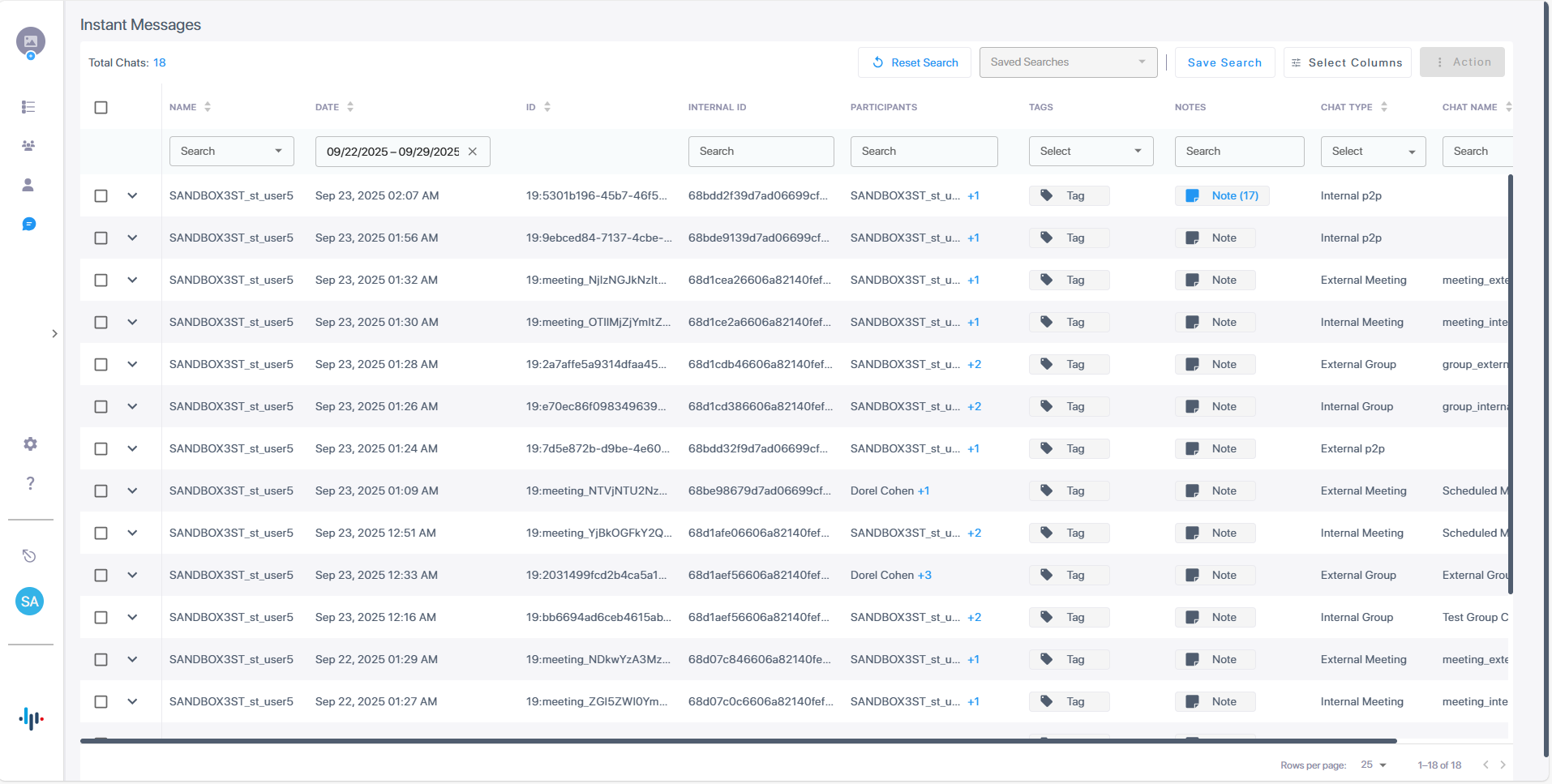
The table below describes the columns.
|
Filter |
Description |
|---|---|
|
Name |
Search by user name or group name. |
|
Date |
Enter the date range for retrieving data. |
|
ID |
Message ID |
|
Internal ID |
Internal Message ID. |
|
Participants |
Search by Call Participant Name. |
|
Tags |
Search by tags that are assigned to a message. |
|
Notes |
Search by notes that are assigned to a message. |
|
Chat Type |
Search by Chat type. |
|
Chat Name |
Search by Chat name. |
For Saving and retrieving searches, see Save a Query.
You can filter instant messages using the following operands:
| ● | Filter by entering the name of the user or group in the search drop-down |
| ● | Filter by Date |
| ● | Filter by entering the Internal ID of the message |
| ● | Filter by Participants |
| ● | Filter by Tags |
| ● | Filter by Notes |
| ● | Filter by Call Type |
| ● | Filter by entering the name of the chat in the search box |
| 2. | To view the messages of a specific chat: |
| a. | Click the down-pointing arrow of the chat that you want to view, and then click Open Chat; a chat pane appears on the right, displaying the chat's instant messages: |
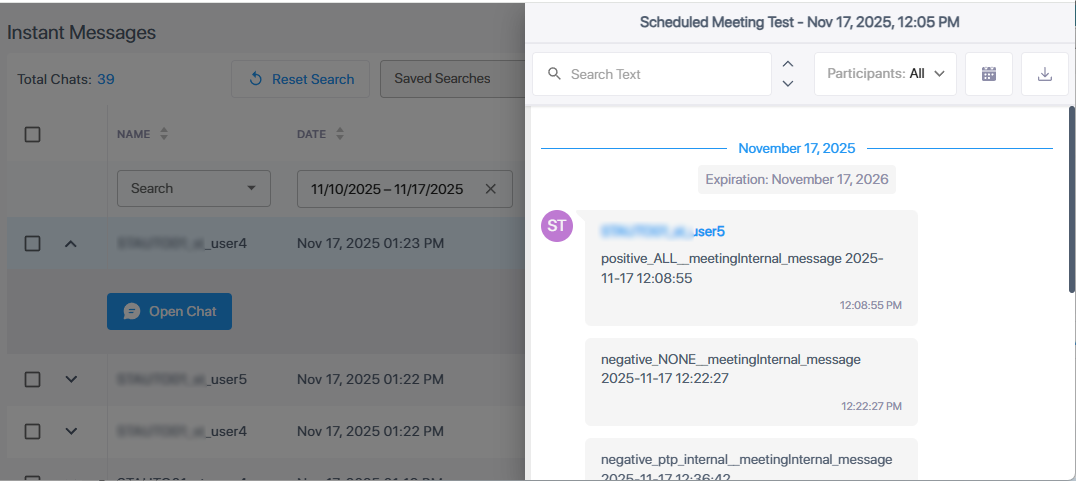
| b. | To search for words or strings in the chat, use the search box. |
| c. | To filter the chat by participant, click the Participants drop-down list, and then select a participant(s). |
| d. | To filter the chat by date, click the Date Range  icon, and then select a date range. icon, and then select a date range. |
| e. | To download the chat as a .csv file, click the Download  icon. icon. |