Work with AI Summaries
For interactions of users for which the AI summary feature is applicable, an AI summary of the recording transcription can be generated. AI summaries capture insights such as key decisions, action items, discussion highlights, and milestones, and are structured based on a specified AI template.
Depending on the transcription type, the transcription and its AI summary are automatically generated at the end of the recording or manually triggered.
|
●
|
To manage AI summaries, you must have the relevant permissions in your Access Profile. |
|
●
|
The transcription type and AI template are determined by the associated analytics profile (see Analytics Profiles). |
|
➢
|
To view and work with an interaction's AI summary: |
|
1.
|
In the Icon pane, click  to open the Interactions page. to open the Interactions page. |
|
2.
|
Locate and click the down arrow adjacent to the requested interaction. |
|
3.
|
Click the AI Summary tab. |
|
●
|
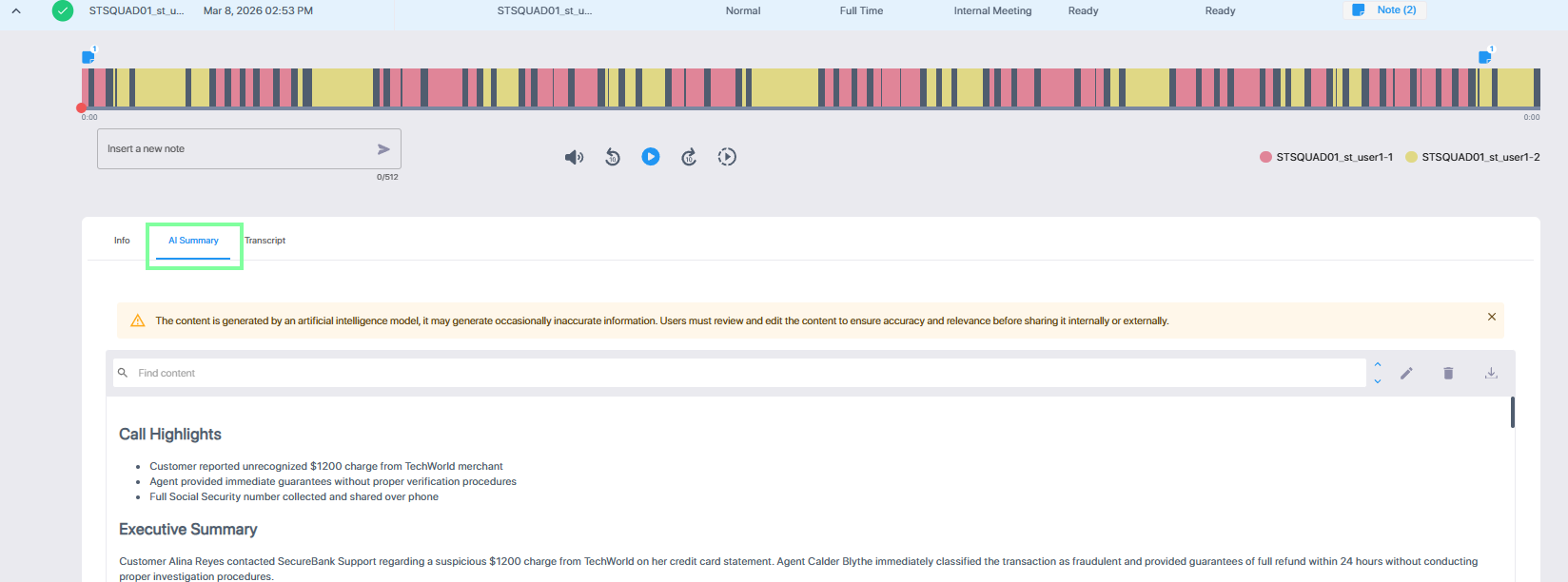
If the AI summary exists, the tab displays it. |
|
●
|
If the AI summary does not exist, select an available language if applicable, and click Generate to generate the summary. (Currently, the AI template is displayed but cannot be selected.) |

The languages available depend on the relevant analytics profile of the recorded device:
|
●
|
Automatic summary generation – primary language only, as specified in the analytics profile. You cannot select the language. |
|
●
|
Manual generation – the languages listed in the profile. |
|
4.
|
Review the summary. You can: |
|
●
|
Restore an edited summary to the original AI-generated version. |
|
●
|
Search for text in the summary. |
|
2.
|
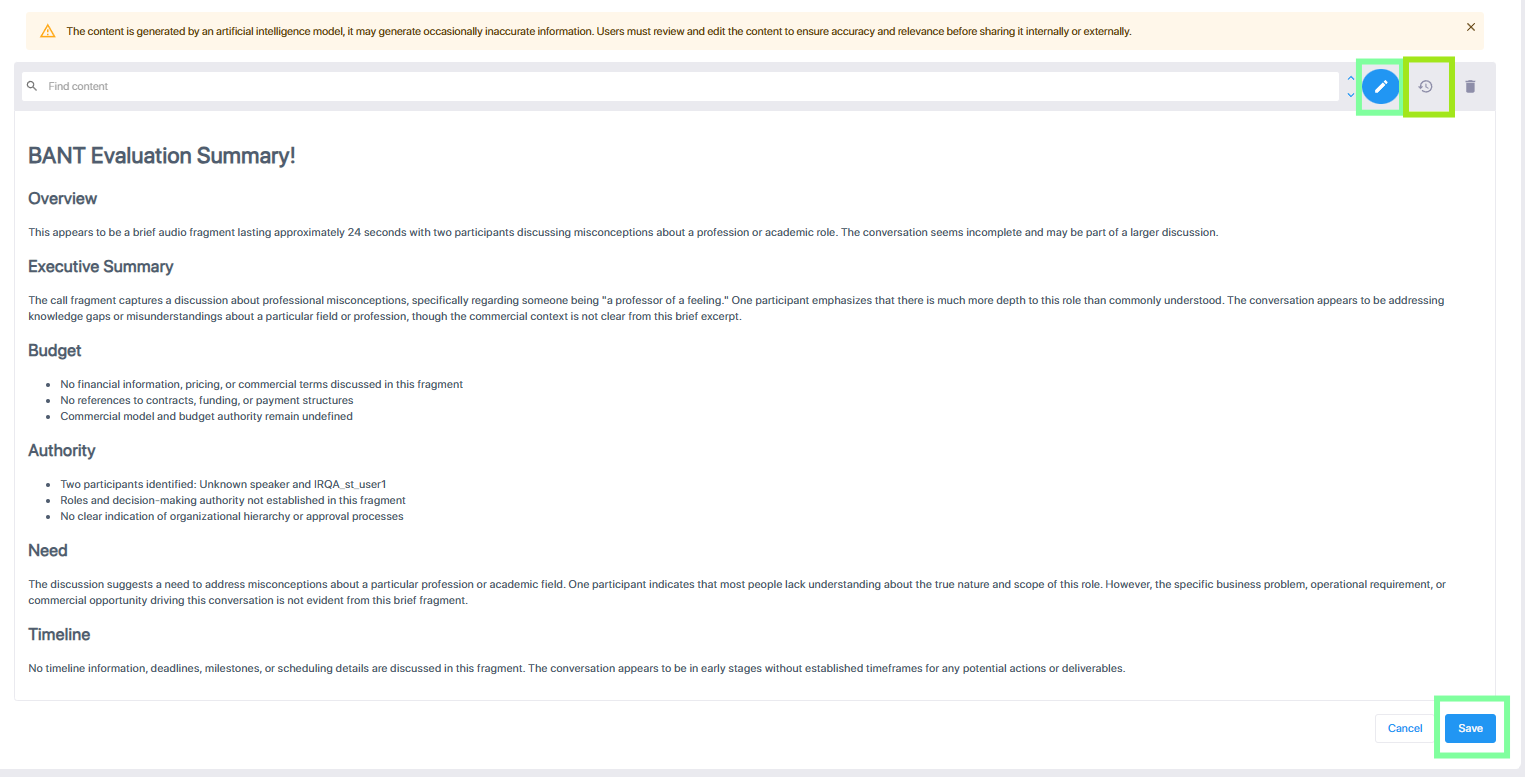
Edit the text as required, then scroll down and click Save to save the changes. |
|
3.
|
To stop editing after or without saving, click the Edit icon again or click Cancel. |
|
4.
|
To restore the edited text to the original version, click the Revert icon. |
|
1.
|
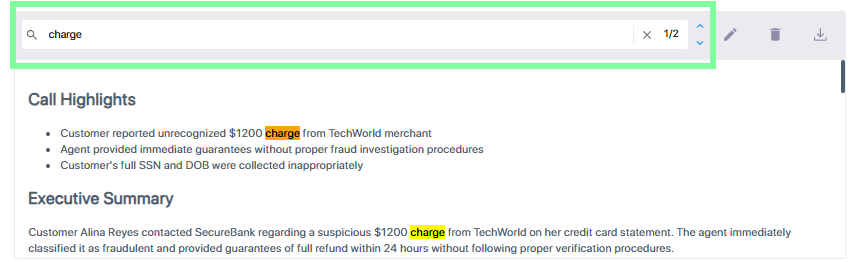
In the 'Find content' search box, enter the text to be searched. The search is not case-sensitive. |
|
2.
|
Use the Up and Down arrows to move between the occurrences of the searched text. |
|
3.
|
To stop the search, click the X icon in the search box. |
|
■
|
Click the Delete icon. The summary is deleted. |
The language dropdown, template, and Generate button are displayed, enabling you to create a new summary in place of the one you deleted.