History Alarms
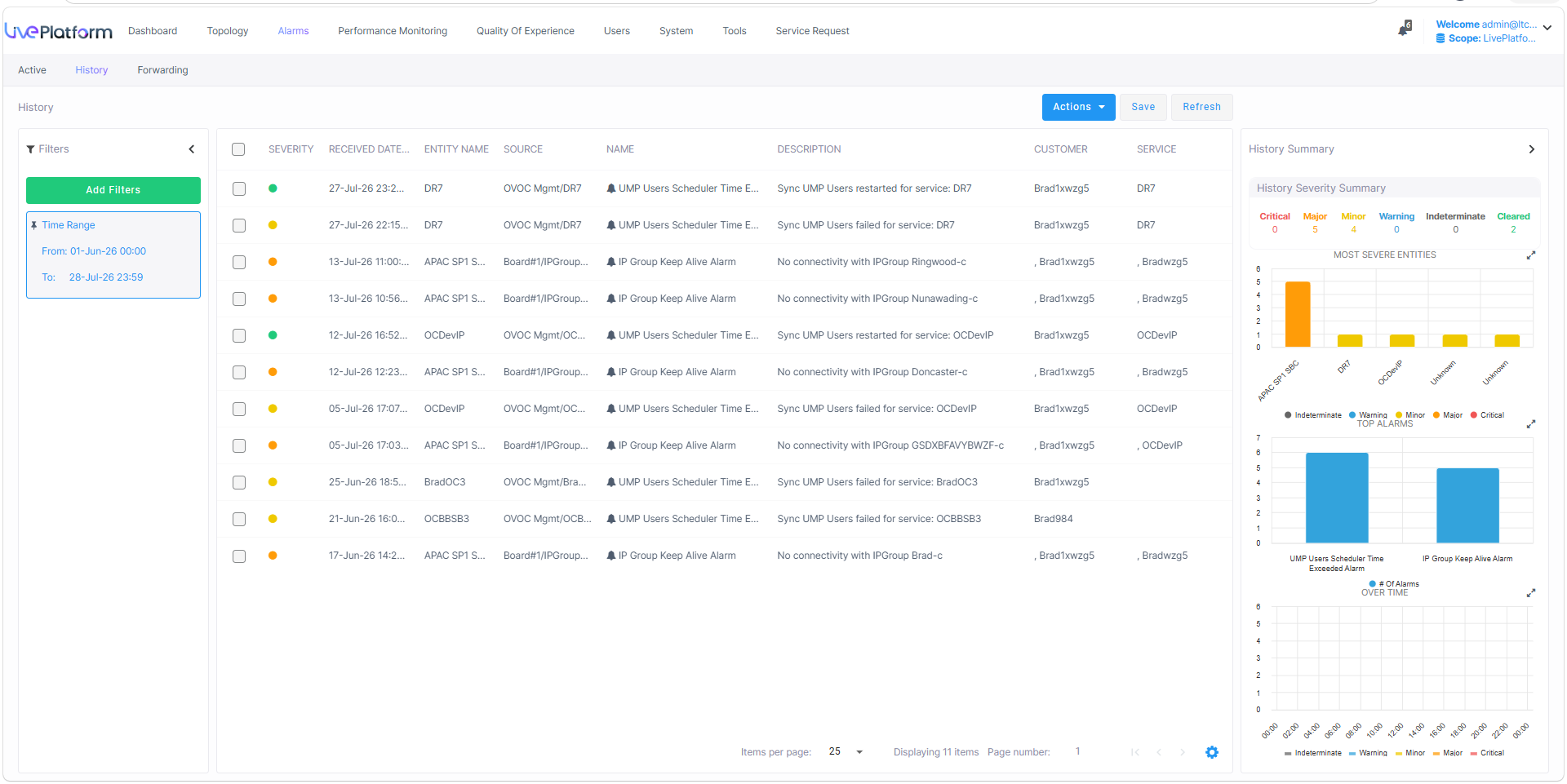
The History Alarms page displays an archive of all previously raised alarms. Once an active alarm is cleared, it is moved from the Active Alarms table to the History Alarms table. History Alarms can be saved to an external file. History Alarms can be saved to a CSV file.
|
➢
|
To view History alarms: |
|
1.
|
In the Menu bar, choose Alarms and then select the History tab. |
|
■
|
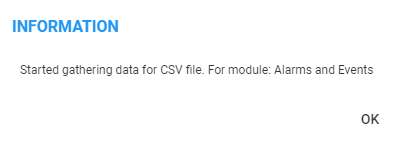
History Alarms can be saved to a CSV file. A CSV file is generated which you can save to your PC. In the menu bar, click Save to save History alarms to a CSV file. |

|
■
|
In the menu bar, from the Actions drop-down, select Stop Auto Refresh to stop the automatic refreshing of the History Alarms page. |
|
■
|
In the menu bar, click Refresh to refresh the page. |