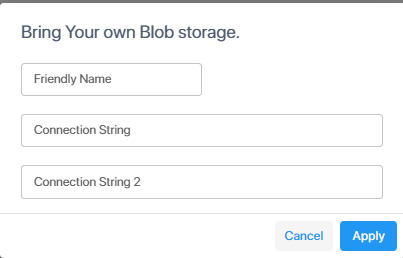
Add your storage
This section describes how to add your own Azure Blob Storage account (BYOS).
|
1.
|
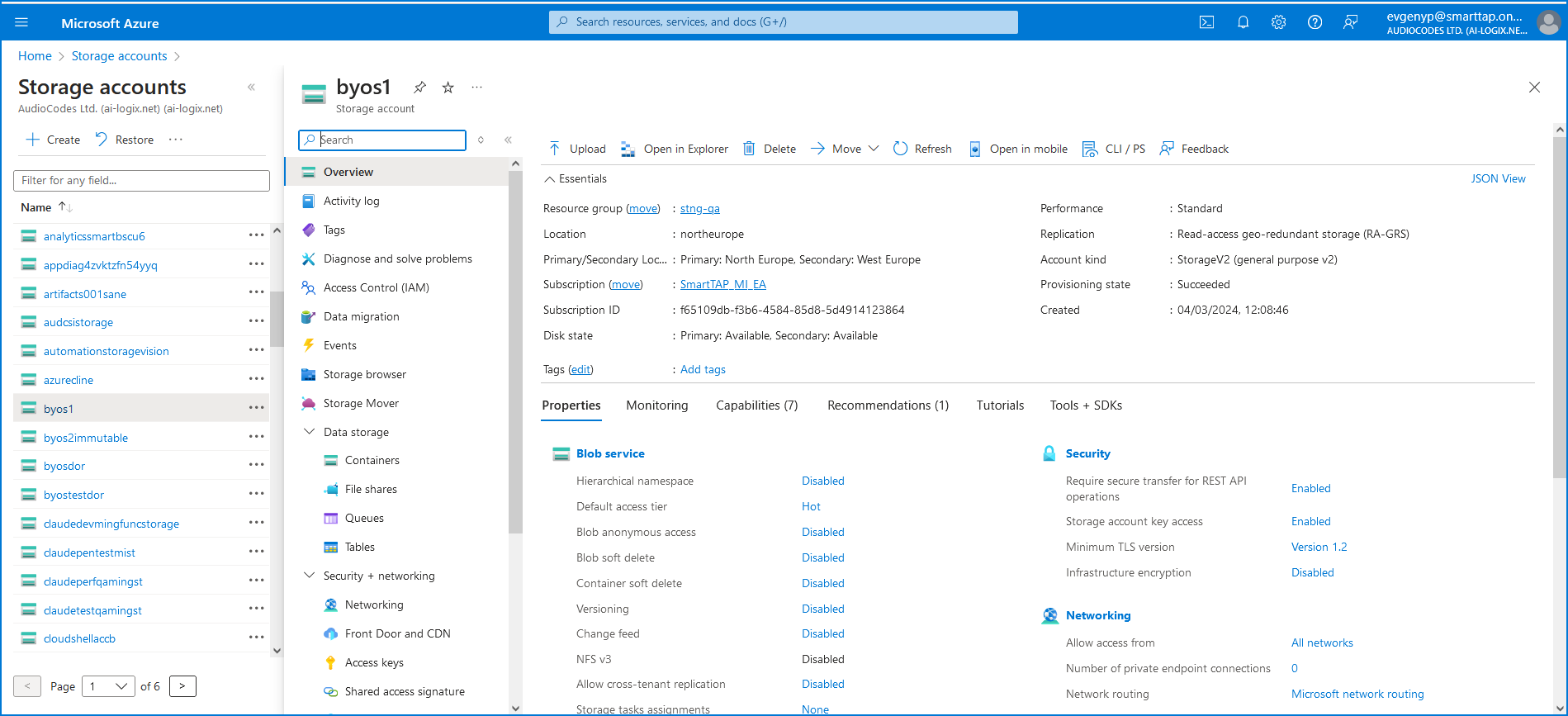
Login to the Microsoft Azure customer tenant, and open the relevant Blob Storage account. |
|
2.
|
In Navigation pane, select Data storage > Containers. |
|
3.
|
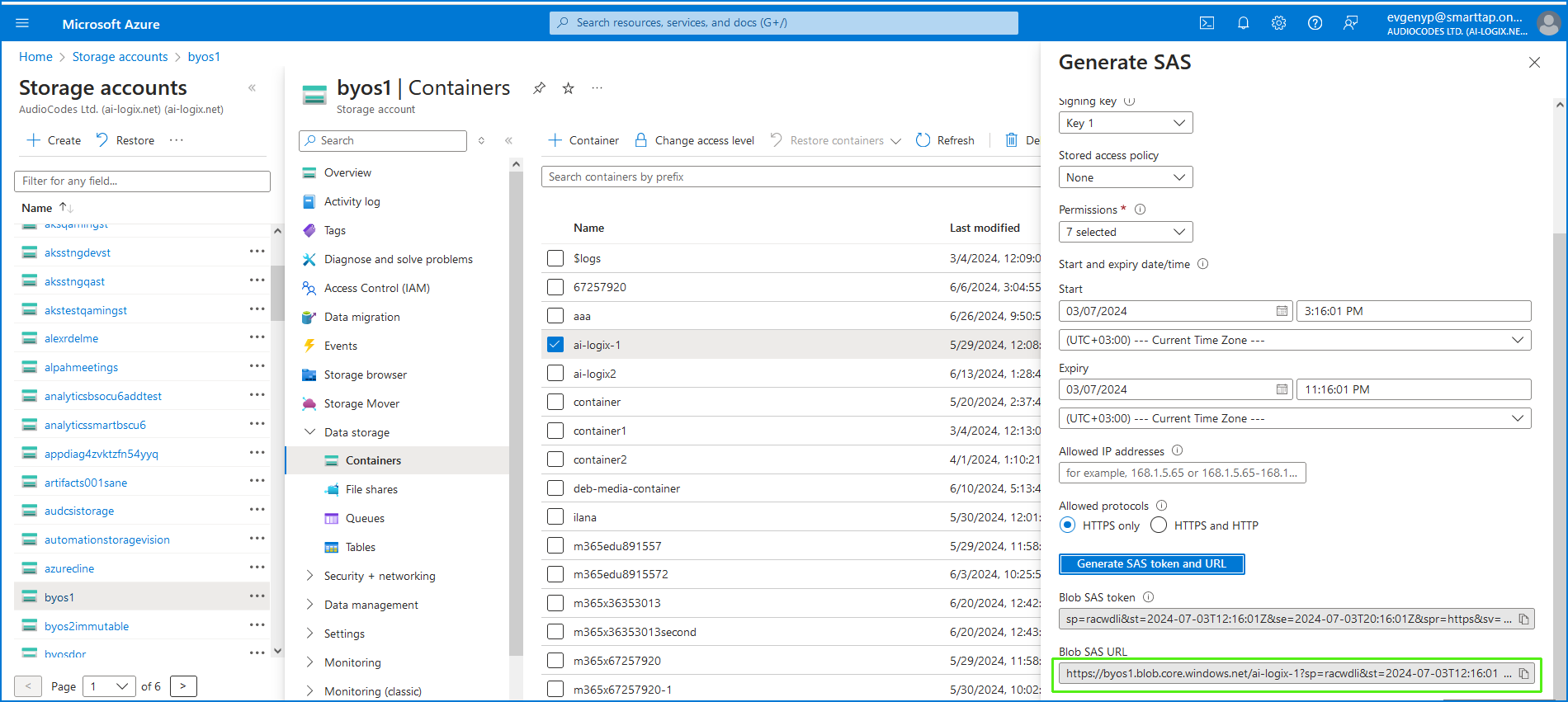
Select and right-click the relevant container in which you wish to store media, then choose Generate SAS. |
|
a.
|
Select the Account key check box. |
|
d.
|
Select all permission check boxes. |
|
e.
|
Allowed protocols HTTPS only. |
|
5.
|
Click Generate SAS token and URL. |
|
6.
|
Copy the Blob SAS URL value to notepad. |
|
8.
|
Click Bring Your Own Blob Storage. |
|
9.
|
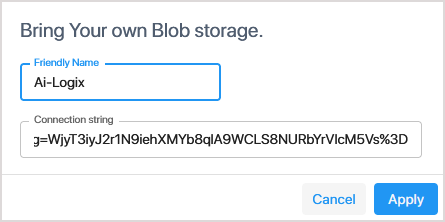
Enter the name of the Blob storage container. |
|
10.
|
Paste the Blob SAS URL that you copied above to the Connection string field. |
|
11.
|
Click Apply. The new BYOS account is added. |
If you have a Pro User license supporting Double Recording with Paired Bot users (Geographical Redundancy Storage), configure the Connection String of the storage container for each region.