Step 2- Configure AudioCodes Device to connect to Live Platform
Before you can connect AudioCodes devices to Live Platform, you must configure the SNMP/HTTPS and WebSocket tunnel connection to Live Platform.
|
1.
|
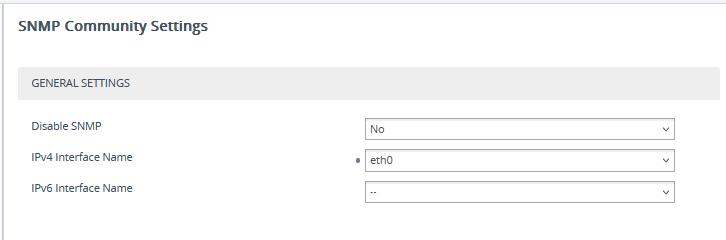
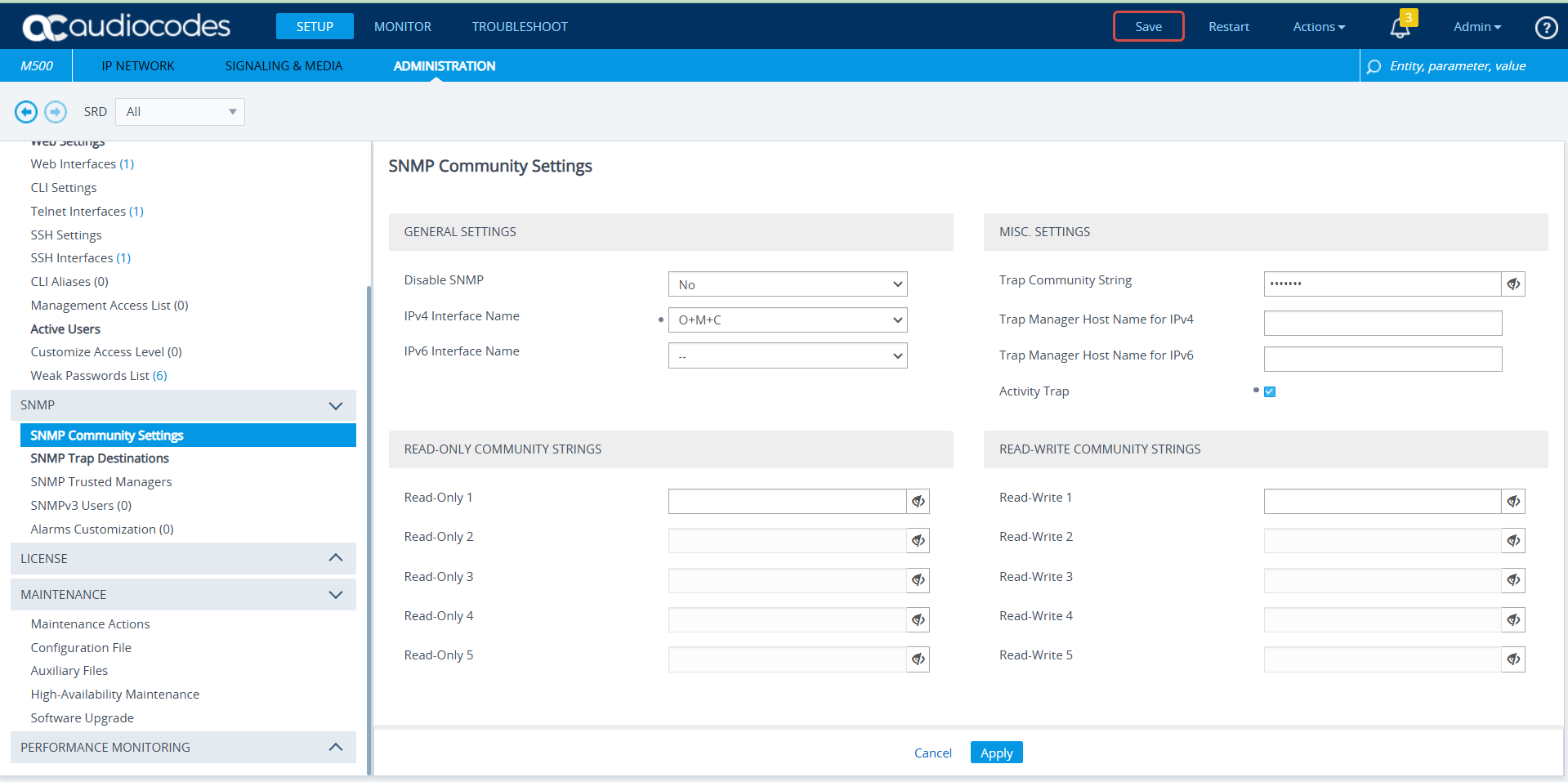
In the SBC Web interface, configure SNMP Community Settings (Administration > SNMP > SNMP Community Settings). |
|
2.
|
Set parameter Disable SNMP to No. |
|
3.
|
Do one of the following: |
|
b.
|
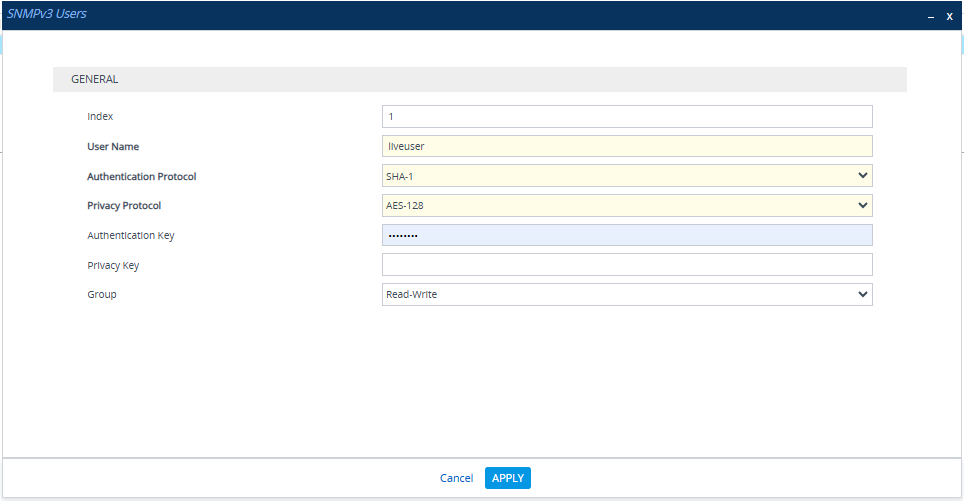
Configure SNMP using SNMPv3 user (SNMP> SNMPv3 Users) and then click New to add a new user: |
|
◆
|
User Name: Create relevant user name |
|
◆
|
Authentication Protocol: SHA-1 |
|
◆
|
Privacy Protocol: AES-128 |
See SNMP Device Connection for details on SNMP connection.
|
4.
|
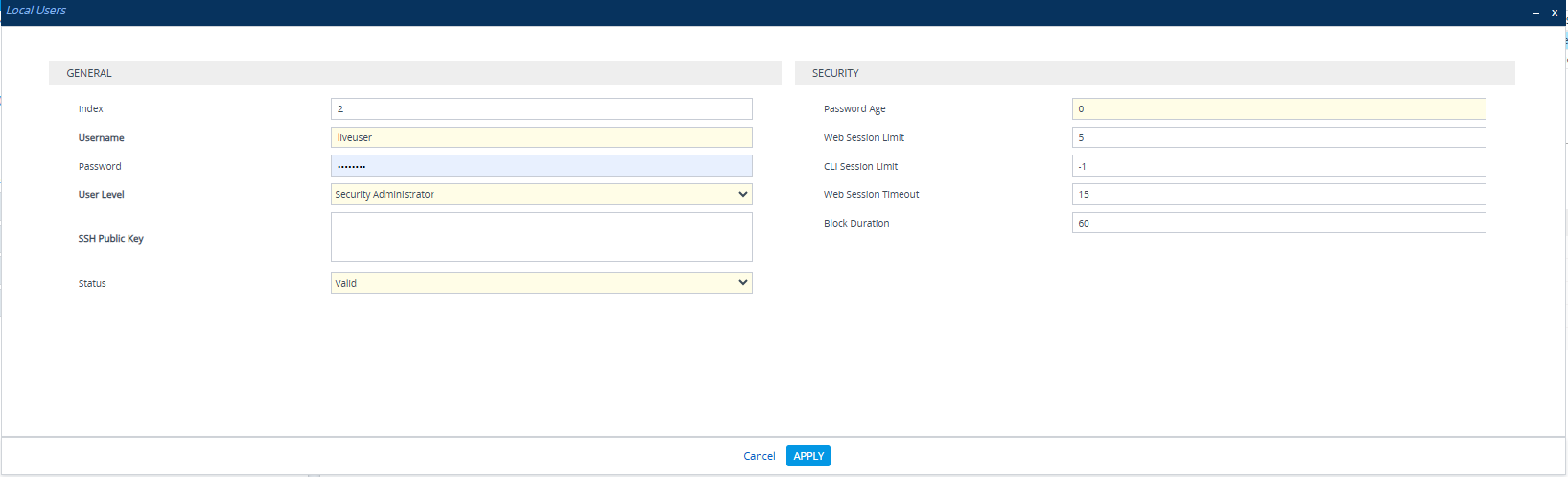
Create a new Security Admin user for Live Platform: Navigate to Setup >Administration > Local Users (save credentials for configuration in Connecting Devices to Live Platform) and configure the following. |
|
●
|
Username: Configure relevant user name |
|
●
|
Password: Configure password |
|
●
|
User Level: Security Administrator |
|
5.
|
Configure and upload incremental INI file that you received from AudioCodes to enable Web Socket tunnel connection to Live Platform (this step requires reboot): |
|
a.
|
Navigate to Setup > Administration > Maintenance > Auxiliary Files > INI file (incremental). |
|
b.
|
Browse to the file, Load, Save and Reboot device. |
|
c.
|
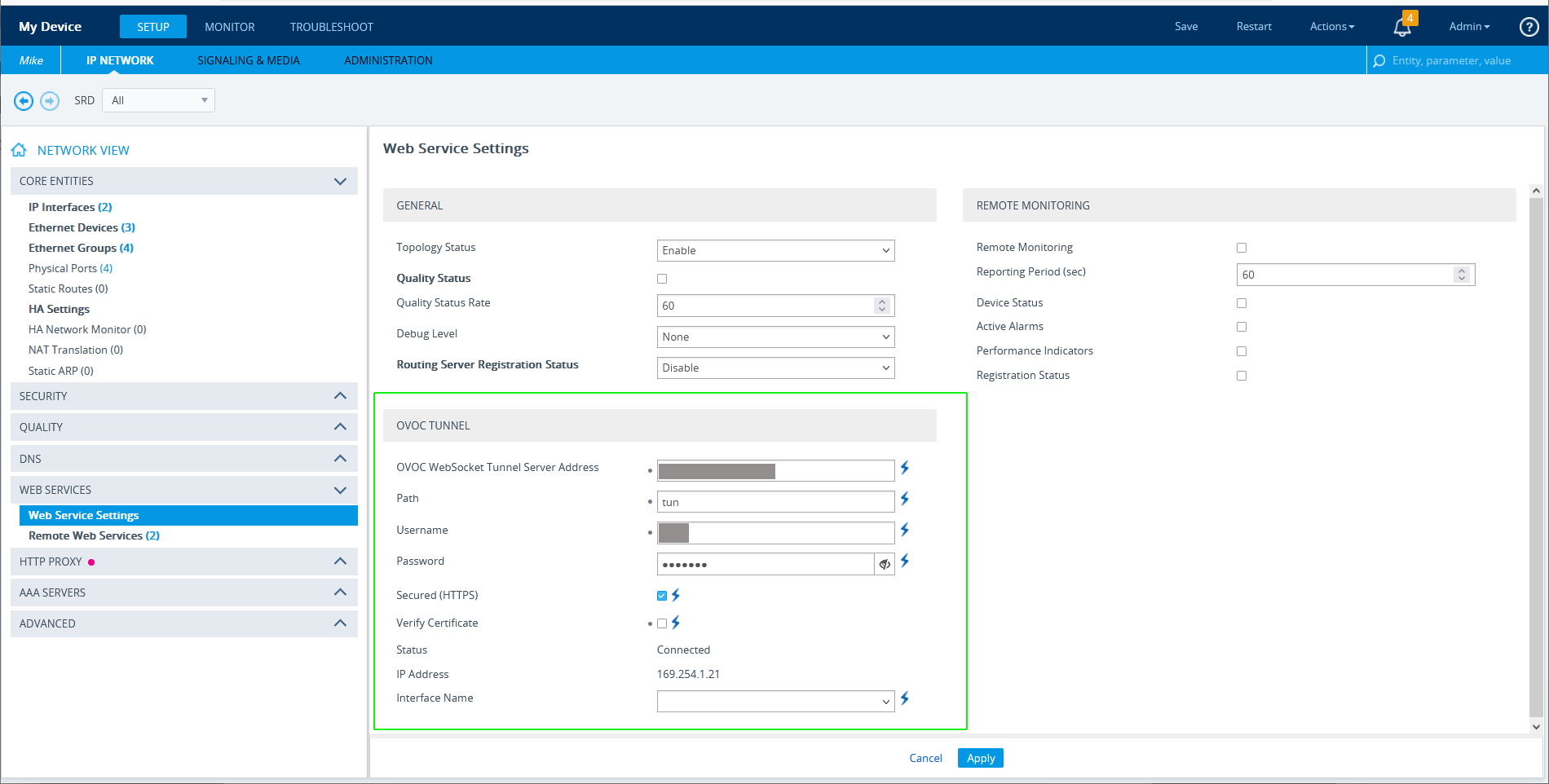
Open the Web Service Settings page (Setup menu > Web Services folder > Web Service Settings). Following device reset, the device is connected to Live Platform. Verify that the parameter settings in the Incremental INI file are applied and that the public IP address of the Live Platform server is displayed. |
|
d.
|
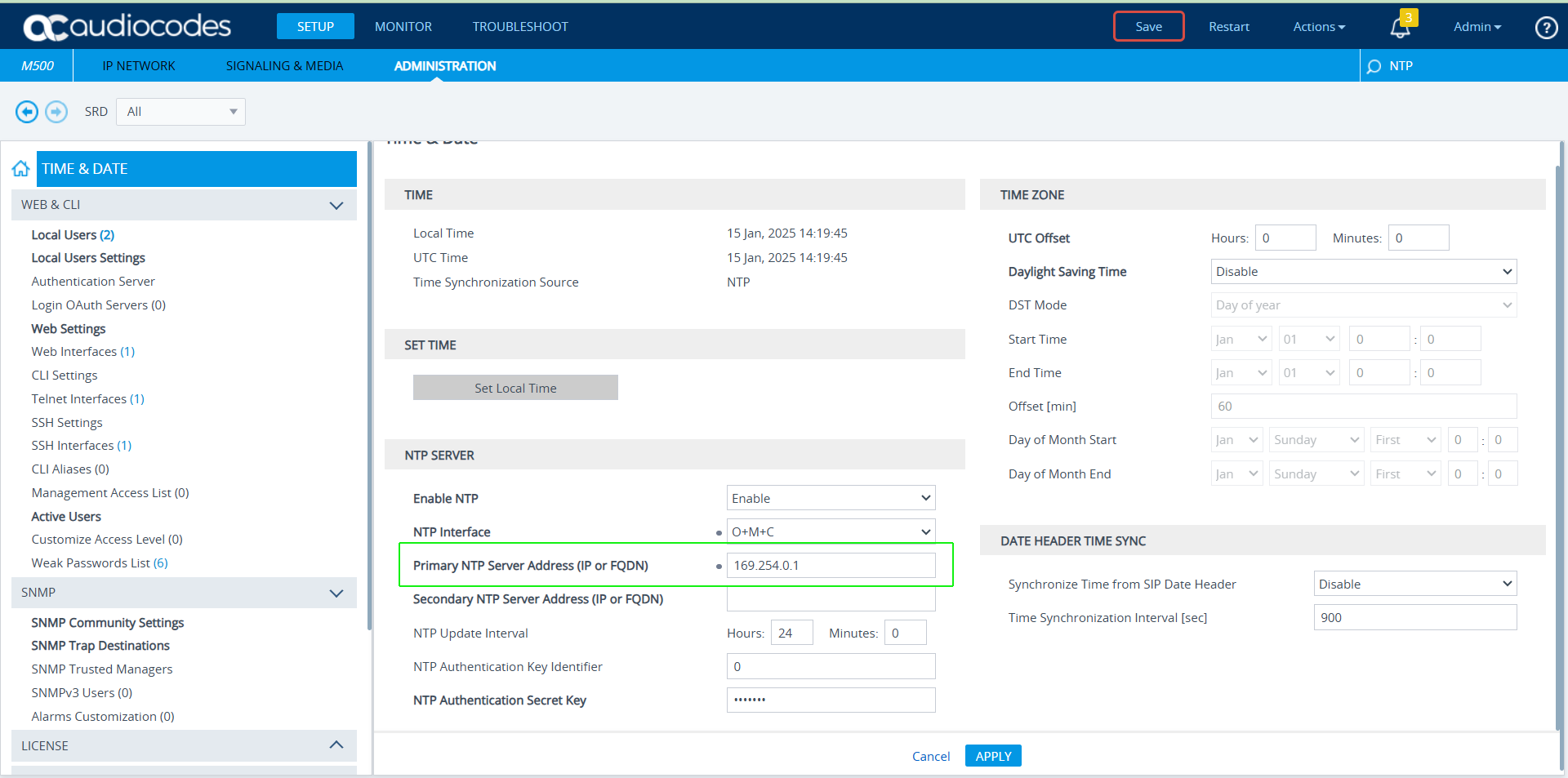
Open the Time & Date page (Administration > Time & Date). Verify that the NTP server is configured in the subnet of the Live Platform server. |
|
6.
|
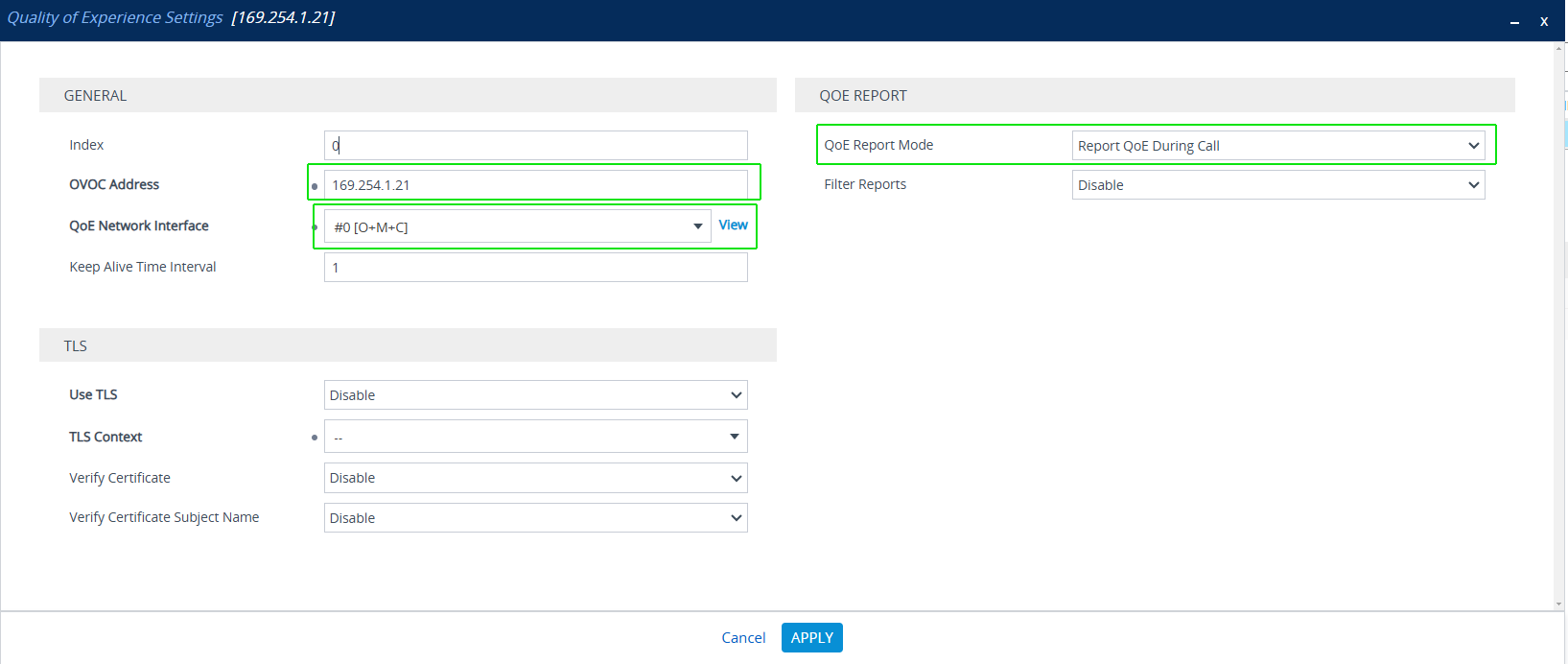
Open the Quality of Experience Settings page (Setup > Signaling and Media > Media > Quality of Experience > Quality of Experience Settings). Verify that the highlighted parameters are configured. |
|
7.
|
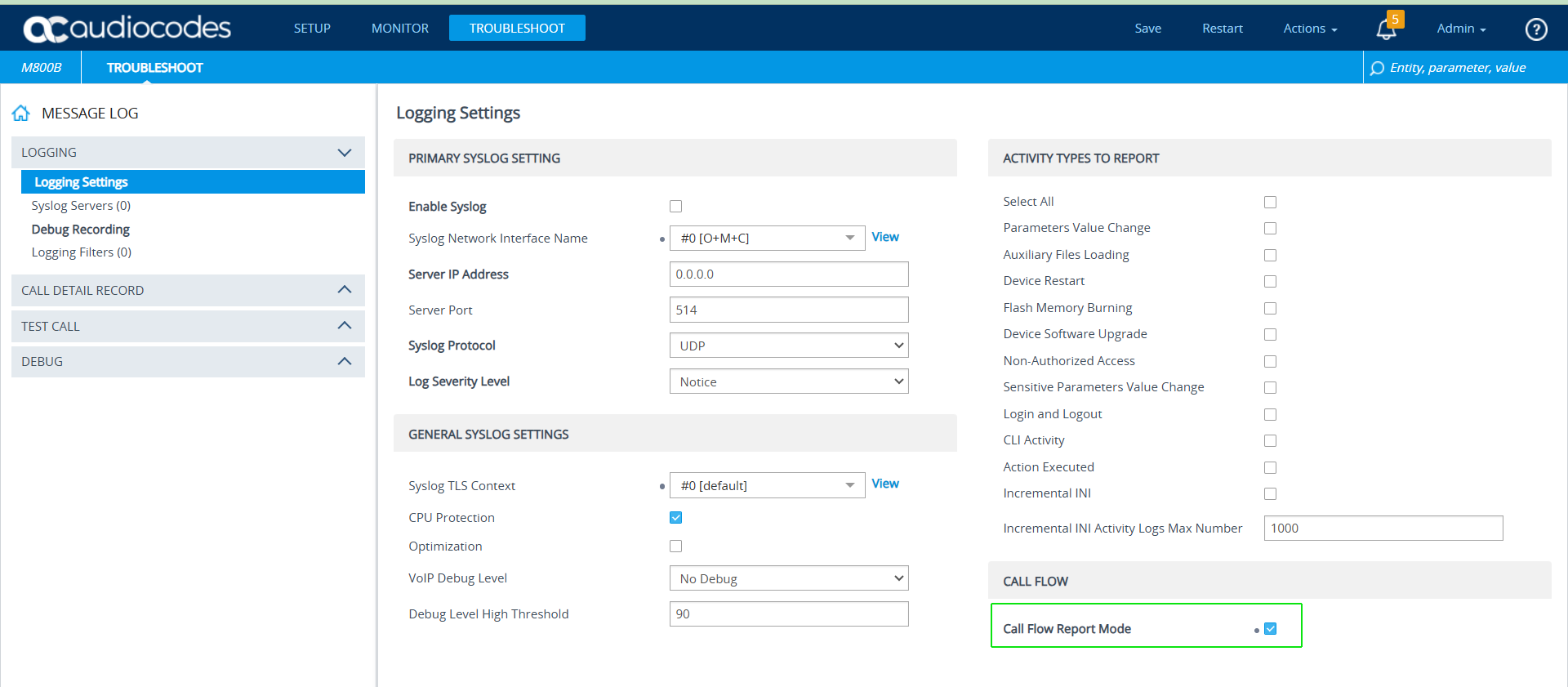
Open the Logging Settings page (Troubleshoot > Logging > Logging Settings). Verify that the 'Call Flow Report Mode' is enabled. |